How CERT Command fits together
CERT Command coordinates Community Emergency Response Team volunteers during an activation, a drill or a training. Three apps share one record of what happened, kept by the county's CERT Command server.
- Members use the phone app in the field. They check in, share a status in one tap, send reports with a photo and their location, follow the tasks their leader gives them and talk with their team.
- Team leaders use the dashboard on a Mac or Windows computer. They set the team's readiness, see every member on the map, organize teams, assign tasks, acknowledge reports and talk with the county.
- The county EOC uses the web console. It sees every activated team, the serious reports that need the county, and talks with team leaders. County administrators use the same console to create the county's teams and their leader codes.
Everything a member or a leader does is saved on their own device first, signed and encrypted, and sent with the time it happened as soon as the connection returns. Nothing is lost while a phone has no signal or the dashboard cannot reach the server.
Which part is for you
The pictures in this guide show Sapphire Point CERT, a sample team, on the day of an imagined Hurricane Milton. Names, addresses and positions are made up. Click any picture to see it full size.
Members: the CERT Command phone app
For the volunteer in the field. The app works in both light and dark mode, follows your phone's text size, and keeps working without signal.
Install the app
- iPhone: during the test period the app comes through Apple's TestFlight. Open the TestFlight link you received, install TestFlight if asked, then tap Install next to CERT Command. Updates arrive in TestFlight.
- Android: during the test period the app comes through a Google Play test. Ask to be added to the testers list with the email address of the Google account on your phone (your team leader can pass it on). Then, on the phone, open certcommand.org/android, accept the invitation and install CERT Command from Google Play. Updates arrive in Google Play.
To stay up to date on new versions and what to test, join our mailing list at certcommand.org/news. For news, tips and questions, and to talk with other CERT members and leaders, join the CERT Command Facebook group on Facebook.
Join your team
First, the Terms of Use. The first time you open CERT Command, it shows the key points of the Terms of Use: CERT Command is an organizing tool, not an emergency service or a safety system; nobody at CERT Command watches your team; it can fail, so keep a radio, a phone and a paper roster; and you use it at your own risk. Tick I understand and I agree under each point, then tick the last box (the Terms of Use and the Privacy policy, 18 or older) and tap Continue. Nothing else opens until you do. It asks again only if the terms change; your acceptance is kept in your team's record.
You join a team once, with your phone: in person, by scanning the code on your team leader's screen, or from where you are, with an invitation your leader sends you by text or email (see below). A phone that joined a team can only ever work with that team. Joining is not checking in: you check in each time you start working for your team, in person (see Check in).
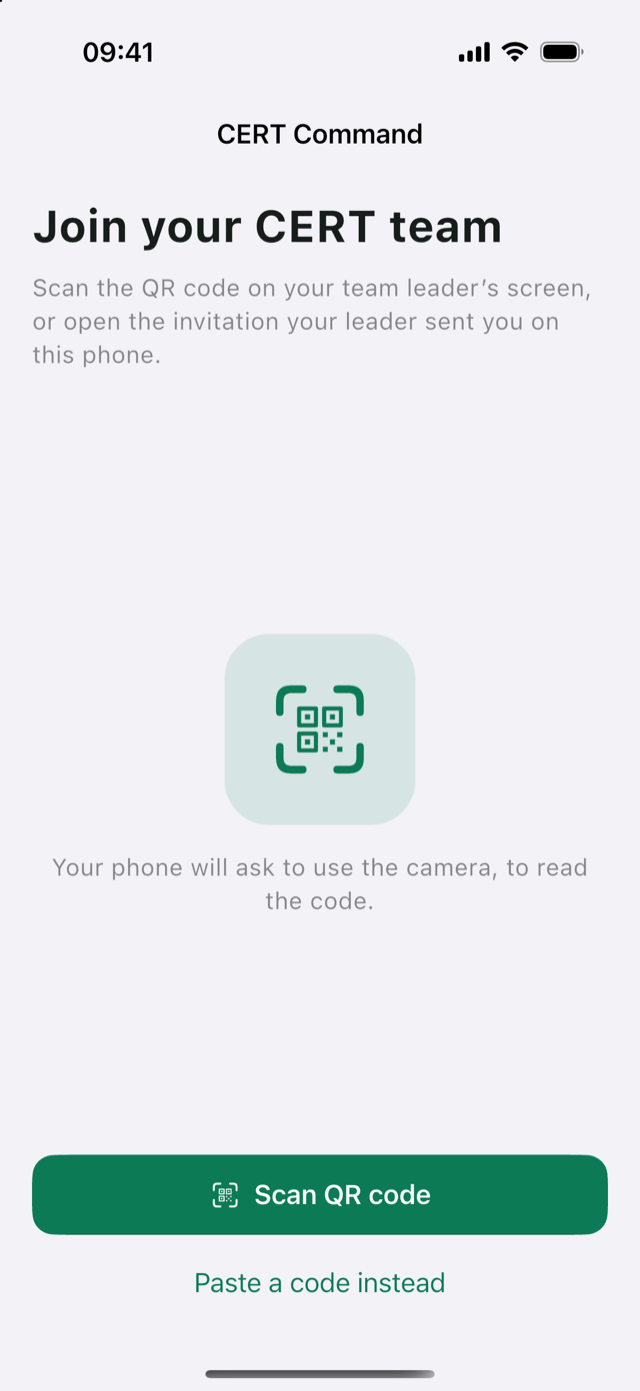
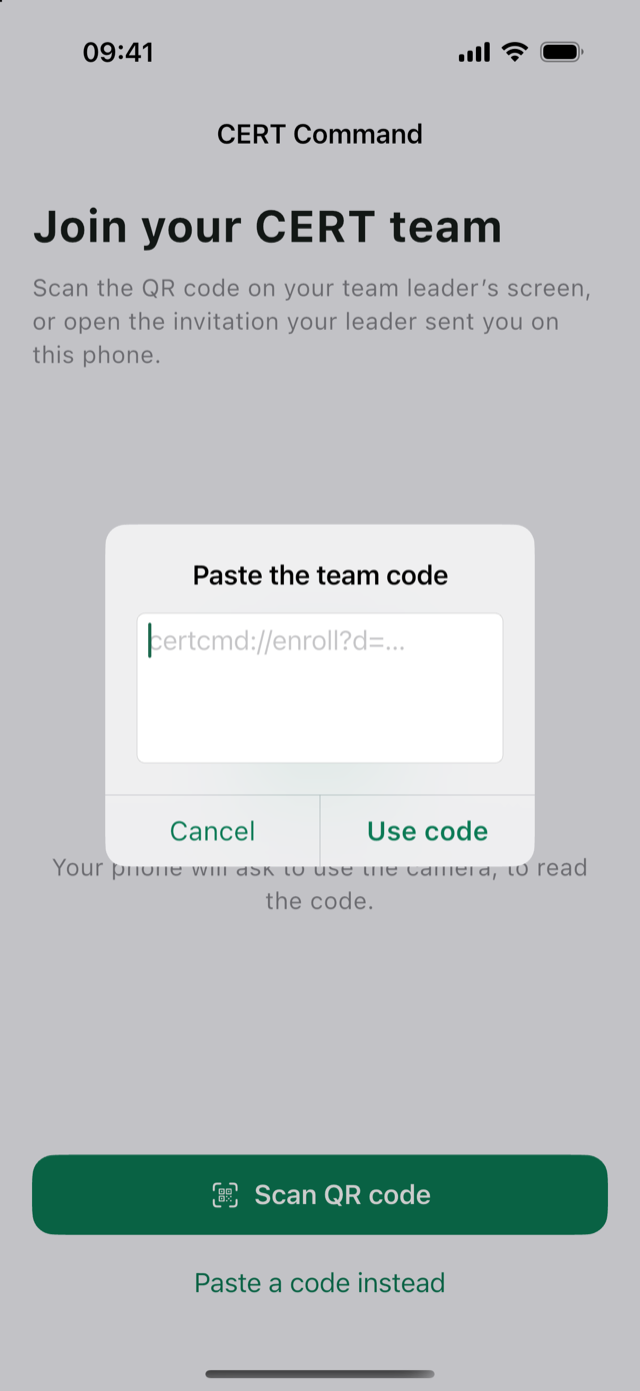
- Open CERT Command. The screen says Join your CERT team. Tap Scan QR code and allow the camera when your phone asks.
- Point the camera at the code on your leader's dashboard (Enroll section). If the camera is not available, tap Paste a code instead and paste a code that starts with
certcmd://enroll?d=, then Use code. - The phone shows Join and the team's name, with the team key: twelve characters like
89W4-CA73-MMG5. Check with your leader that their screen shows the same key. That proves you are joining the real team. - Under Your full name, type your name as your team knows you (for example Pat Jones), then tap Join team.
If your leader turned on approval, the phone shows Waiting for your team leader and continues by itself once they approve. Keep the screen open; tap Start over to use another code. Codes are valid for 10 minutes and usually work for one phone; the leader's screen shows a fresh code after each phone joins.
With an invitation from your leader
When you cannot come to your leader to scan the code, they can send you a personal invitation by text or email. It is for you only, works once, for a day, and your phone always waits for your leader's approval, so a forwarded invitation lets no one in.
- Install CERT Command (above).
- On the phone, open the link in the invitation (it starts with
certcommand.org/join) and tap Open in CERT Command. If nothing happens, copy the code (in the email, or Copy the code on that page), open CERT Command, tap Paste a code instead and paste it. - Check that the team key on your phone is the one in the invitation, type your name and tap Join team.
- The phone shows Waiting for your team leader. It continues by itself once your leader approves your phone.
| Message | What to do |
|---|---|
| This is a team leader code. Ask your leader for the member code. | Leader codes are for the dashboard. Ask for the code on the Enroll page. |
| This code is no longer valid. Ask your leader for a new one. | It expired or was used. The leader shows a new code. |
| This phone's clock looks wrong. | Set the date and time to automatic in Settings, then try again. |
| Cannot reach the team server … | Joining needs a connection. Try again with Wi-Fi or cellular data. |
| Your team leader declined this phone. | Ask your leader. |
Check in
Check in when you start working for your team. Your leader sees you on the dashboard and on the map from that moment. You check in in person: at the staging area, you scan the check-in code on your team leader's screen. That is how your leader knows who is really there.
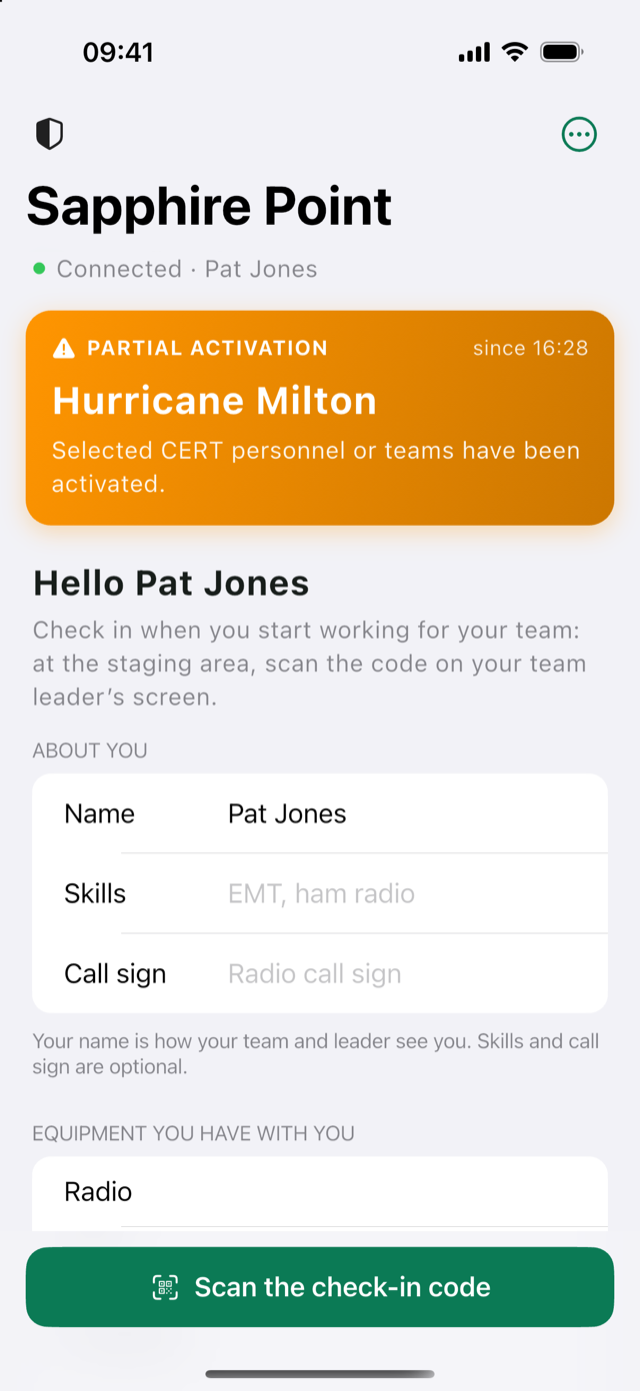
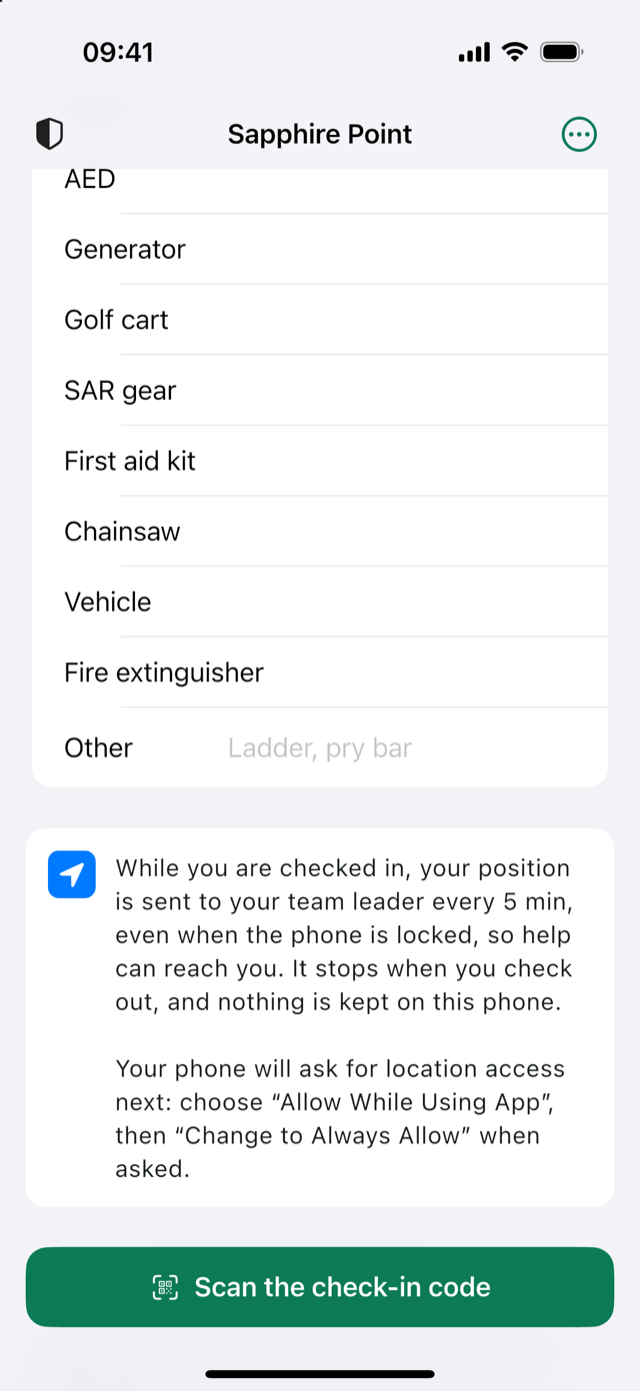
- About you: Name (required), Skills (for example EMT, ham radio) and Call sign. They are filled in from your last check-in.
- Equipment you have with you: tap the rows that apply (Radio, AED, Generator, Golf cart, SAR gear, First aid kit, Chainsaw, Vehicle, Fire extinguisher), and list anything else under Other, separated by commas.
- Tap Scan the check-in code and point the camera at the code on your leader's screen (their dashboard, or a TV at the staging area). The code changes every 30 seconds; a photo of it sent to someone elsewhere stops working almost at once. It needs no internet: your phone checks it itself, and your check-in goes to your leader as soon as there is signal.
- The phone asks for location access: choose Allow While Using App, then Change to Always Allow when asked. It also asks to send notifications: allow them, or you will not hear about new tasks.
| Message while scanning | What to do |
|---|---|
| That check-in code has expired. | Scan the code on your leader's screen now (not a photo of it), and check that your phone's date and time are set automatically. |
| That check-in code is for another team. | Scan your own team's code. |
| That is the code to join a team. | That one is for joining. Ask for the check-in code. |
If your leader turned in-person check-in off (for a drill, say), the button is simply Check in and works from anywhere. Your leader can also check you in by hand from the dashboard.
While you are checked in and an incident is open, your position goes to your team leader at the interval your team uses (every 5 minutes unless your leader changed it), even when the phone is locked. Position sharing stops when you check out. You can check in with no incident open (the first hours of a sudden event, say): then your position is not shared, not even where you checked in, until your leader opens an incident. Reports still say where they are from. If you checked in before the incident was opened, your phone notifies you when it opens: open CERT Command, and sharing starts. On Android, choose While using the app when asked: while your position is shared, a notification says Sharing your position with your team leader while you are checked in, and positions keep going with the phone locked.
The ⋯ button at the top right offers Radio channels, Feature requests & bugs, About CERT Command and Join another team.
Check in from the field
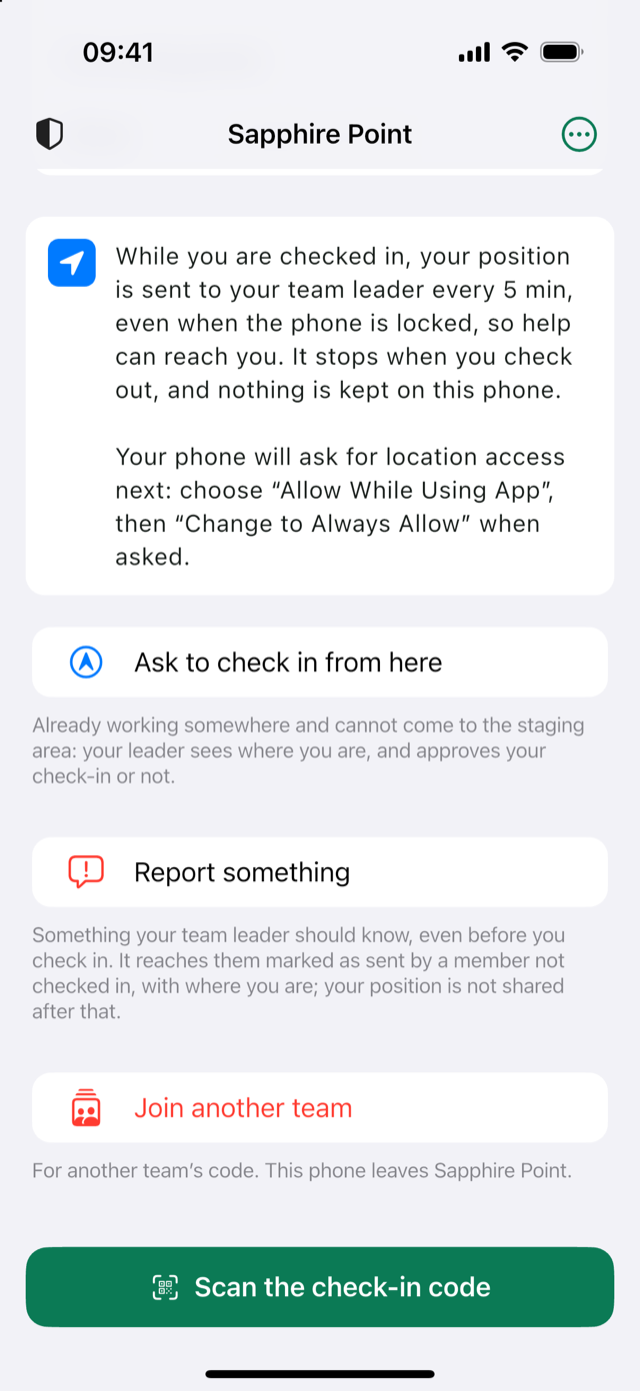
Already working somewhere when your team is activated, and cannot come to the staging area? Fill in the check-in screen, then tap Ask to check in from here and confirm.
- Your leader sees your request on their dashboard, with where you are, and approves it or not.
- Meanwhile the screen says you are waiting, and your position is not shared.
- Approved: you are checked in, your position is shared from then on, and you get a notification (Checked in · Lee Carter approved your check-in from the field). The record shows you checked in from the field, approved by your leader.
- Not approved: the screen says Lee Carter did not approve your check-in from the field. Check in at the staging area.
Asking needs a connection, since your leader has to see it.
Report before checking in
Something your team leader should know, even though you have not checked in (a power line down on your street, say)? On the check-in screen, tap Report something. It works like any report (see Send a report). Your leader gets it marked Not checked in, with where you were when you sent it; your position is not shared after that. The mark comes from the team's record, not from your phone. Life-threatening emergency: call 911.
Answer a call-out
When your leader needs people (an activation, a search, a sandbag line), they send a call-out. Your phone is notified, even with the app closed, and a red card at the top of the app shows the message: Call-out from Lee Carter · 07:12 — Activation at 0800, staging at Station 4. Tap I can come, I can't or Maybe later. Your leader sees your answer at once; you can change it until they end the call-out. You do not need to be checked in, and other members do not see your answer.
Asked to check in. Your leader can also ask you to check in from their roster. Your phone says Your team leader is asking you to check in, even with the app closed, and the app goes to the check-in page, which shows the same words at the top. Check in as usual.
The home screen
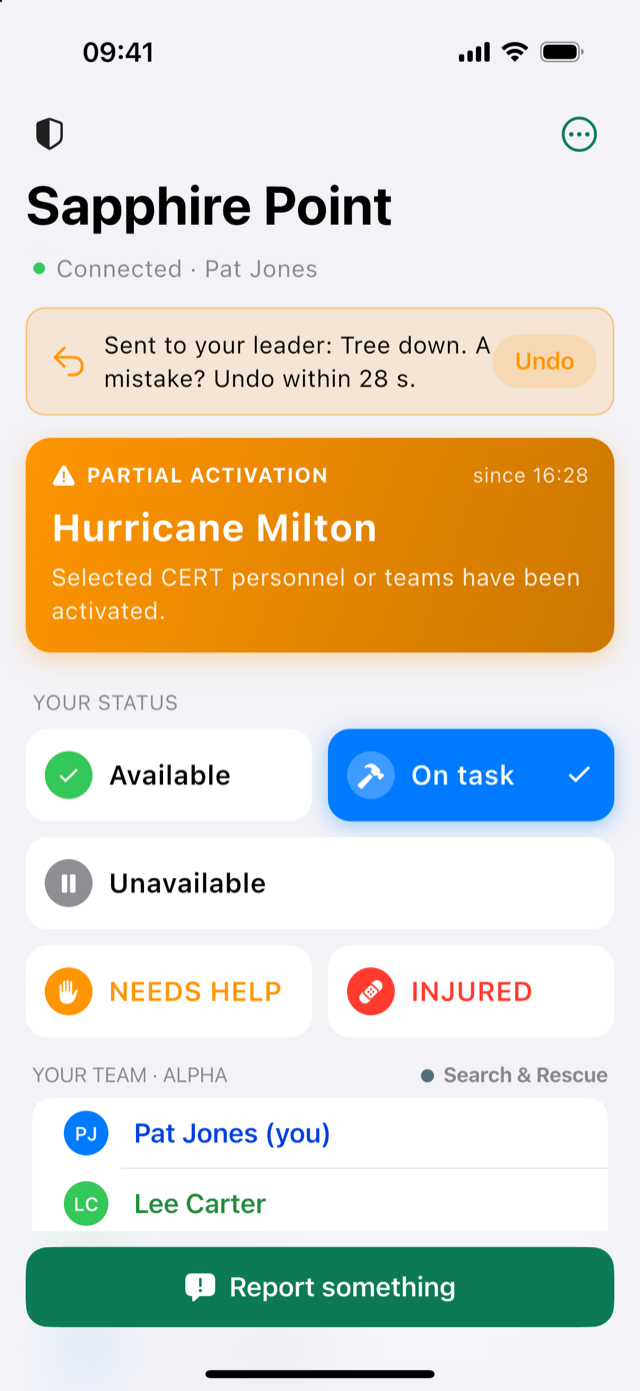
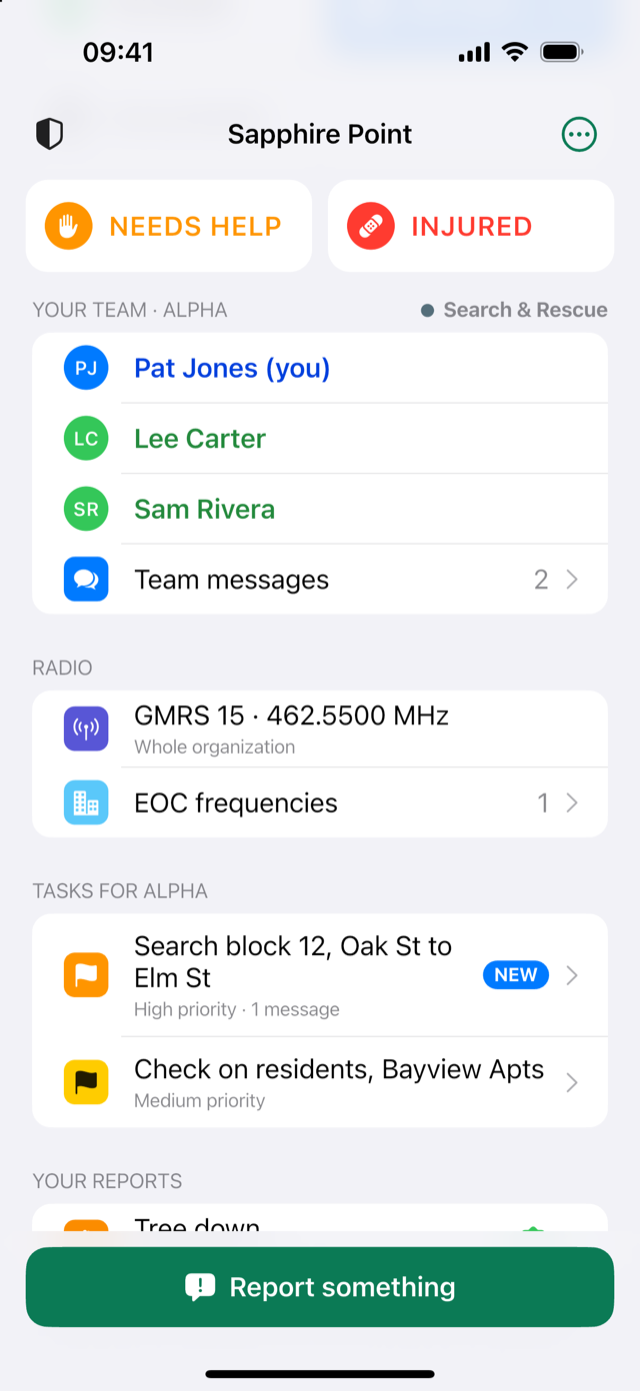
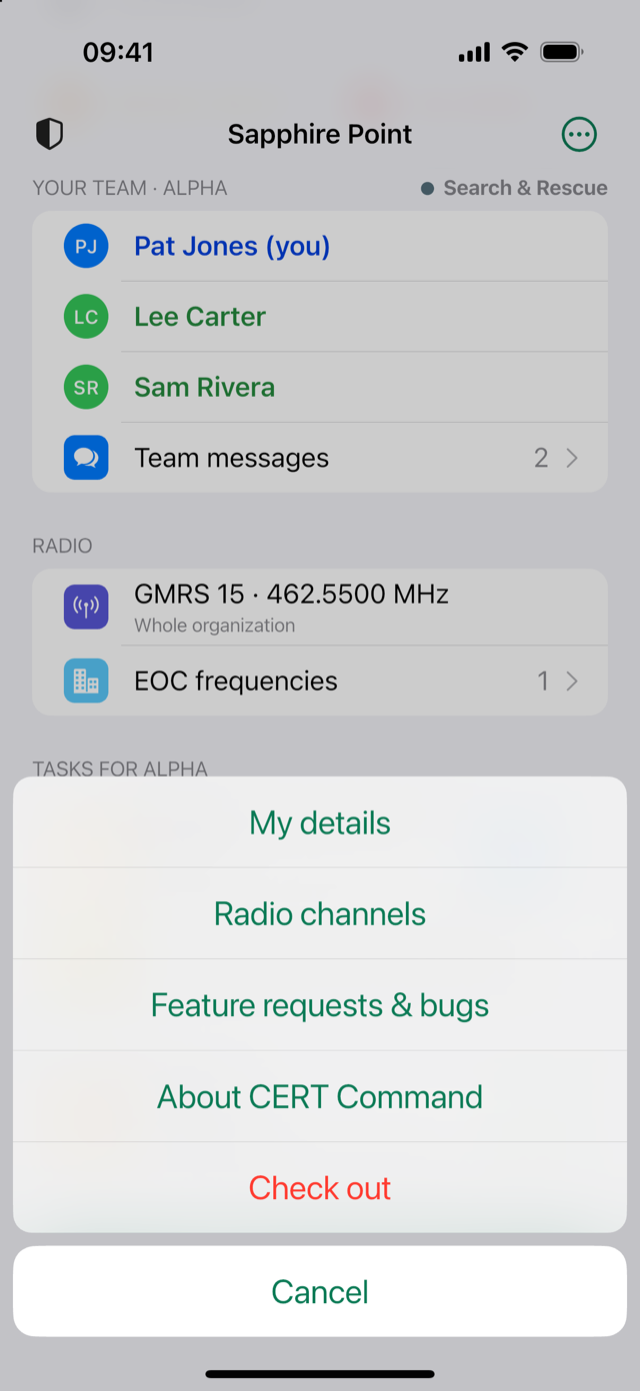
From the top:
- Connection line under the team name: Connected, Connecting…, Offline or Not accepted by the server, followed by your name.
- No connection banner (orange) when you are offline: No connection — 3 waiting to send. Everything you do is kept and sent when the connection is back. While it catches up, a blue banner says Sending 3….
- Readiness banner: the level your leader set (for example PARTIAL ACTIVATION), the event name and what the level means. At Normal it is a single green line.
- The incident your team is working, when one is open: Incident: Hurricane Milton · since 14:05, with a red flag. It shows on the check-in screen too, before you check in.
- Notices when something needs you: Still on duty? (see below), location off or only While Using (your leader stops seeing where you are once the app is out of sight), notifications off (each with a Settings button), or an action the server refused. With no incident open, a gray line says No incident is open: your position is not shared. It starts when your leader opens one. Your leader still gets your reports.
- Your status: see the next section.
- Your team: the team you are in, its role (for example Search & Rescue) and its members. Each name is colored with that member's status. Team messages opens your team's conversation. If you are not in a team yet: Your team leader will put you in one.
- Radio: your team's channel, the whole organization's channel and the EOC frequencies.
- Tasks for your team: open ones first, the most urgent first. NEW marks something you have not seen yet.
- Your reports: the last ten, with whether your leader has seen each one and how many replies it has.
- At the bottom: Report something.
The ⋯ menu: My details, Radio channels, Feature requests & bugs, About CERT Command and Check out.
Your status
Tap a status to change it. Your leader sees it at once, and, with an incident open, your position goes with it.
| Status | When | What happens |
|---|---|---|
| Available | Ready for a task. | Changes at once. |
| On task | Working on something. | Changes at once. |
| Unavailable | Taking a break, not reachable. | Changes at once. |
| NEEDS HELP | You need assistance. | Asks You need help? with an optional note (What is happening?), then Tell my leader. An alarm sounds on the dashboard. |
| INJURED | You are hurt. | Asks You are injured?, then Tell my leader. An alarm sounds on the dashboard. |
When your leader acknowledges a NEEDS HELP or INJURED alarm, your status shows Seen by and their name, and you get a Help is aware notification.
Send a report
Tap Report something on the home screen.
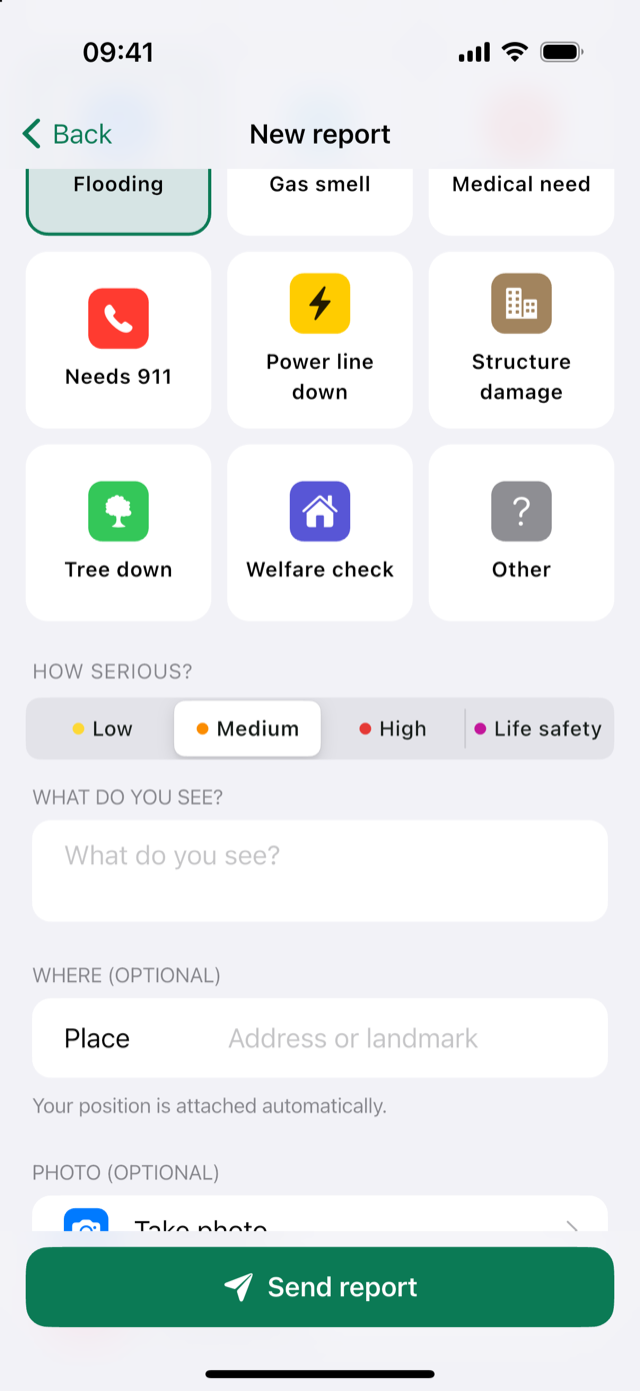
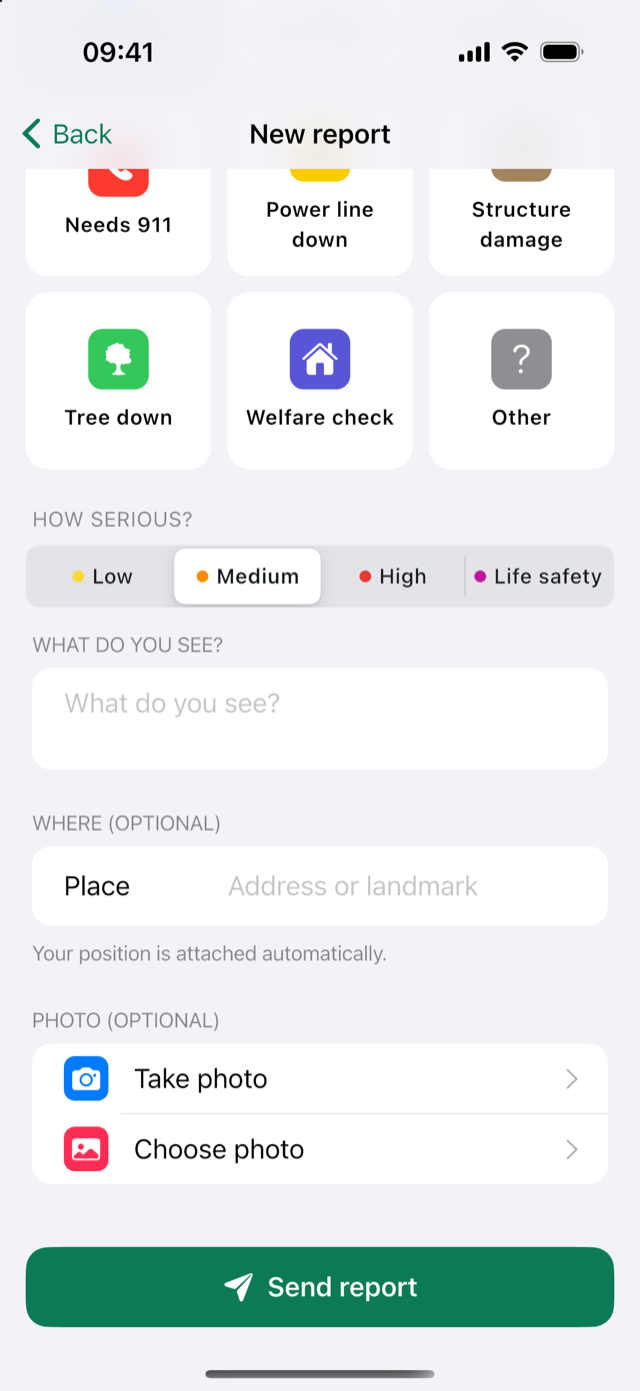
- What is it? Choose one: Blocked road, Fatality, Fire/smoke, Flooding, Gas smell, Medical need, Needs 911, Power line down, Structure damage, Tree down, Welfare check or Other.
- How serious? Low, Medium, High or Life safety. Needs 911 sets Life safety by itself.
- What do you see? A short description.
- Where (optional): an address or landmark. Your position is attached automatically.
- Photo (optional): Take photo or Choose photo; tap ⓧ to remove it.
- Tap Send report. The report's own page opens: Sent to your leader, or Saved; it goes when there is signal, with Undo for 30 seconds, then whether your leader has seen it and their answers.
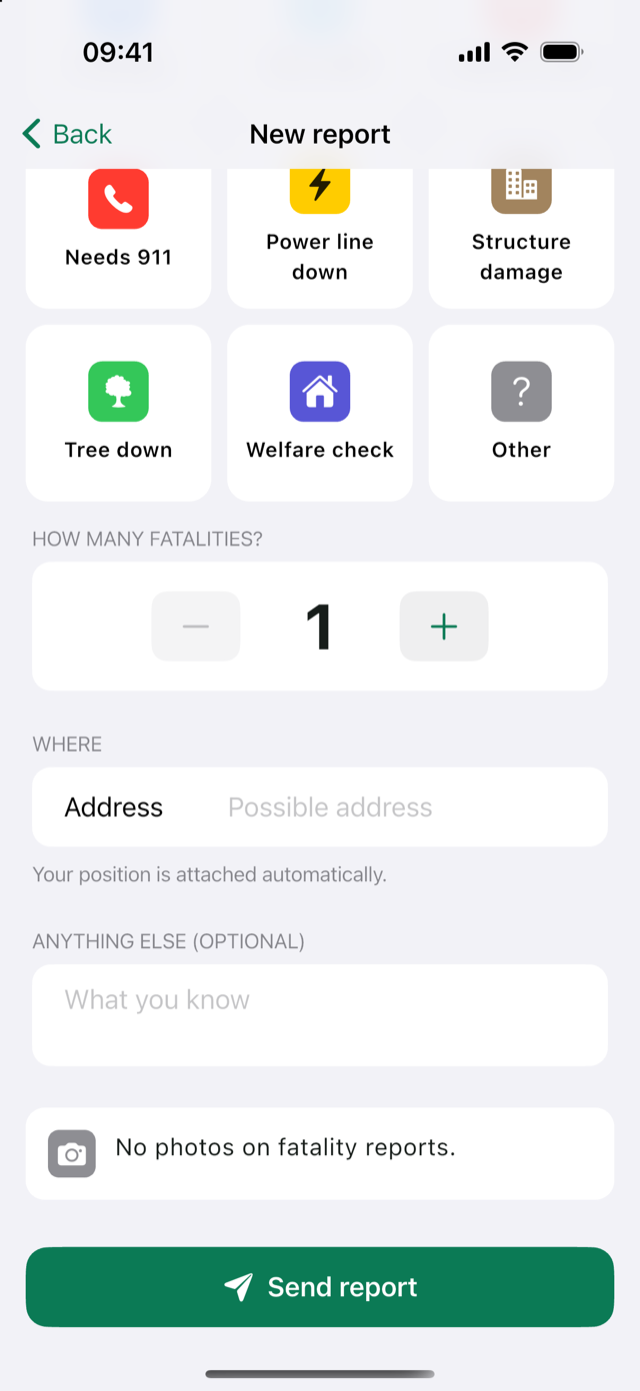
Fatality reports ask How many fatalities? (use − and +), an address and anything else you know. They never carry photos. High, Life safety and fatality reports reach the county EOC automatically unless your leader keeps them local.
Undo a report
Sent a report by mistake? You have 30 seconds to undo it.
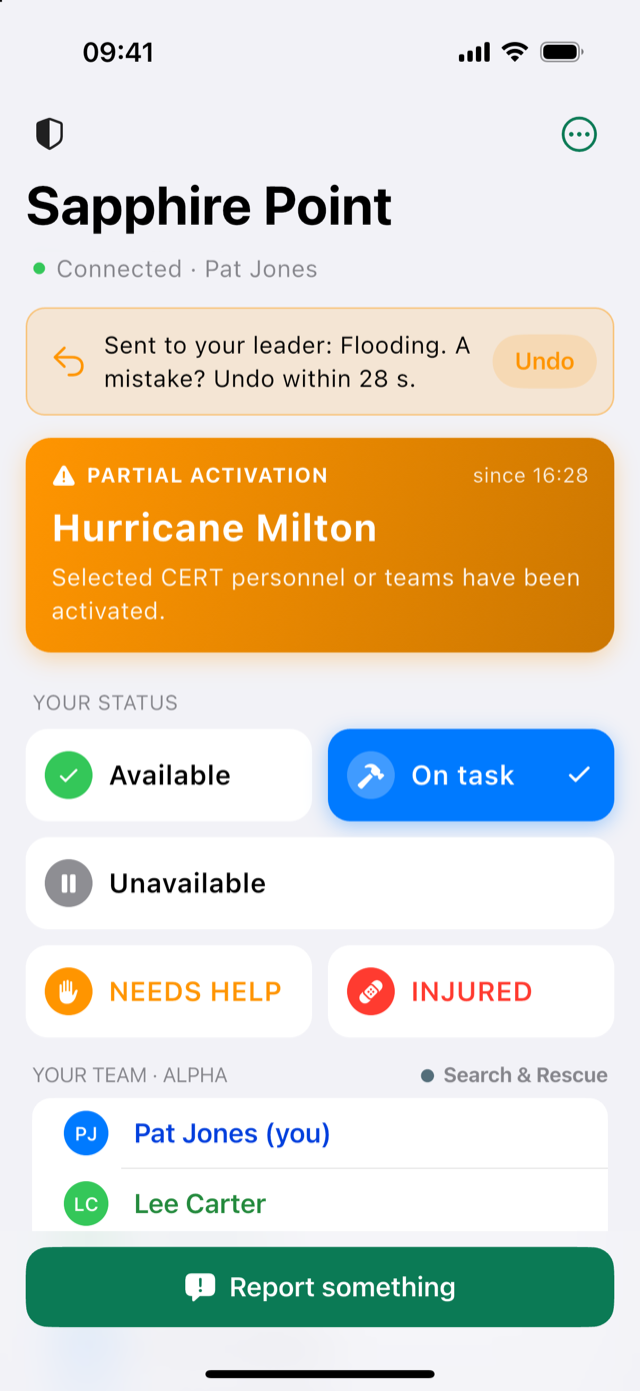
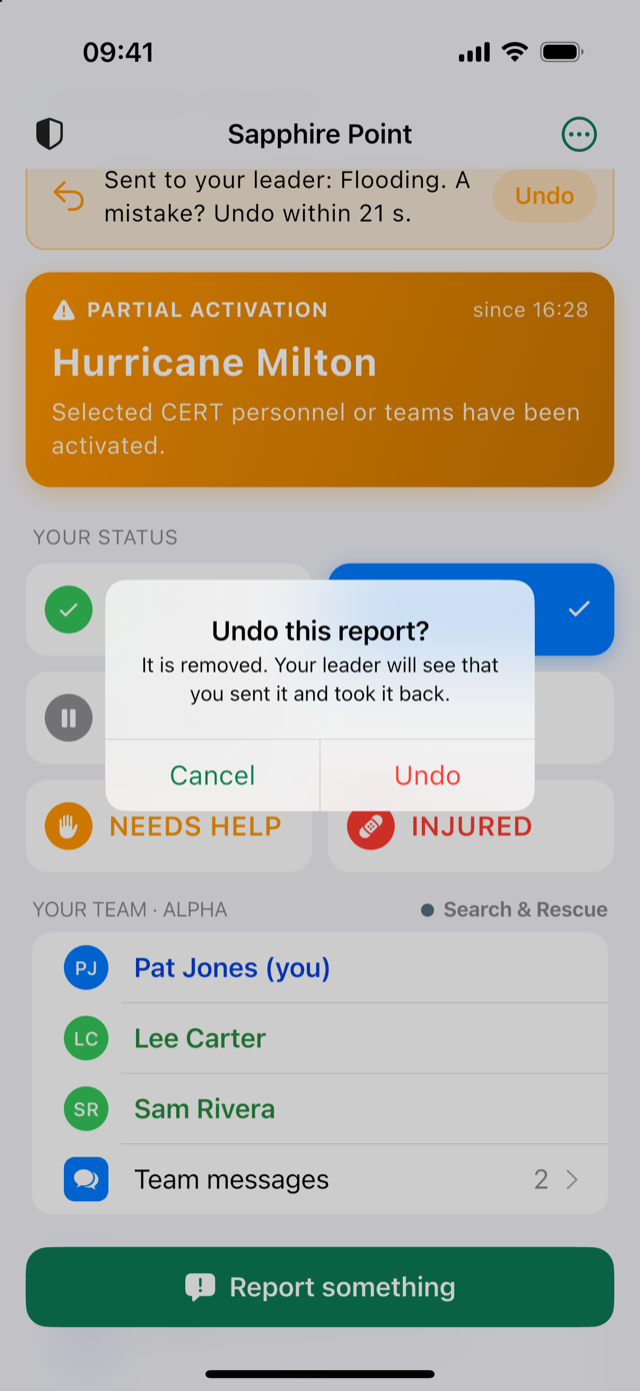
- Tap Undo on the report's page (it opens when you send it), or on the card at the top of the home screen. The card counts down the seconds left.
- Confirm with Undo. The report leaves your leader's dashboard and the county's view. Your leader's activity log keeps a line saying it was sent and taken back.
- It works without signal: the 30 seconds are counted by your phone. After that the report stays (Too late); add a note to it instead.
Follow your report
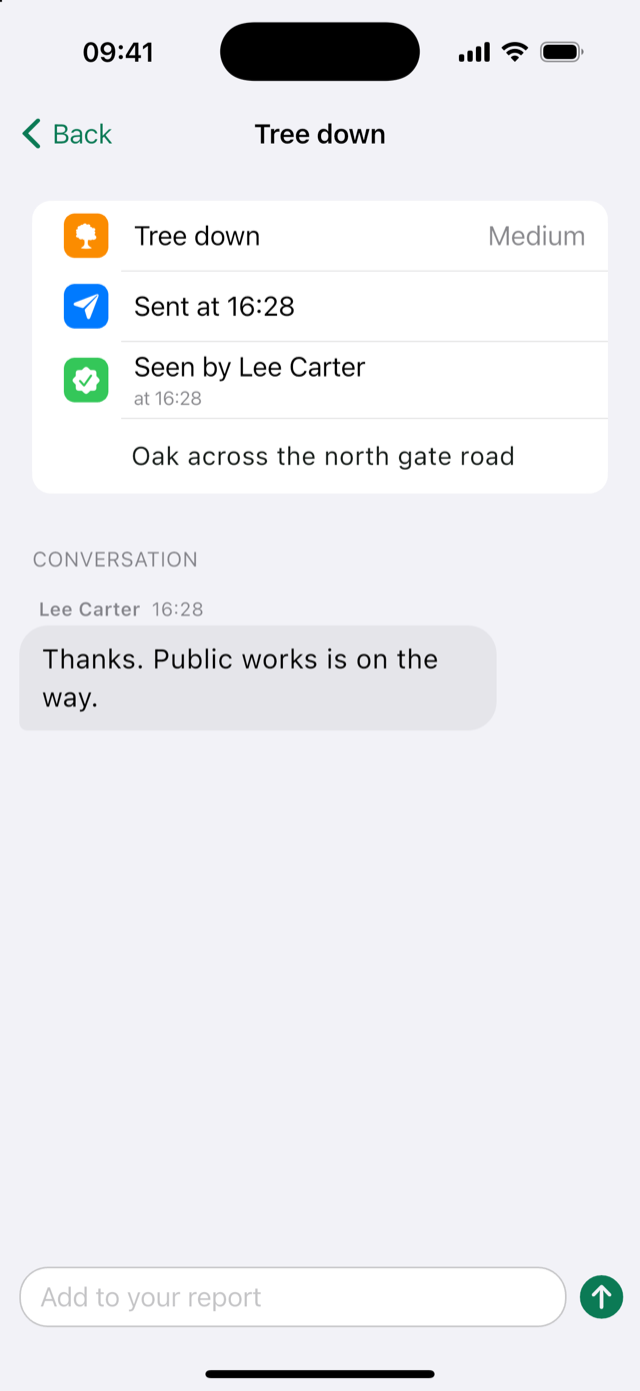
Tap a report under Your reports. You see when you sent it, whether it is Unseen or Seen by your leader (with the time), the place, notes and photo. Under Conversation, your leader's answers appear, including the county's when your leader passes them on. Type in Add to your report to add information; your position goes with it. A resolved report leaves your phone.
Tasks
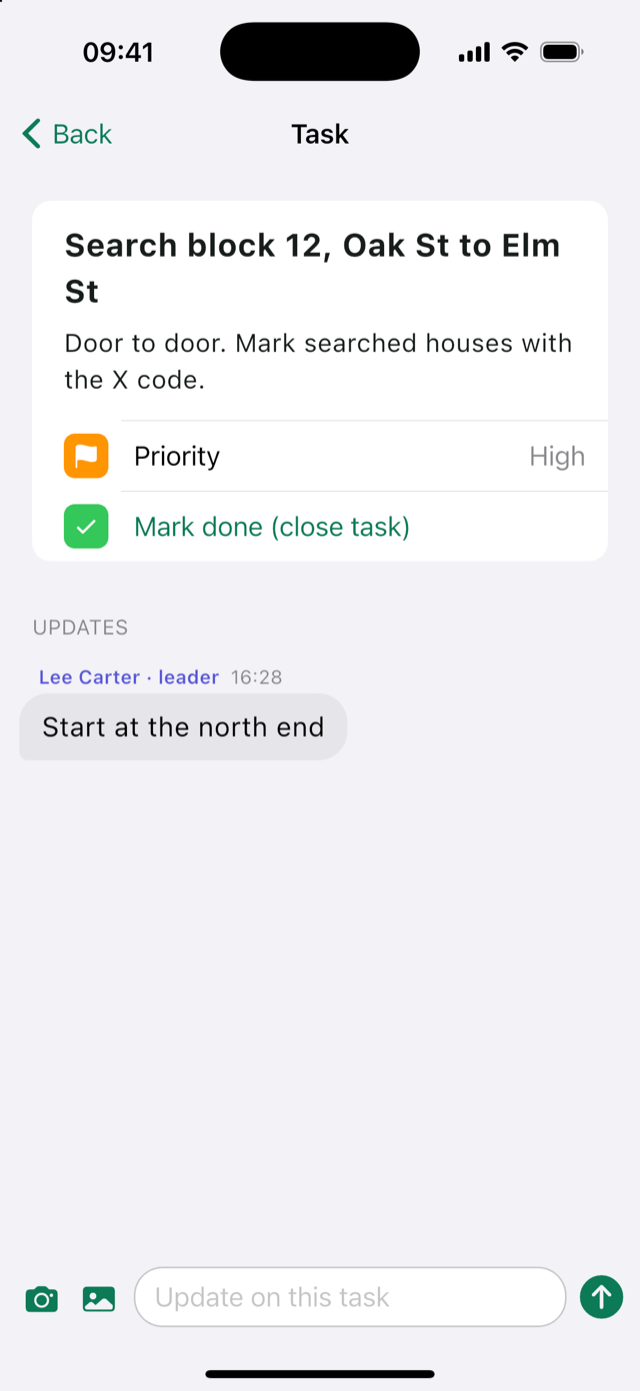
Tasks your leader gives your team appear on the home screen and in a notification. Opening a task tells your leader you have seen it. Under Updates, post text and photos about the task (Update on this task). When it is finished, tap Mark done (close task), write what was done (optional) and tap Close task. Once a task is closed, by you, a teammate or your leader, the team can no longer post on it: the page says This task is closed, and Team messages is there for the rest. What you wrote before it was closed, even without signal, still reaches your leader.
Priorities: Low, Medium, High, Critical.
Team messages
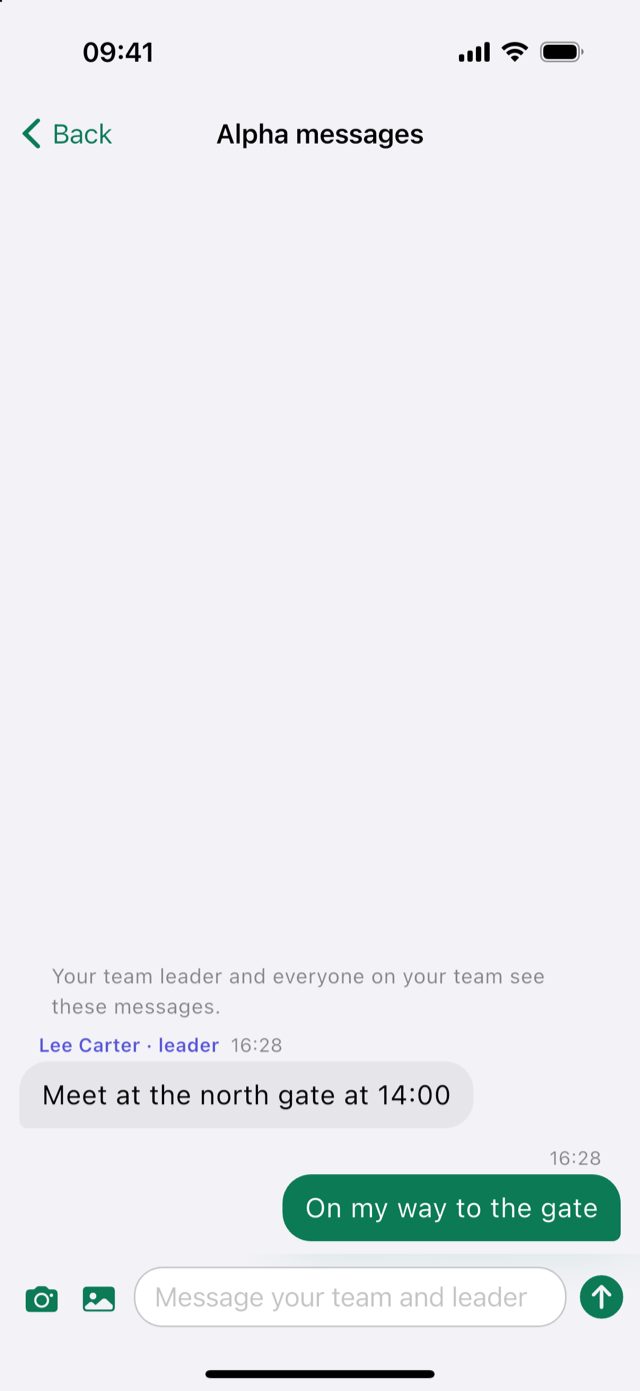
Tap Team messages under your team. Everyone on your team and your leaders see these messages; leaders are marked "leader". Send text or a photo with Message your team and leader. Messages about a task stay with that task.
Radio channels
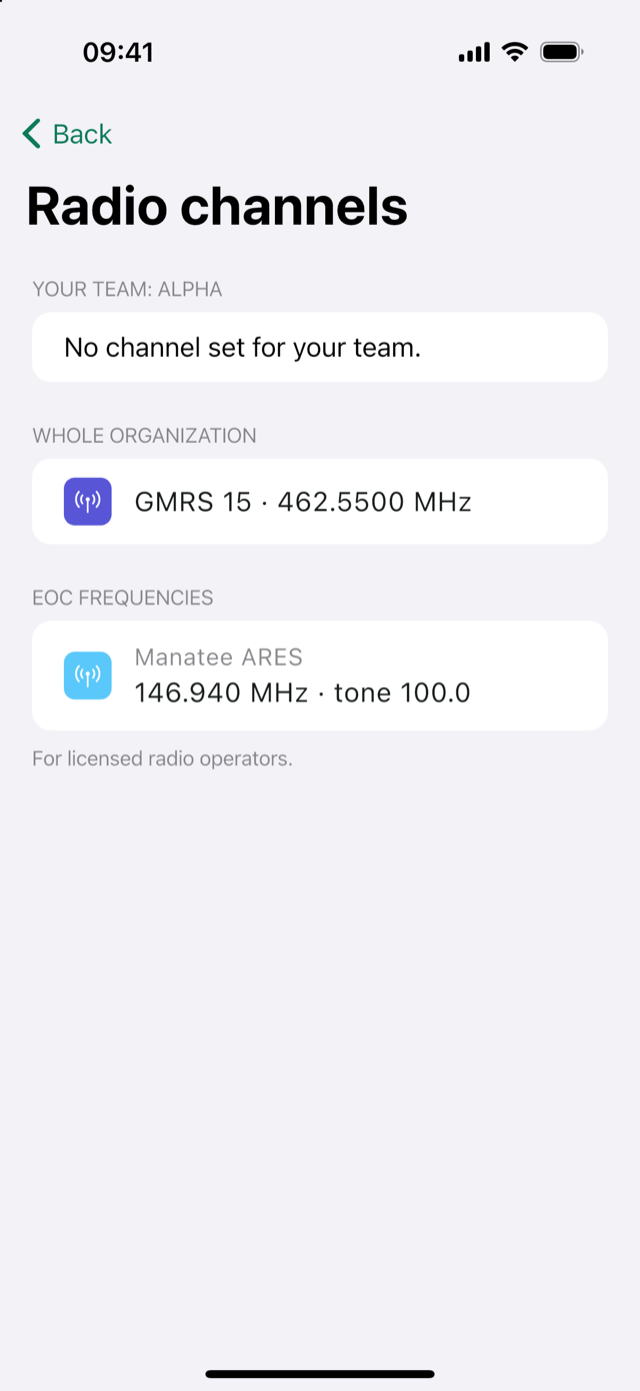
From the ⋯ menu: your team's channel, the whole organization's channel and the EOC frequencies (for licensed radio operators). They are written like GMRS 15 · 462.5500 MHz or 146.940 MHz · tone 100.0, as your leader set them in the dashboard.
My details
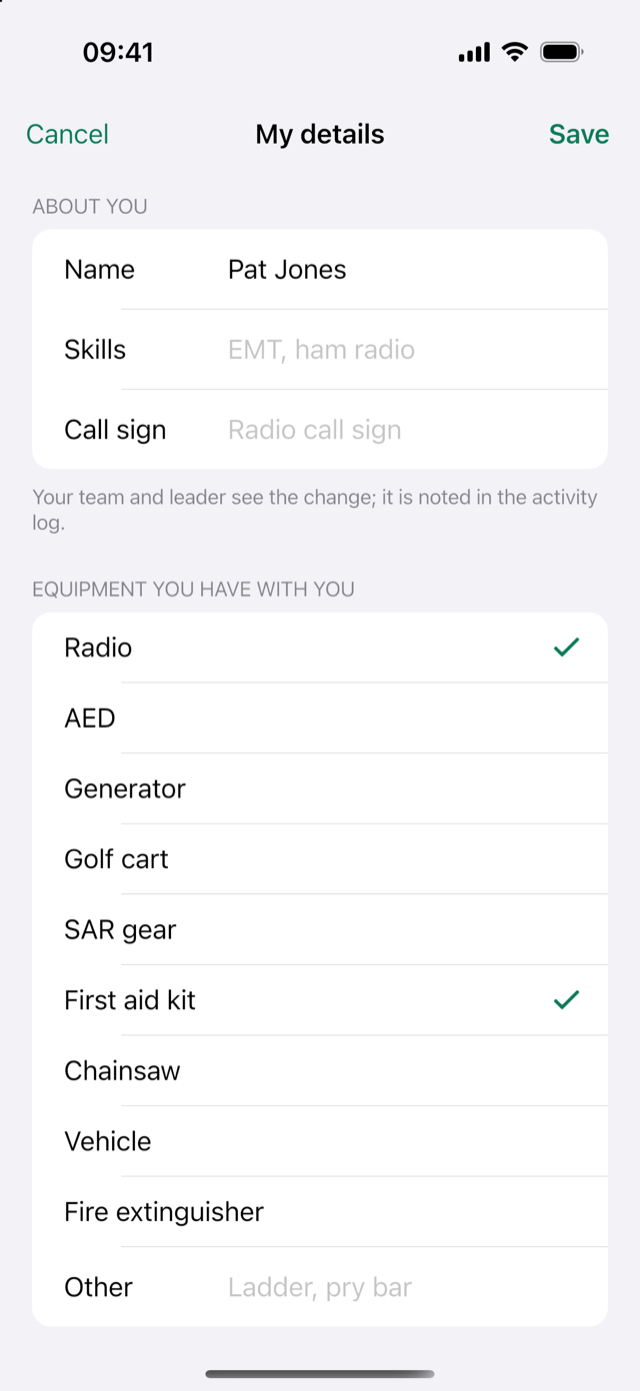
While checked in, change your name, skills, call sign or equipment from ⋯ › My details, then Save. Your team and leader see the change, and it is noted in the activity log.
Feature requests & bugs
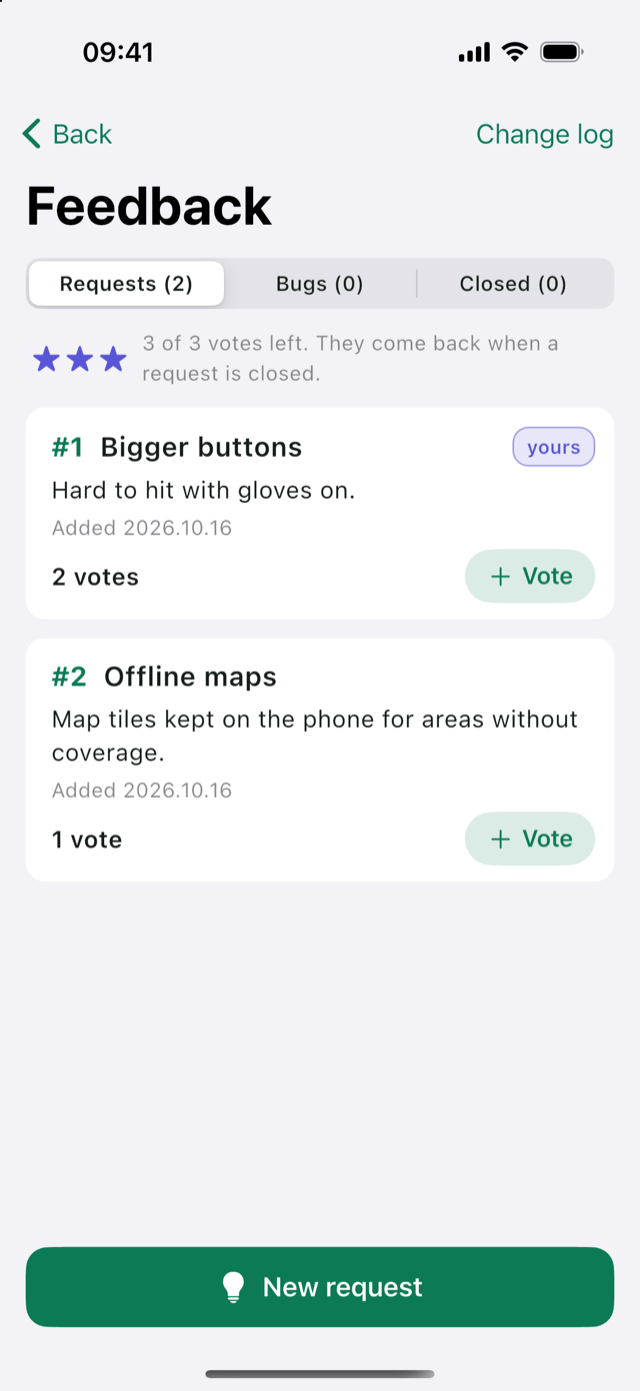
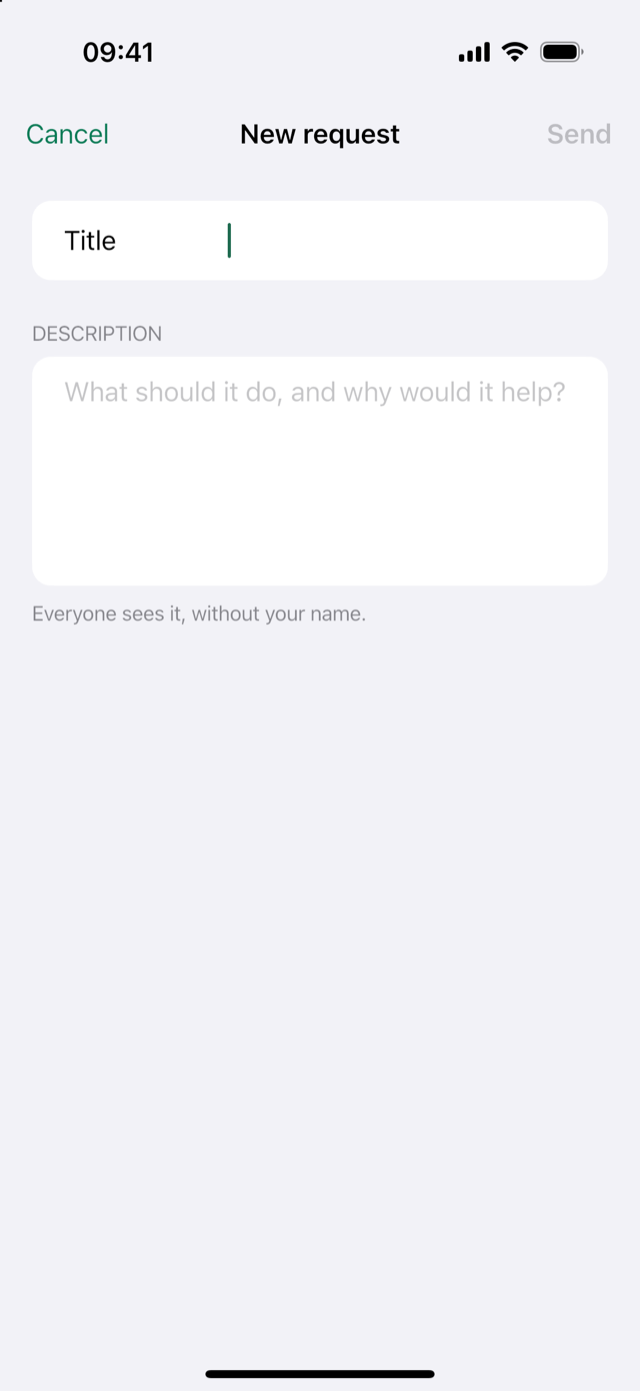
Shared by every team using CERT Command, and anonymous. Under Requests, you have three votes: tap Vote on the ideas that matter most, or Take back to move a vote. Votes come back when a request is closed. New request and Report a bug open a short form (title and description). An open request can show In review or In progress: where the developer is with it (it stays open, and votes still count). The Closed tab shows what was added, fixed or declined, with a note from the developer. Change log at the top right shows what changed in each version. Under the tabs, a link opens the CERT Command Facebook group on Facebook, to talk with other CERT members and leaders.
About and change log
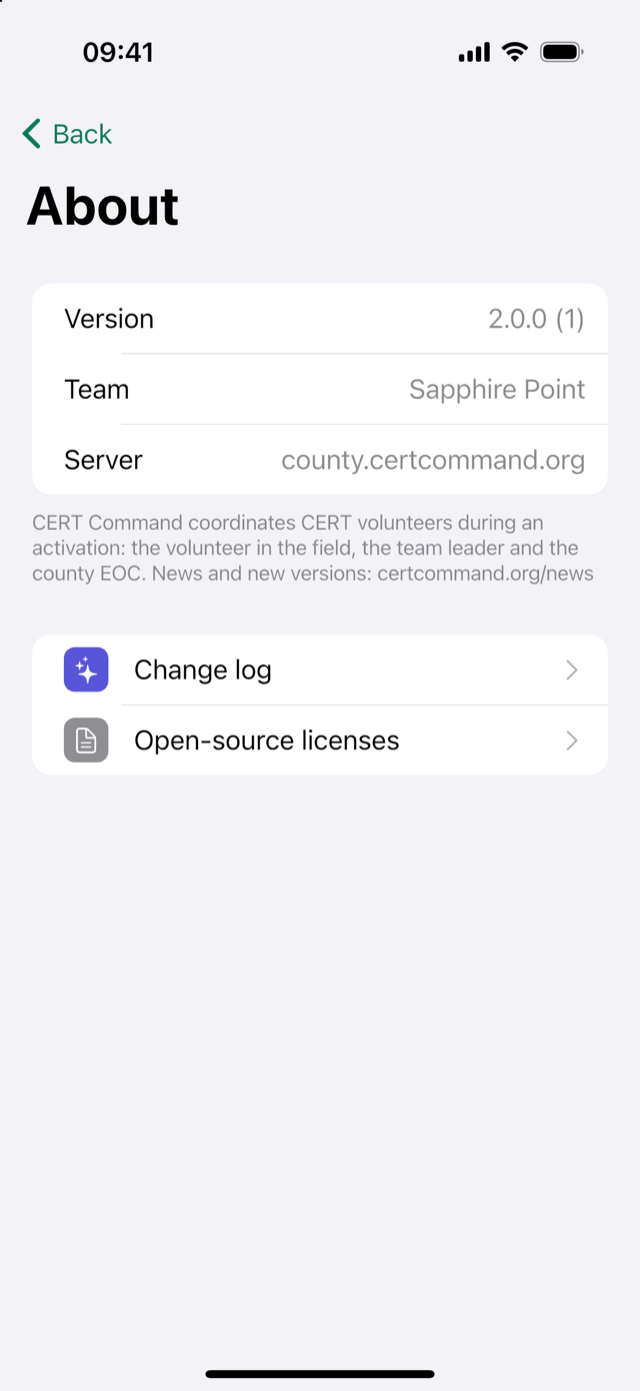
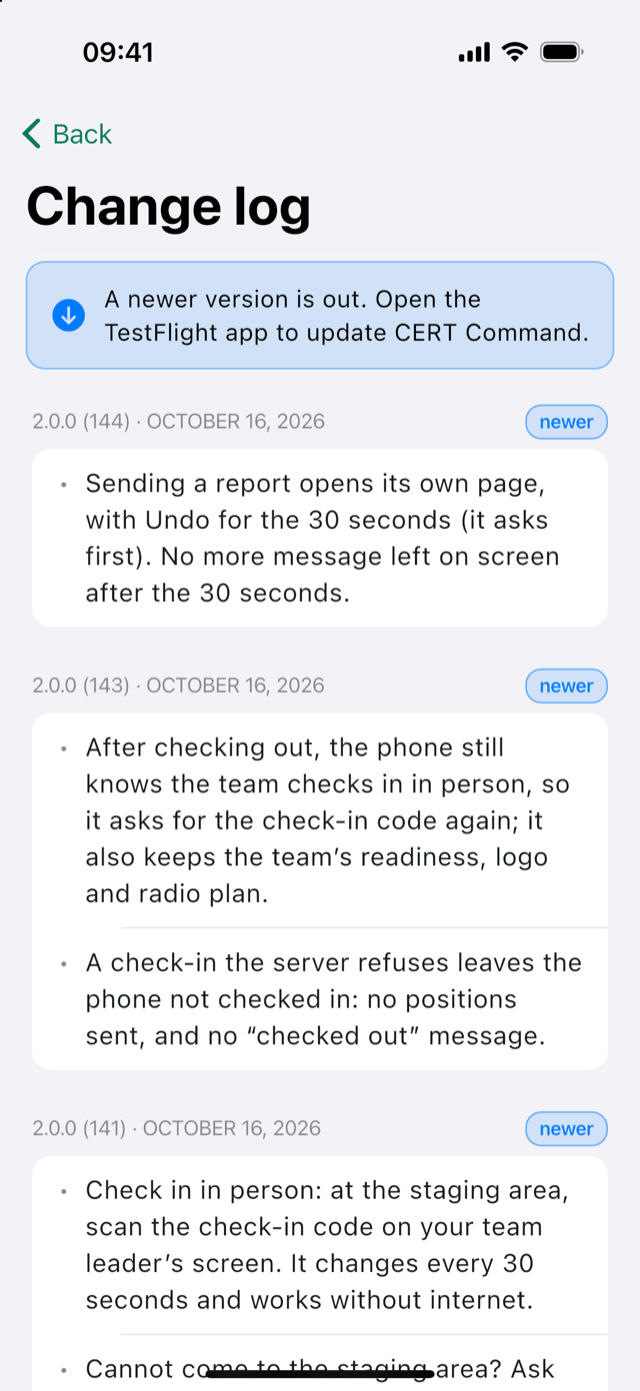
⋯ › About CERT Command shows the version (for example 2.0.2 (188)), your team and the server. Change log lists what changed in each version; the one you have is marked yours. CERT Command on Facebook opens our Facebook group. When a newer version is out, it says so: open the TestFlight app (iPhone) or Google Play (Android) to update. After an update, the app shows once What's new in that version, full screen: read it, then tap Done at the top. At the bottom, a link opens the Facebook group and Full change log shows every version. While you are checked in, it waits until you check out. Open-source licenses lists the open-source software inside the app, with each license.
Check out
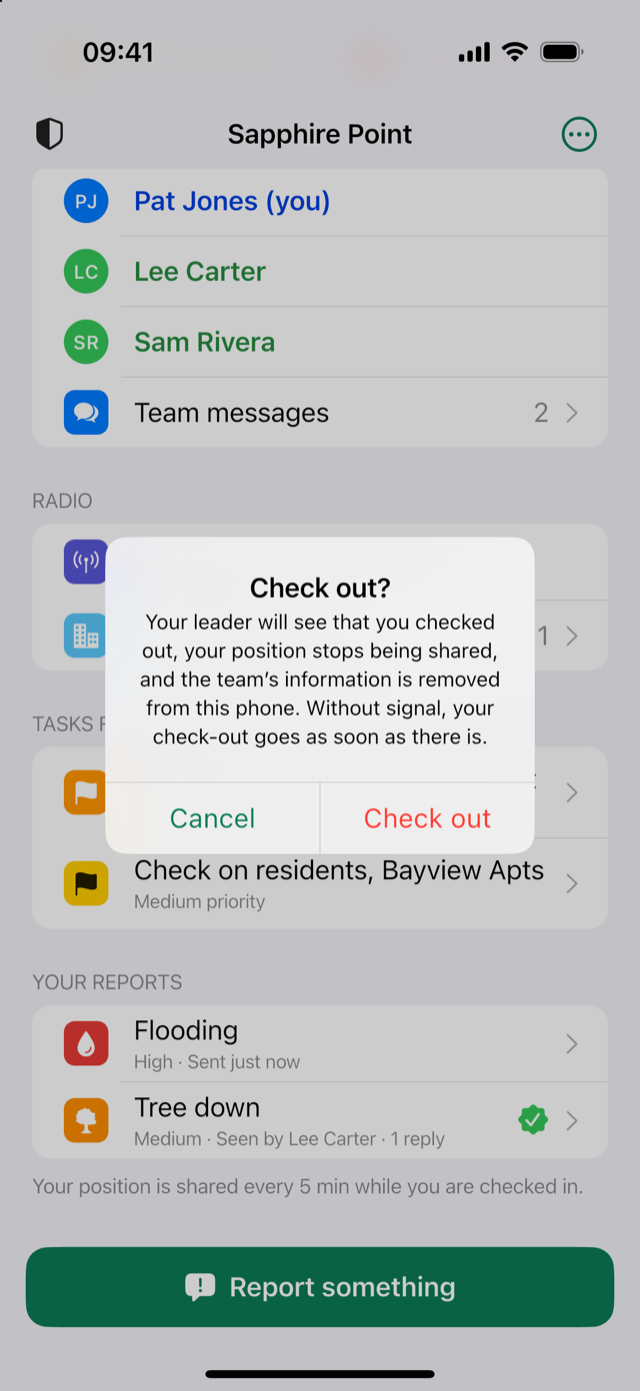
When you stop working, tap ⋯ › Check out and confirm. Your leader sees that you checked out, your position stops being shared, and the team's information (tasks, messages, other members) is removed from your phone at once, with the app's notifications in Notification Center.
It works. The check-in screen comes back with a card saying how many items are still waiting, your check-out included. They are sent by themselves the next time the app has signal. You can check in again in the meantime; everything goes out in order.
What your phone cannot send for 10 days is deleted from it: the phone warns you a day before (Not sent for 9 days), then deletes those items (Deleted from your phone). Your leader learns only how many items of each kind were deleted, not what they said.
Un-enrolled: if your leader or the county un-enrolls your phone, the app says This phone is no longer accepted by your team. Tap Join a team and scan a new code from your leader to come back.
Team decommissioned: if your county or CERT Command deletes your team, the phone leaves it by itself: you are checked out, and the team's information and anything not sent yet are deleted from the phone. The screen to join a team says Sapphire Point was decommissioned, with the date. To work with another team, join it with its leader's code.
Join another team: after checking out, the check-in screen offers Join another team (also in the ⋯ menu). The phone leaves its team and goes back to scanning a code. Anything not sent yet is deleted, and the confirmation says how many. To come back to the first team you need a new code from its leader.
Still on duty? and the incident closing
So that nothing stays on a phone someone forgot to check out, the phone checks itself out in two cases. Nothing you recorded is lost: what is not sent yet goes to your leader first, as soon as there is signal.
Still on duty?
The phone asks Still on duty? (a notification and a card on the home screen) when, for 24 hours:
- it could not reach the team server, or
- it reached the server, but nothing came from your team leader for you: no task for your team, message, answer to your report, acknowledgment or readiness change. Word from your leader counts only while an incident is open and you are in a team; with no incident open, or no team, the phone asks every 24 hours.
Tap Still on duty and the next question is a day away. Without an answer for another 24 hours (time to sleep), the phone checks you out by itself. The check-in screen then says You were checked out: no answer to “Still on duty?” for a day.
When your leader closes the incident
Closing the incident checks everyone out. Your phone first sends everything it still has, then checks out and removes the team's information, as after any check-out. Positions that had not gone out yet are dropped: after the incident they are the most sensitive and the least useful. You get a notification: The incident is closed. If your phone had no signal, this happens the moment it reaches the server again; your leader sees your phone as waiting until then.
Notifications
Allow notifications at check-in. You are told about:
| Event | Notification | Who gets it |
|---|---|---|
| Readiness changes | Readiness: PARTIAL ACTIVATION — Hurricane Milton | Everyone on the team |
| A leader sends a call-out | Call-out from Lee Carter · the message | Everyone with the app, or the people it asks |
| A leader asks you to check in, from the roster | Your team leader is asking you to check in | You |
| An incident is opened while you are checked in | An incident is open: Hurricane Milton · Open CERT Command to share your position with your team leader. | Members checked in |
| A new task for your team | New task for Alpha · the task | Your team |
| A leader writes to your team or on a task | Lee Carter (leader) · Alpha, or Lee Carter on task: the title | Your team |
| Your report is seen | Report seen · Your Tree down report was seen by Lee Carter. | You |
| Someone replies to your report | Lee Carter replied to your report | You |
| Your alarm is acknowledged | Help is aware · Lee Carter saw that you need help. | You |
| A leader checks you out | Checked out · Lee Carter checked you out. | You |
| Your check-in from the field is answered | Checked in · Lee Carter approved your check-in from the field. Or: Check-in not approved | You |
| The incident closes while you are checked in | The incident is closed · Open CERT Command: it sends what is still on your phone, then checks you out. | Members checked in |
| 24 hours without word | Still on duty? · Without an answer, you are checked out in 24 hours. | You |
| Items not sent for 9 days | Not sent for 9 days, then Deleted from your phone | You |
Messages from other members and status changes do not notify you, so the phone stays quiet for what matters.
No signal, and your privacy
- Everything waits for signal. Check-ins, statuses, reports, photos, messages, task updates and positions are saved on the phone, encrypted, and sent with the time they happened.
- Positions only while checked in and an incident is open. After an app restart, iOS wakes CERT Command when you move about 500 m, so positions continue even if the app was closed. Nothing is shared with no incident open, or after check-out.
- Who sees what. Your leaders see your status, details and position. Your team sees your name and status. The county EOC sees your team's counts and the reports your team sends, with the reporter's name. Contact details from the leader's roster never reach phones.
- What stays on the phone. Only your own items until they are sent, at most 10 days. Photos from teammates are held in memory and never saved; the copy the camera makes of your own photo is deleted as soon as the app has encrypted it. After check-out (yours, your leader's, the incident closing, or no answer to Still on duty?), the team's information and the app's notifications leave the phone.
Full details: certcommand.org/privacy.
Team leaders: the CERT Command Leader dashboard
For the leader of a CERT team or organization, on a Mac or a Windows computer. The dashboard keeps the team's full record on the computer and keeps working when the internet is down.
Install the dashboard
Get it from your computer's store: the links are on certcommand.org/leaders.
- Mac (macOS 12 or later, Apple silicon or Intel): get CERT Command Leader from the Mac App Store. It keeps itself up to date.
- Windows (10 or 11, 64-bit): get CERT Command Leader from the Microsoft Store. It installs without a warning and keeps itself up to date.
The store installs new versions by itself. Your enrollment and your team's record stay.
Enroll this computer
First, the Terms of Use. The first time you open the dashboard, it shows the key points of the Terms of Use: CERT Command is an organizing tool, not an emergency service or a safety system; nobody at CERT Command watches your team; it can fail, so keep a radio, a phone and a paper roster; and you use it at your own risk. Tick I understand and I agree under each point, then tick the last box (the Terms of Use and the Privacy policy, 18 or older) and click Continue. Nothing else opens until you do. Each computer asks once; your acceptance is kept in your team's record.
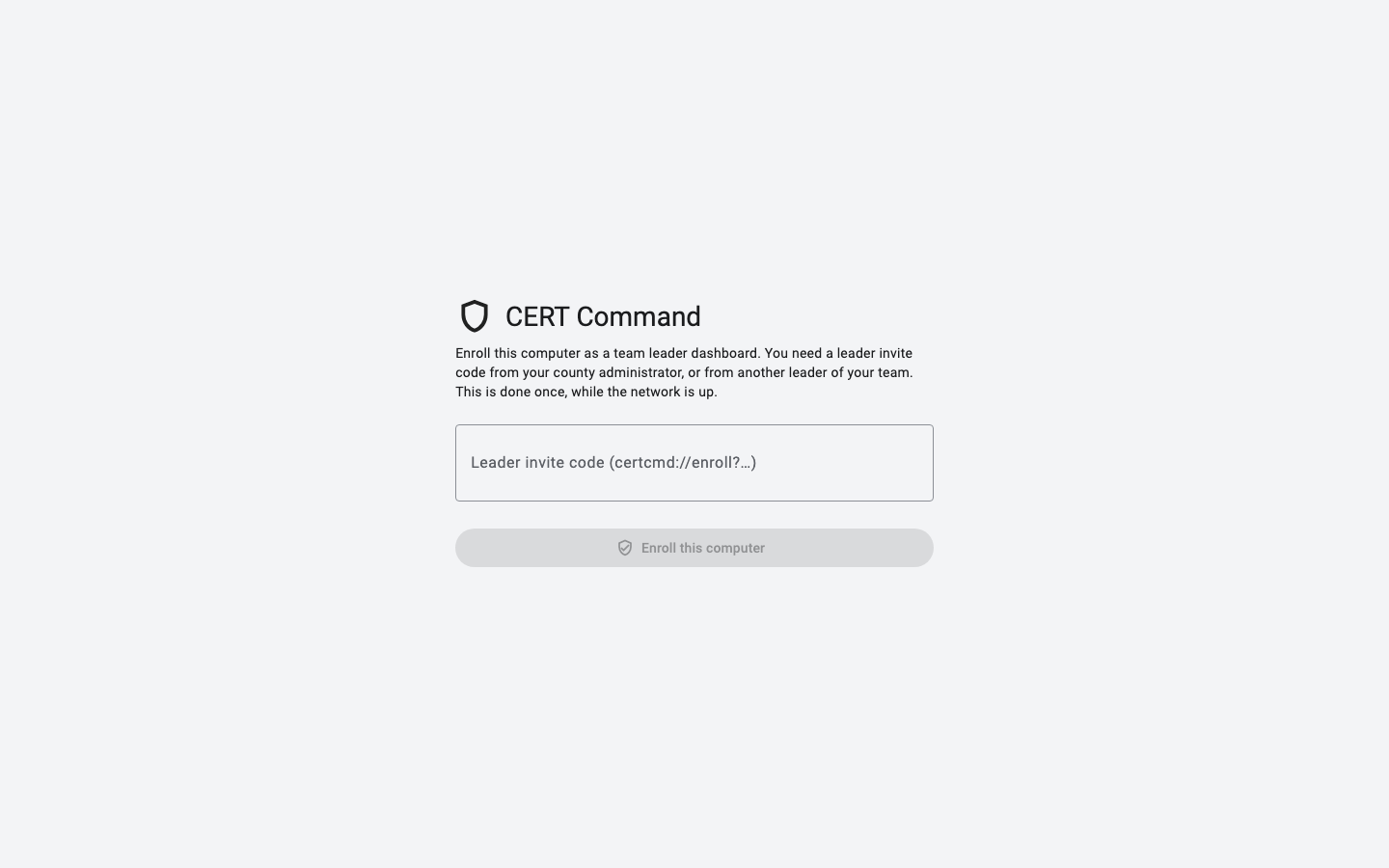
- You receive a leader invitation by email, from your county administrator or from a leader of your team. It contains a code starting with
certcmd://enroll?. - Paste it into Leader invite code. A card appears with your team's name, its server and the team key.
- Check that the team key matches the one in your invitation.
- Type Your full name and click Enroll this computer.
Leader codes work for 7 days and for one computer. A second computer needs its own code: ask your county administrator (Leader code in the console) or a leader of your team (Invite a co-leader). Enrolling needs the network; after that the dashboard works offline.
With an invitation from a leader of your team, the computer does not join at once: it shows Waiting for a team leader until one of the team's leaders approves it on their Enroll page. Leave the dashboard open, or quit and come back later: it remembers, and checks every few seconds. Once approved it opens the team. If a leader declines it, it says so. Start over forgets the wait, to paste another code.
The main window
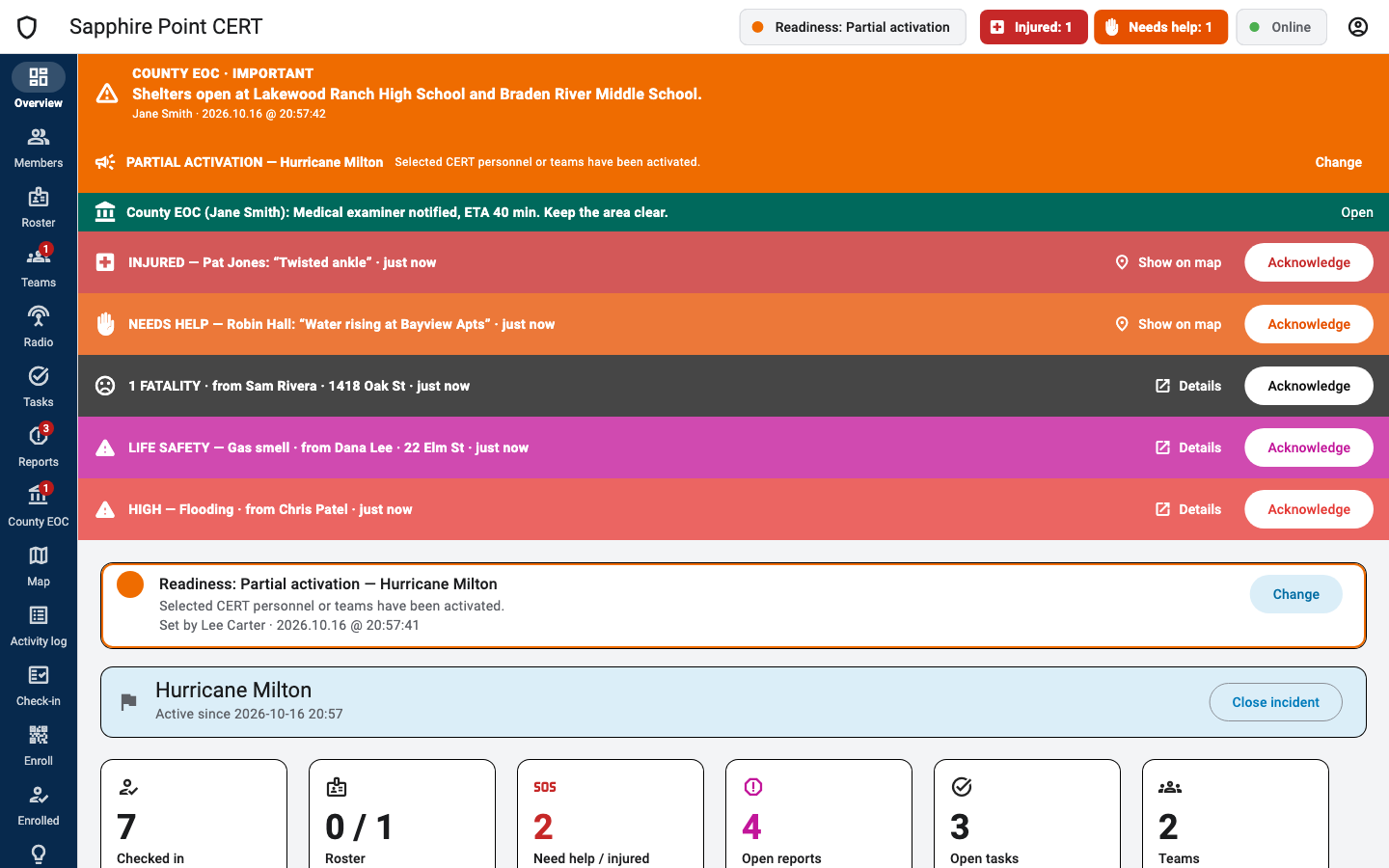
The top bar
- Team logo (click to add or change it; members see it on their phones).
- Readiness chip: the current level. Click it to change the level.
- Alarm counters: Injured: 1, Needs help: 1. Click to see who, acknowledge, or show them on the map.
- Connection chip: Online (green), Connecting…, Offline or Refused, with "N not uploaded" while actions wait to be sent.
- Person menu: Appearance…, Check for updates…, About CERT Command Leader… and Remove this computer’s enrollment….
The side bar
Overview, Members, Roster, Teams, Radio, Tasks, Reports, County EOC, Map, Activity log, Check-in, Enroll, Enrolled and Feedback. Red badges count unread team messages (Teams), unread task messages (Tasks), reports not yet acknowledged (Reports), unread county messages (County EOC) and requests to check in from the field (Check-in).
The banners
| Banner | Meaning | What you can do |
|---|---|---|
| COUNTY EOC · EMERGENCY / IMPORTANT / INFO (red, orange, blue) | A broadcast from the county to every team. | Read it. It stays until the county stops it. |
| CERT COMMAND · NOTICE (violet) | A notice from CERT Command itself, such as a new version. | Read it. It stays until it is stopped. |
| Readiness (colored by level) | The team's level and event, when above Normal. | Change |
| County EOC (teal) | An unread message from the county. | Open goes to County EOC. |
| INJURED / NEEDS HELP (pulsing) | A member's alarm not yet acknowledged. | Show on map, Acknowledge |
| FATALITY / LIFE SAFETY / HIGH (pulsing) | A serious report not yet acknowledged (up to three, most serious first). | Details, Acknowledge |
| … asks to check in from the field (blue) | A member who cannot come to the staging area asks to check in where they are. | Where? (map and address), Deny, Approve |
| A phone is waiting for your approval (dark blue) | Someone used your remote invitation (or approval is on), and their phone waits to join. | Review opens Enroll. |
| The incident is closed. Waiting for … (violet) | Phones that were checked in when you closed the incident and have not checked out yet (they had no signal). | Details, then Check out by hand for a phone that will not come back. |
| Arrived after the incident closed … (violet) | What a phone sent once it came back, and who checked out after the close. Also a phone that deleted items it could not send for 10 days. | Dismiss (on this computer). |
| No incident is open, and … came in (gray) | Check-ins or reports in the last day, with no incident open. | Open incident… (it starts when the first of them came in) or Not an incident. |
Acknowledging is logged with your name, and the member is told on their phone.
Readiness and incidents
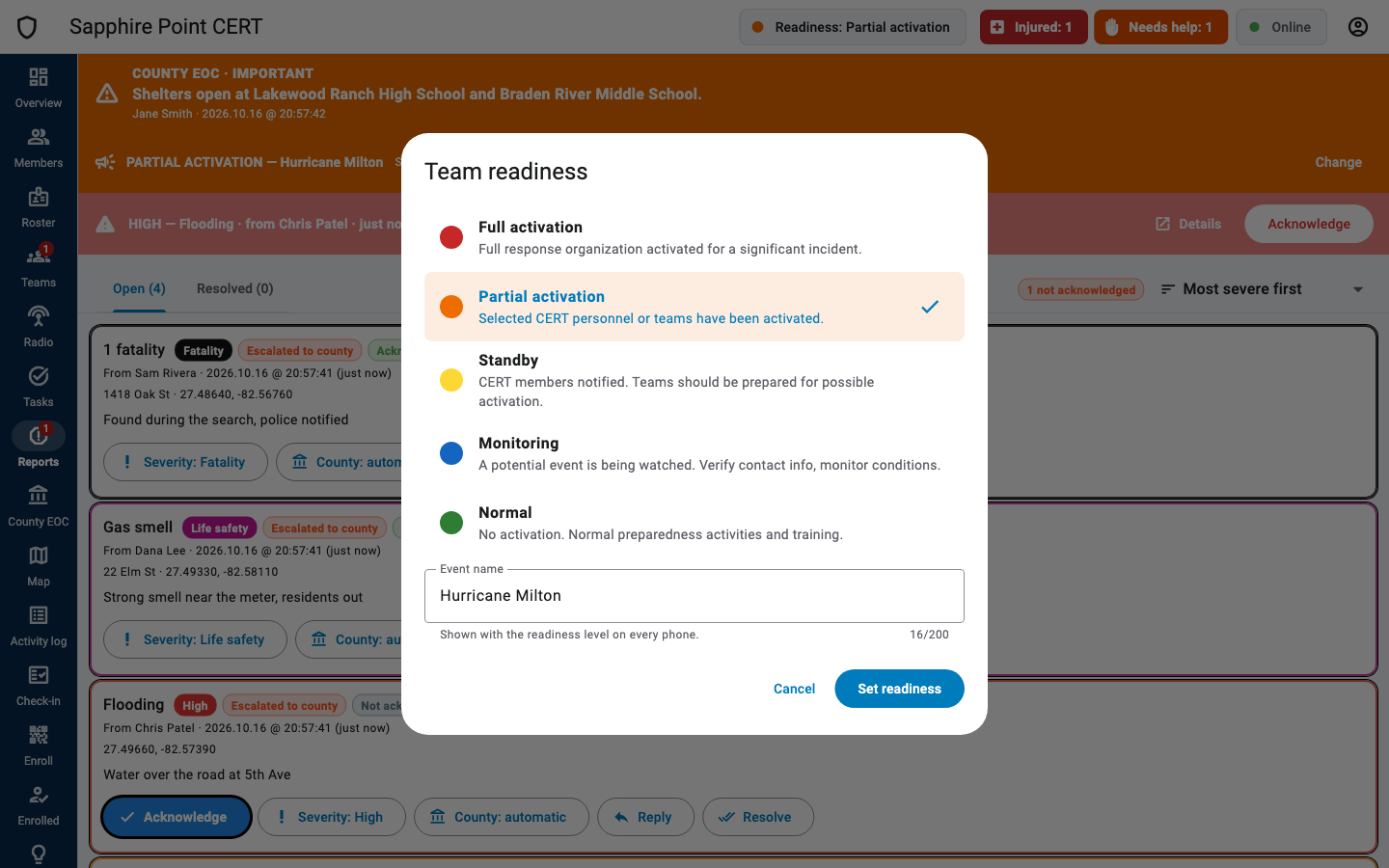
Click the readiness chip or Change. Pick a level (see Readiness levels), type the Event name (for example Hurricane Milton) and click Set readiness. Every phone shows the new level and gets a notification. Tick Also open the incident to start the ICS records for the activation; close the incident from the Overview when it ends.
Closing the incident
On the Overview, Close incident ends the activation and checks everyone out:
- Members you checked in by hand (on paper) are checked out at once.
- Each member's phone first sends what it still has, then checks out by itself and removes the team's information. A phone with signal does it at once. A phone without signal does it the moment it reaches the server again; meanwhile the violet banner shows it as waiting, and the Members page says incident closed: waiting for the phone.
- When a phone comes back, the banner says who checked out after the close and what arrived late (for example Arrived after the incident closed, from Pat Jones’s phone: 2 reports, 1 photo). Those reports and messages carry Received after close on the dashboard, in the county console and in the ICS forms.
- A phone that never comes back (lost, broken): Details › Check out by hand. The phone itself deletes what it has after 10 days.
Check-ins and reports with no incident open
Members can check in and send reports even with no incident open: the first reports of a sudden event come before anyone opens one. When that happens, the gray banner says what came in during the last day. Open incident… opens one that starts when the first of them arrived (at most a day back), so they are part of it and of its ICS forms. Not an incident keeps them as day-to-day ones and hides the banner on every leader computer.
Overview
The Overview shows the readiness card, the incident card (Open incident / Close incident), the call-outs card, and tiles you can click: Checked in, Roster, Need help / injured, Open reports, Open tasks and Teams. Below are the members needing attention, the open reports by severity, and the Latest 10 activities with a link to the full activity log.
Call-outs
A call-out asks the members with the app whether they can come, the way a phone tree or One Call Now does, with the answers counted for you. On the Overview, Call-out… opens a window for your message (for example Activation at 0800, staging at Station 4); Send call-out notifies every phone with the app, even with the app closed. Roster people without the app are not reached: the window says how many, so you can call or text them.
- Each open call-out shows its message and how many answered Can come, Can't or Maybe later, and how many have not answered yet. The counts change as answers come in.
- Details lists who gave each answer, and when, and who has not answered.
- End takes it off the phones; nobody can answer it any more. The answers stay in the activity log and the ICS 214 (kind Call-outs).
Roster, Members and Enrolled: three lists
Three pages list people, each for its own job. Taking someone off one list does not take them off the others.
| Page | What it is | Removing someone there |
|---|---|---|
| Roster | Your team's address book: names, phones, emails, call signs, skills. Only leaders see it. | Deletes their contact details. If they have the app, it asks: Roster only (their phone keeps working) or Remove and un-enroll (off the team). |
| Members | Who is checked in now, with their status and position. | Check out ends their check-in. After a check-out, they are no longer listed here, but they stay on the team. |
| Enrolled | The phones and computers allowed to connect to your team. | Un-enroll… removes them from the team: their phone stops working for it at once. |
To remove someone from your team:
- Open Enrolled, find them under Members, and click Un-enroll… on their row, then confirm. Their phone says This phone is no longer accepted by your team and can no longer check in or send anything. If they were checked in, they are checked out, and their position stops.
- If you also want their contact details gone, remove them from the Roster (⋮ › Remove from the roster…).
Or both at once, from the Roster: ⋮ › Remove from the roster… › Remove and un-enroll.
What they did stays in the activity log and the ICS forms. To come back, they need a new enrollment code or invitation from you. Someone removed from the roster but still enrolled appears at the bottom of the Roster, under Not on the roster, with Add to the roster. Careful on the Enrolled page: Un-enroll myself…, on your own row, takes your dashboard off the team.
Members
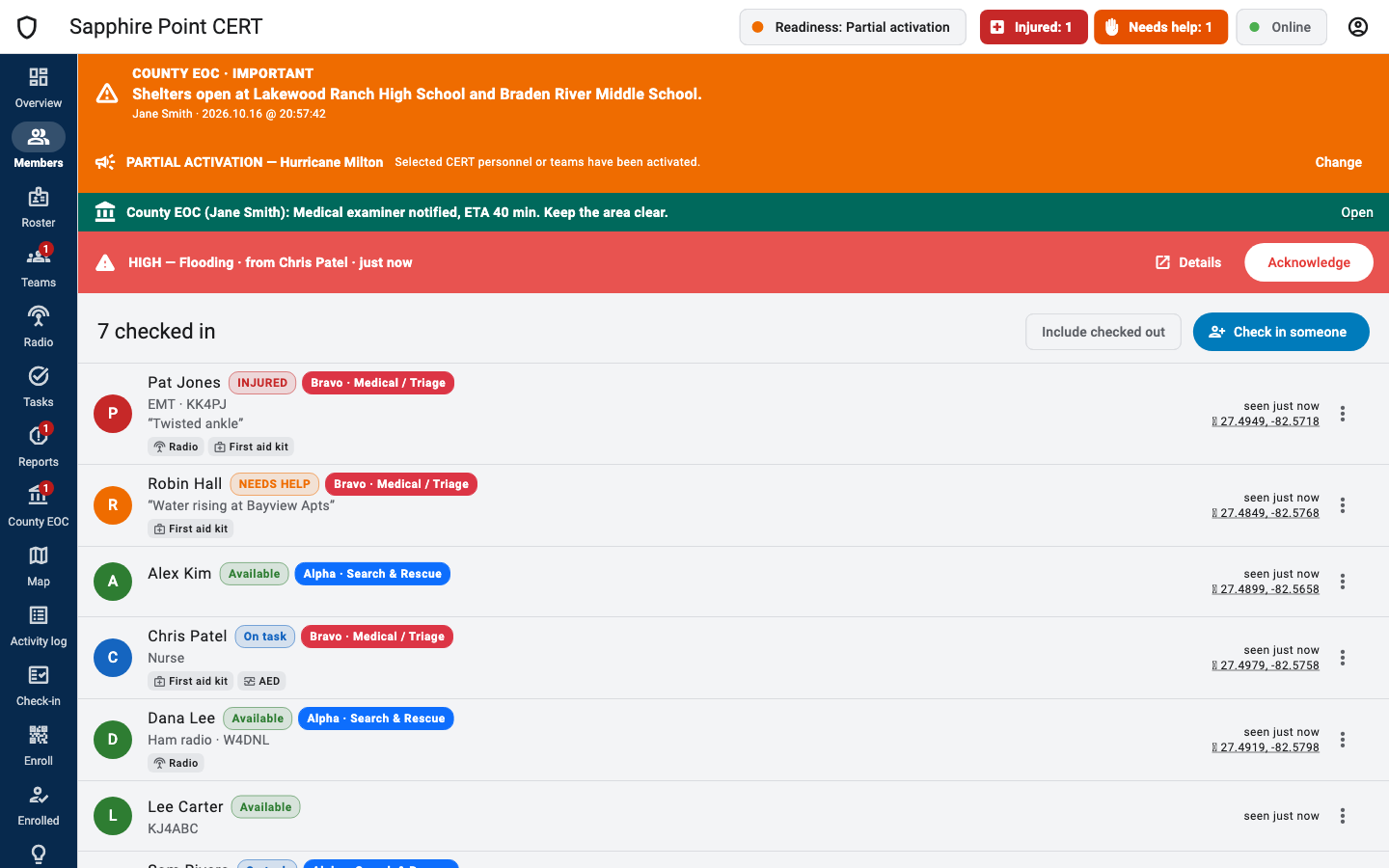
Each row shows the member's status, team and role, call sign, the status note, equipment, when they were last seen and their last position (click it to see them on the map). Click a row for the member card. The ⋮ menu offers Show on map, Edit name, role, equipment…, Check out (or Check in again) and, for people without a phone, Enroll a phone for ….
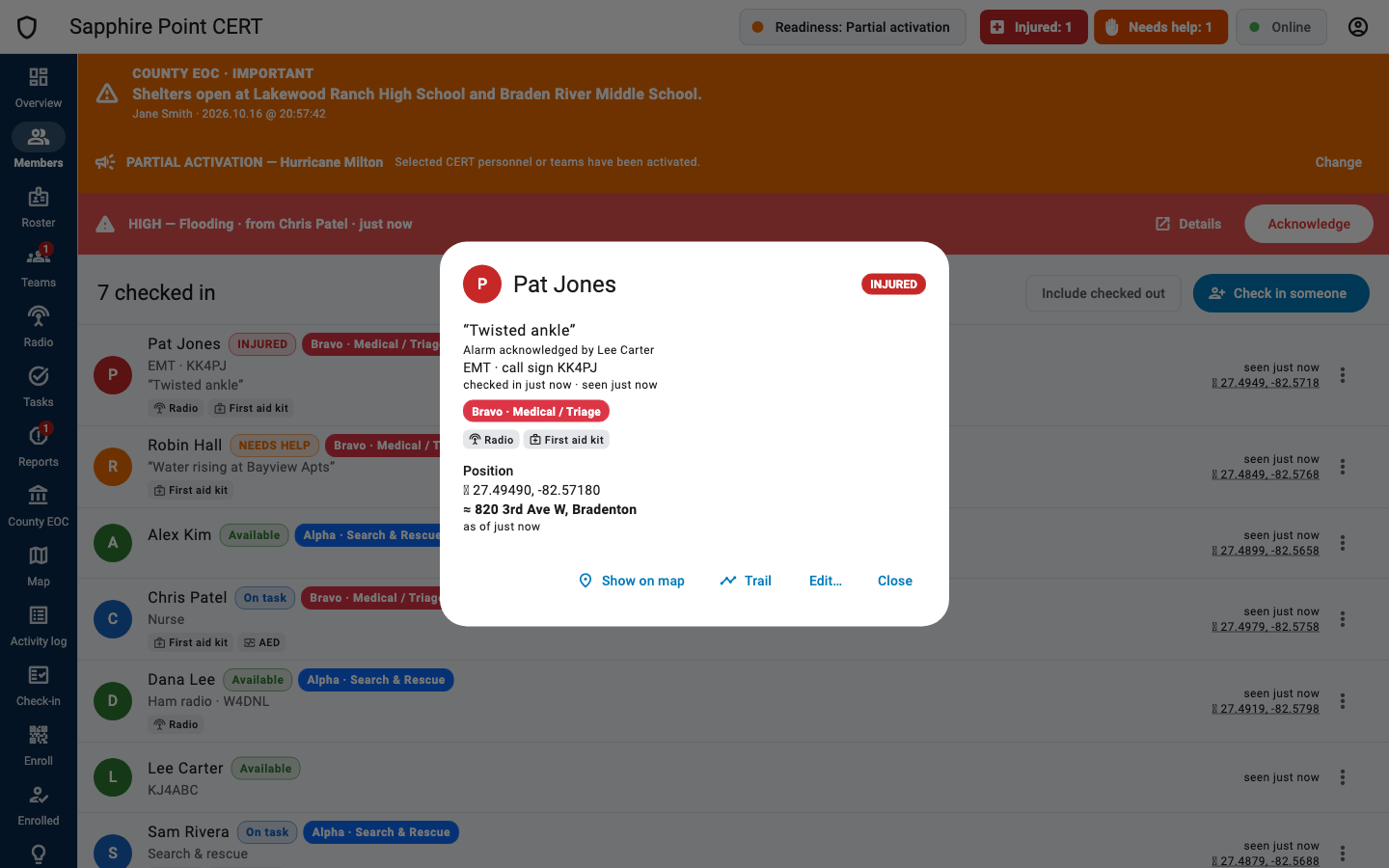
- Check in someone checks in a volunteer who has no phone (on paper). Later, Enroll a phone for … shows a code tied to that person, so their history follows them to the phone (or Invite remotely instead…).
- Pills on a row: asks to check in (a request from the field), checked in from the field (Lee Carter) (an approved request), incident closed: waiting for the phone.
- Editing a member lets you set their status for them (logged as set by you), their ICS position, role, call sign and equipment.
- The member card looks up the nearest street address through the server when you open it.
Roster
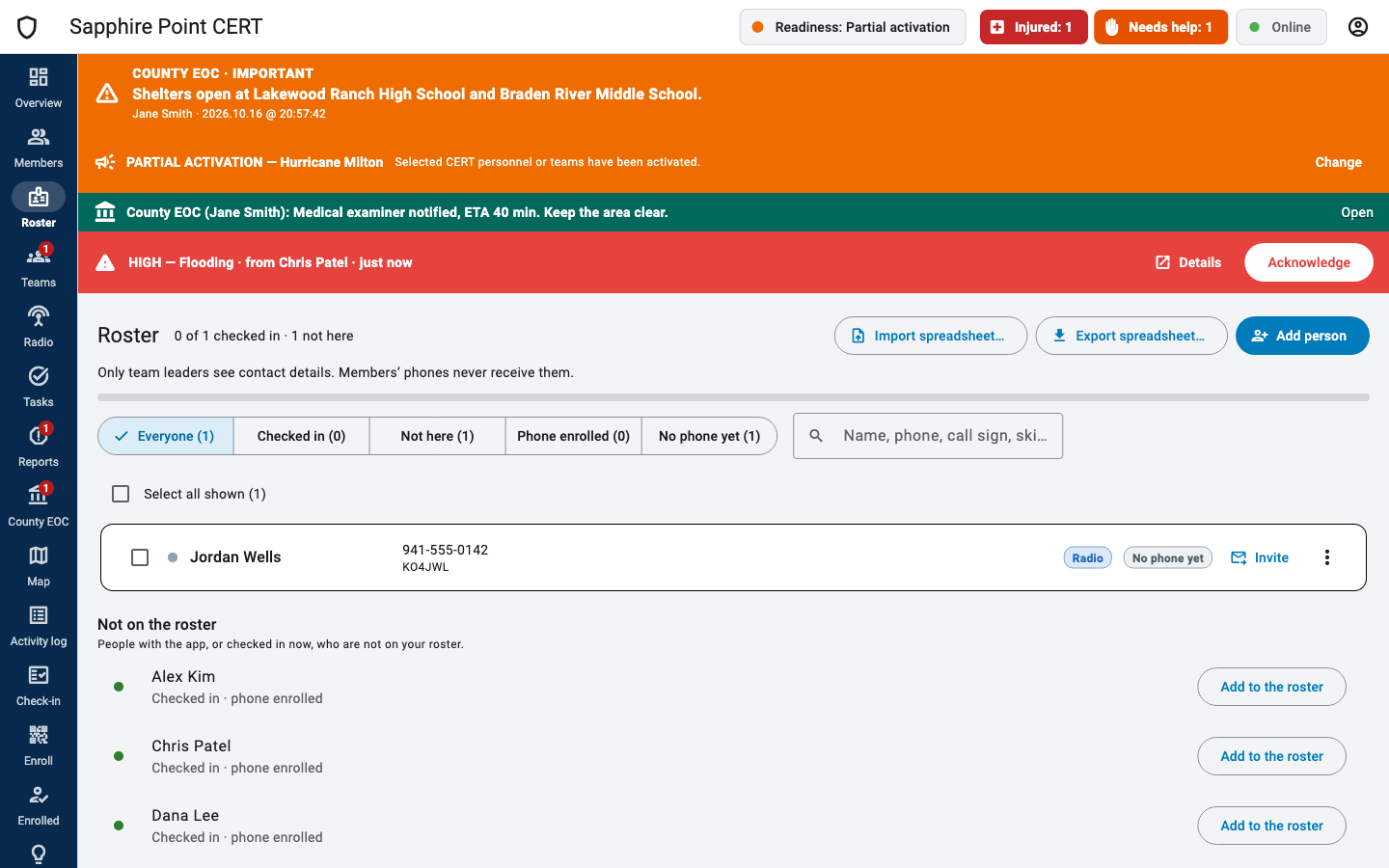
The roster is your team's list of people, with contact details only leaders see (phones never receive them). Removing someone from it does not remove them from the team: see three lists. First and last names are saved with a capital at the start of each part ("mary-jane o'brien" becomes "Mary-Jane O'Brien"), whether typed or imported. It shows who is checked in and who is missing. Filter with Everyone, Checked in, Not here, Phone enrolled and No phone yet, or search by name, phone, call sign or skill.
- Add person: name, phone, email, amateur and GMRS call signs, license class, emergency contact, CERT class date, CPR / first aid, languages, skills and notes.
- Import spreadsheet… reads an Excel workbook (.xlsx) or a CSV file whose first row names the columns: First name and Last name (required), then Phone, Email, Call sign, License class, GMRS call sign, Emergency contact, Emergency relationship, Emergency phone, CERT class date, CPR/First aid, Languages, Skills and Notes (all optional). It previews who is added and updated; nobody is removed.
- Starting a roster? In the import window, Download template… saves an Excel workbook with those columns, a How to fill sheet and choice lists for License class and CPR/First aid. Every cell is formatted as text, so phone numbers and dates stay as you type them. Fill it in, then Choose a file….
- Export spreadsheet… saves the same columns, readable by Excel.
- Enroll their phone (in person)… shows a code for that person to scan.
- Check in, on everyone with no phone yet who is not checked in (also ⋮ › Check in by hand…), opens the check-in form filled from the roster: name, call sign, and skills with CPR / first aid. Pick an ICS position or a status if you want, then Check in. Their row then shows Checked in, and they count in the ICS 214 like anyone checked in by hand.
- Ask to check in, on everyone with the app who is not checked in (also ⋮ › Ask to check in…), tells their phone: Your team leader is asking you to check in, even with the app closed, and the app opens on the check-in page. The row then shows Asked · 14:05 and Ask again, until they check in or the incident closes. They check in from their phone, as usual.
- Check in selected… does both for the ticked people at once: those with no phone are checked in by hand with their roster details (status Available), and those with the app are asked to check in from their phone (untick it to skip). People already checked in are left alone.
- Invite, on everyone with no phone yet (also ⋮ › Invite to join…), sends that person an invitation to join from where they are, by email or a message you copy (see Invite a member remotely). You approve their phone when it joins.
- Several at once: tick the people (or Select all shown, after choosing No phone yet), then Invite selected…. Each gets a personal invitation: by email when the roster has their address, otherwise a message for you to copy and text (one per person). People who already have a phone are left out, and the window says so.
- Remove selected… takes the ticked people off the roster after one confirmation, like ⋮ › Remove from the roster… for one person. It deletes their contact details. For people who have the app, the confirmation asks: Roster only keeps their phone working; Remove and un-enroll also takes them off the team, and their phone stops working for it at once (this needs the connection to the server). What they did stays in the activity log.
- Not on the roster, at the bottom, lists people who have the app, or are checked in now, but are not on your roster, with Add to the roster (their name and the amateur call sign they gave at check-in fill in). Someone you checked in by hand (no phone) shows only while checked in; someone un-enrolled leaves the list. A roster person whose phone is un-enrolled shows No phone yet again, with Invite.
Teams
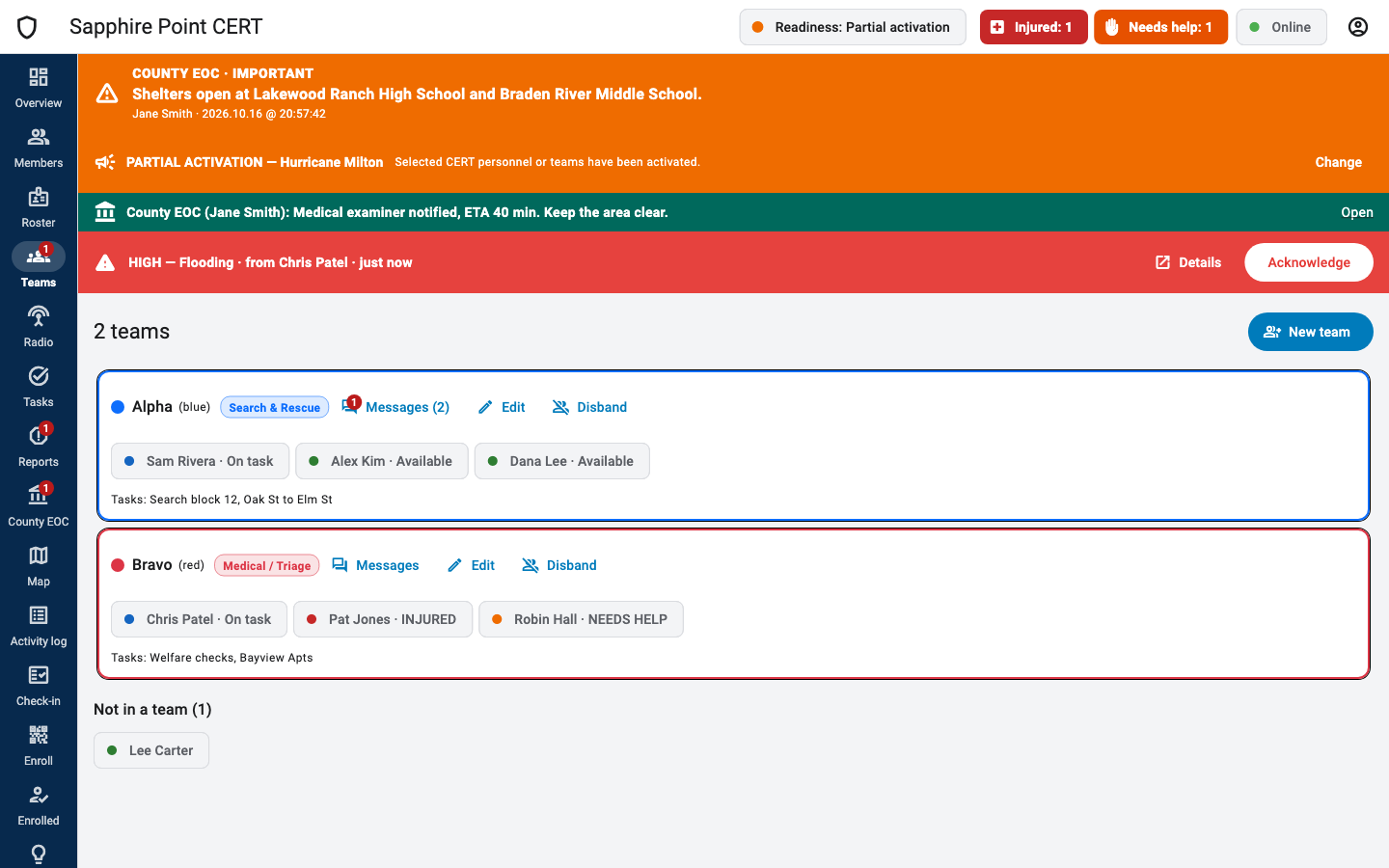
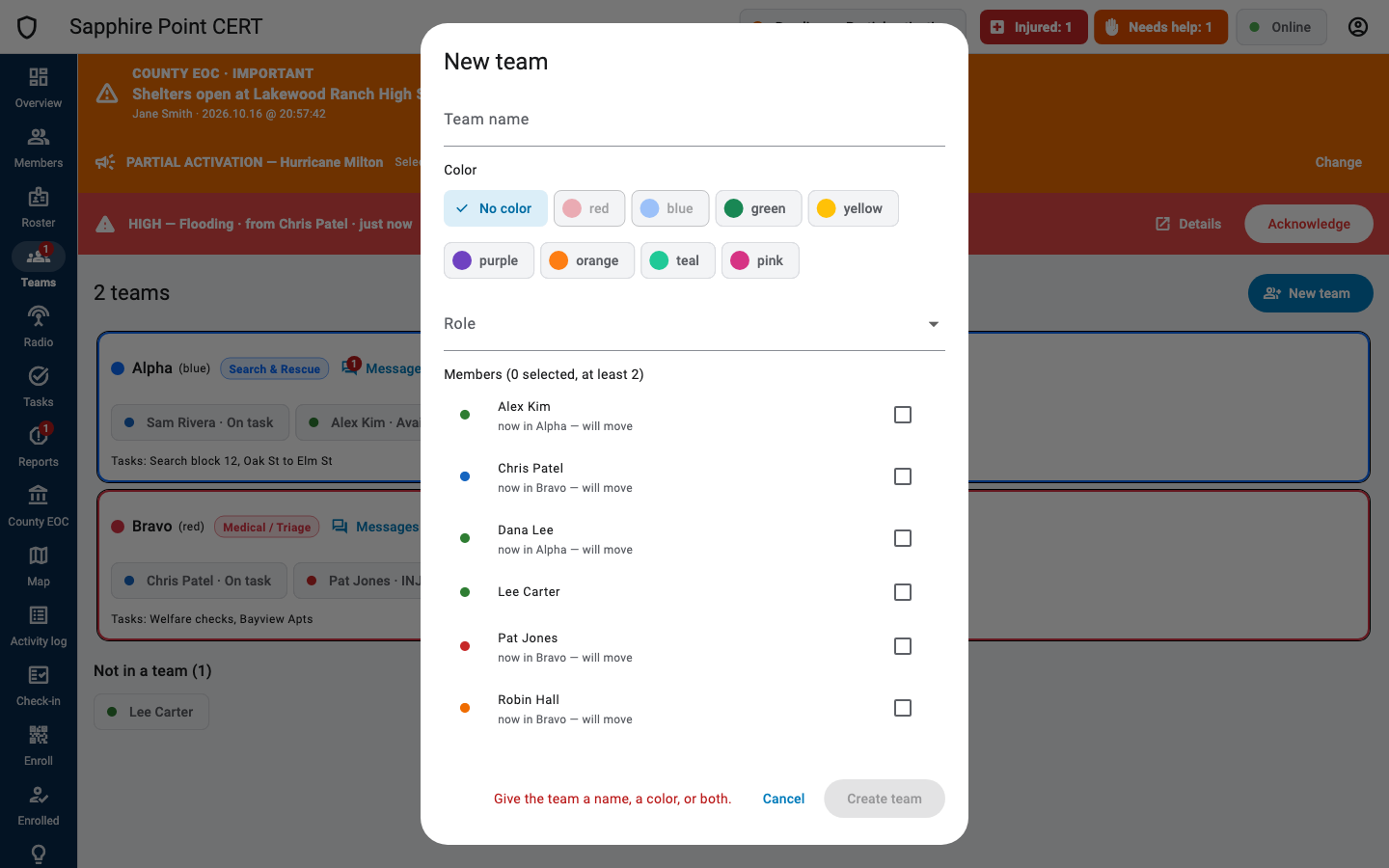
Split the people checked in into teams (sub-teams) with a role. Click New team: give it a name, a color or both, a role (Search & Rescue, Medical / Triage, Damage Assessment and more, or your own) and at least two members. Each team card has Messages (the team's conversation), Edit and Disband.
Radio
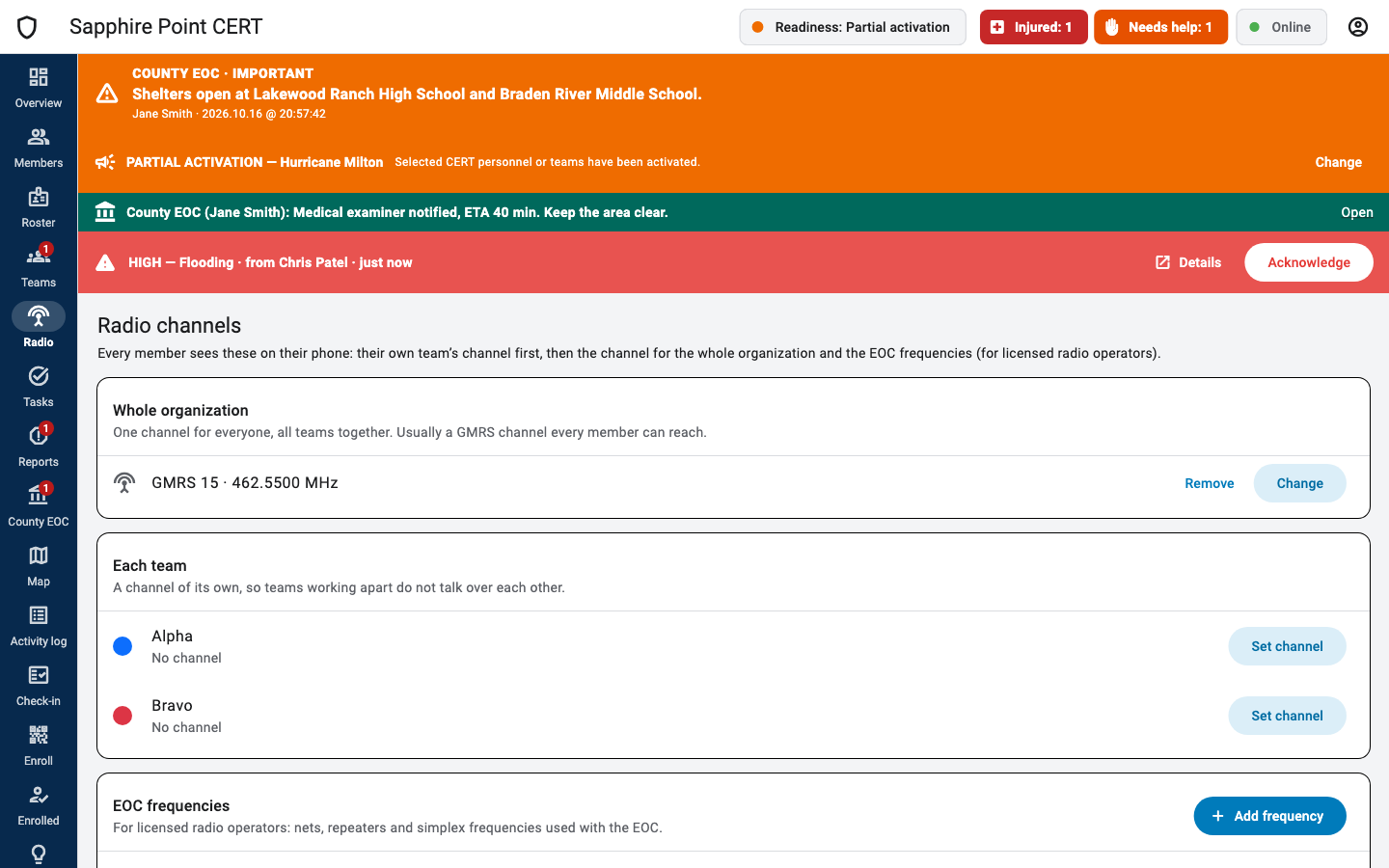
Set one channel for the whole organization, one for each team (so teams working apart do not talk over each other), and the EOC frequencies for licensed operators. Choose a GMRS channel (1 to 22) or type a frequency, with an optional tone (CTCSS like 100.0 or DCS like D023) and notes. A warning appears when two teams share a channel.
Tasks
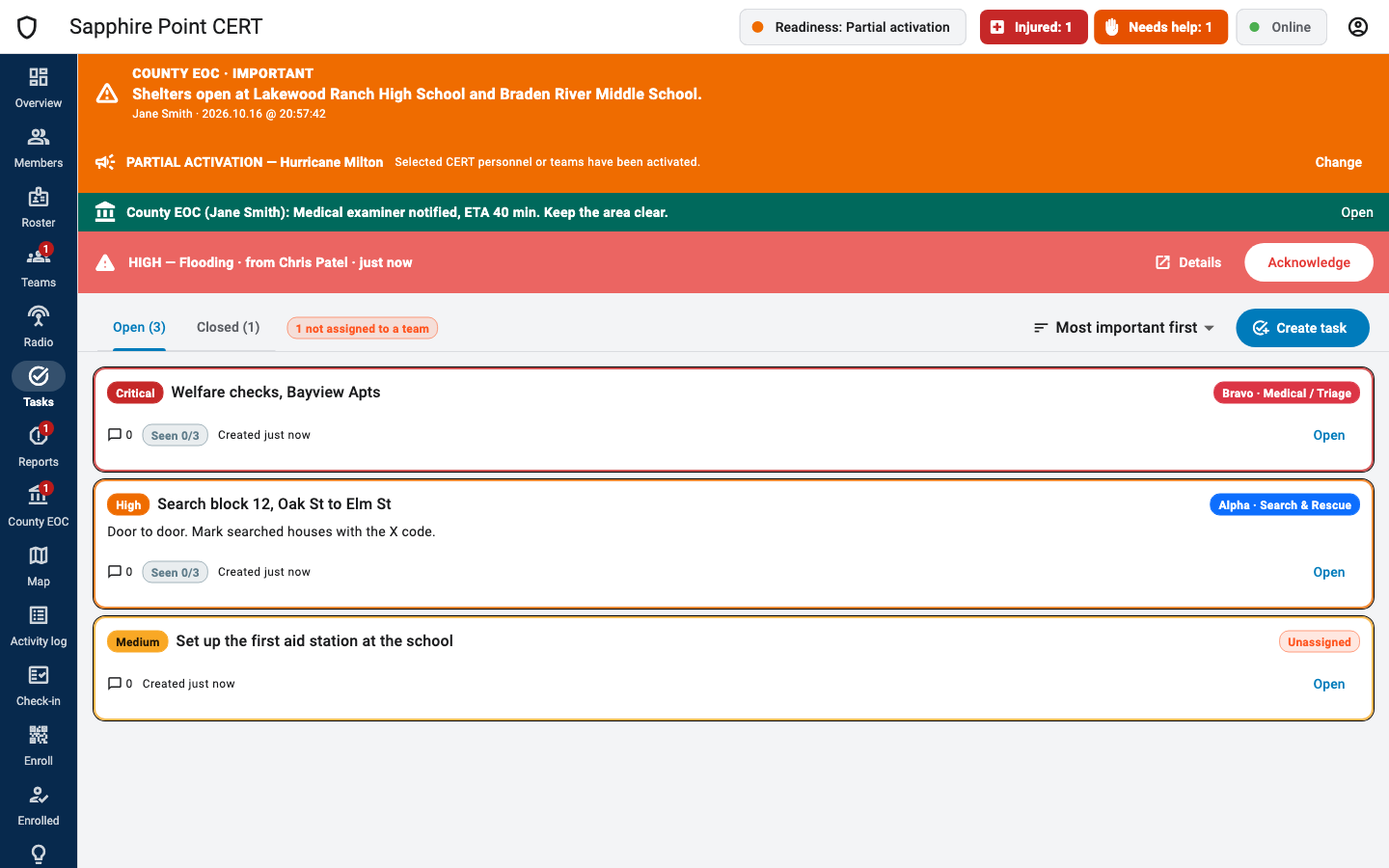
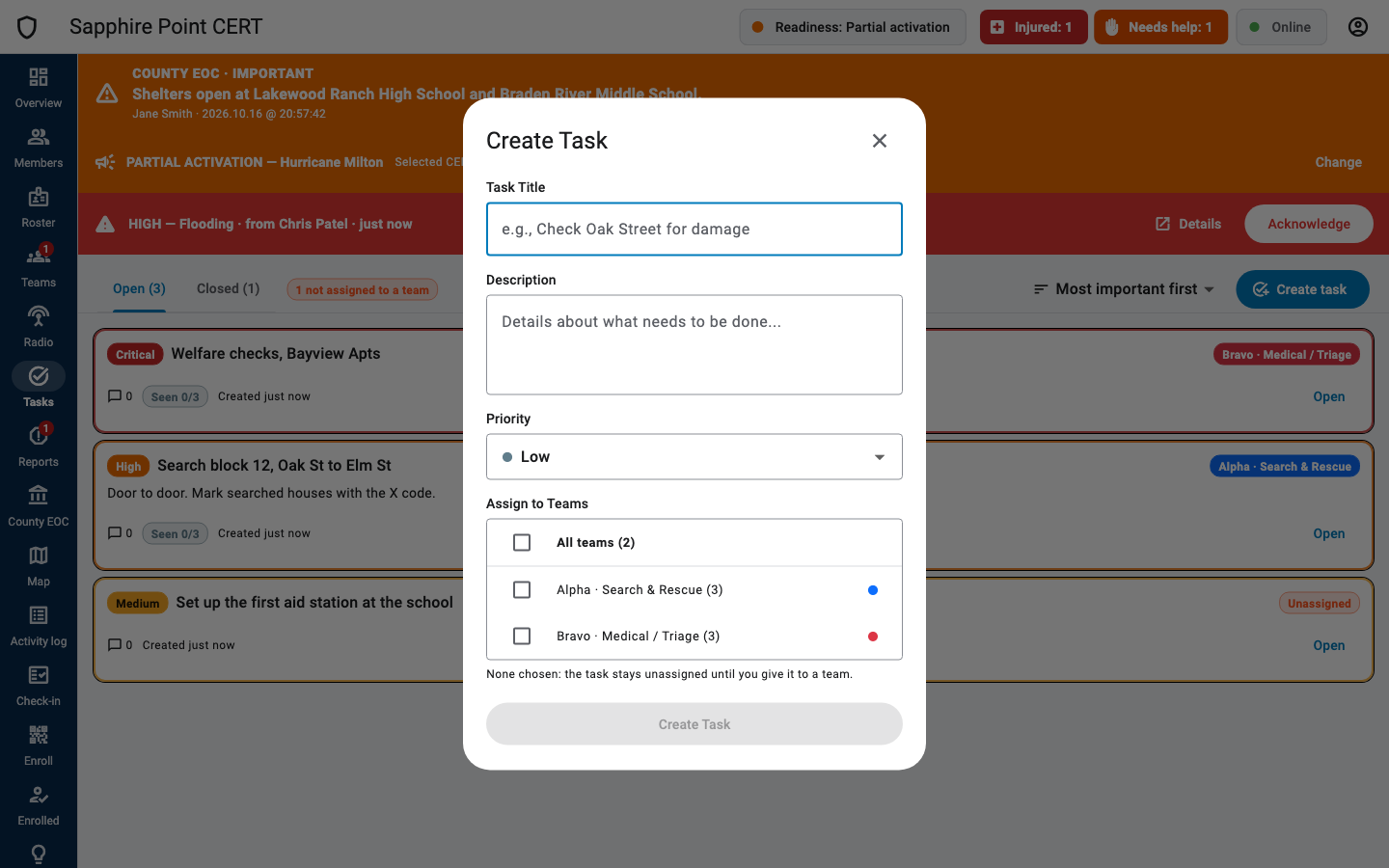
Create task: a title, a description, a priority (Low, Medium, High, Critical) and the teams it is for. Everyone on a chosen team gets it on their phone. Tick several teams, or All teams, to give the same task to each: every team gets its own copy (the button says Create 3 Tasks), and when one team closes theirs the others stay open. Tick none to keep it unassigned. Each task card shows how many team members have seen it (Seen 2/3) and new messages.
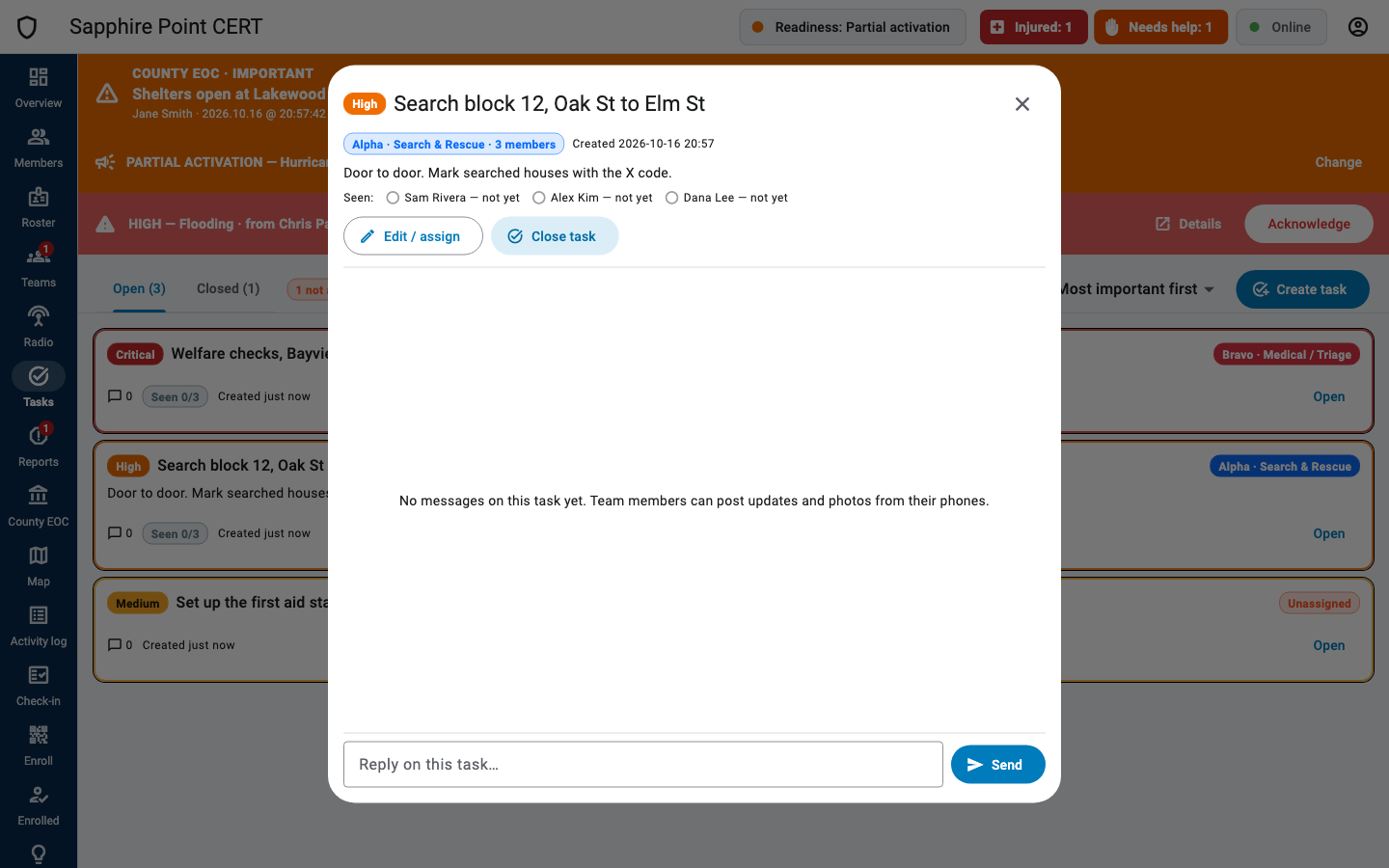
Open a task to see who has seen it, edit or reassign it (Edit / assign), talk with the team on it, and Close task with an optional note (or Reopen). Once it is closed, its team can no longer post on it; leaders still can, and reopening it lets the team write again. Sort with Most important first or Newest first; closed tasks by Recently closed first or Most important first.
Reports
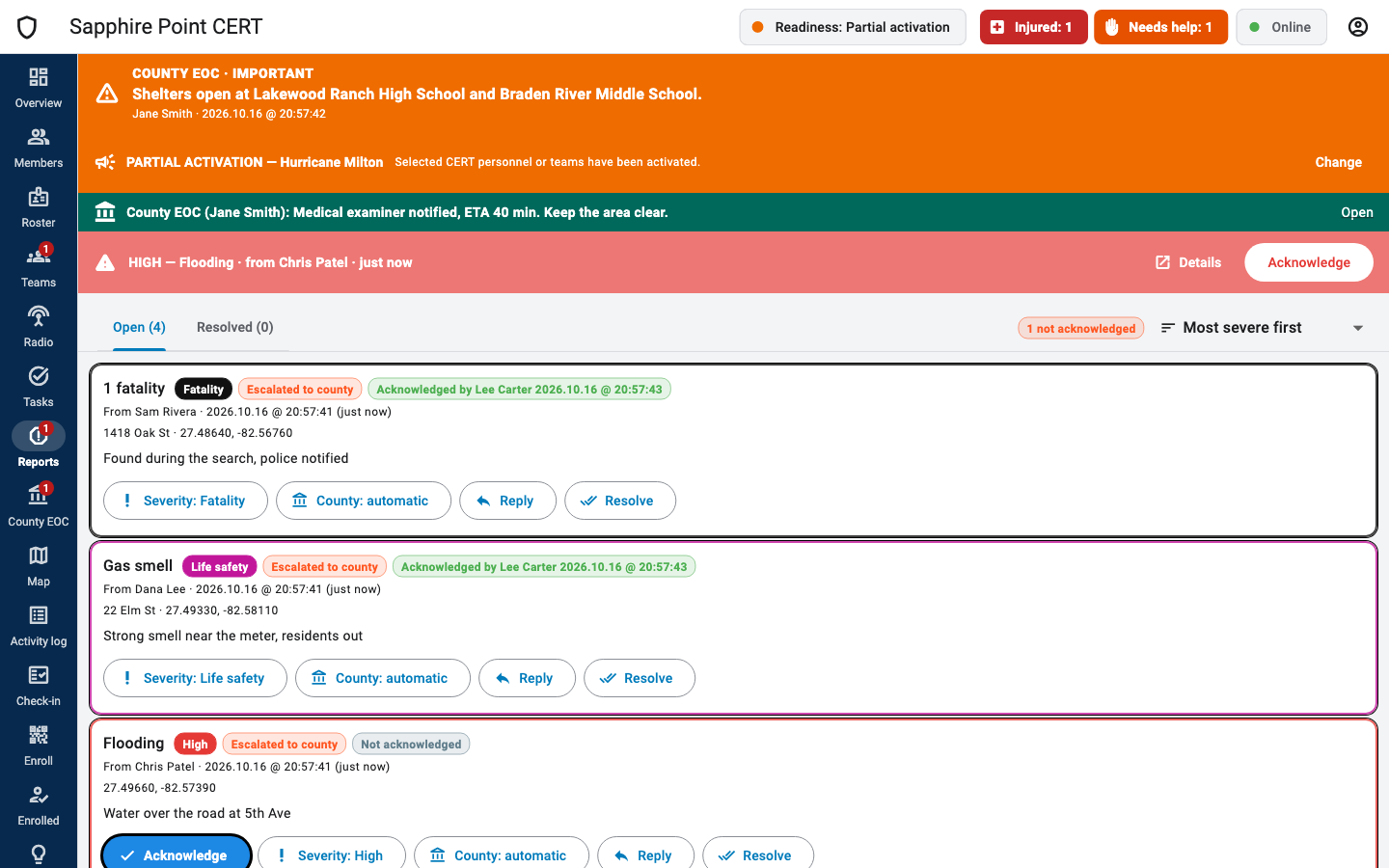
Every report from your members, with its severity, who sent it, where, the notes and the photo. Each card has:
- Acknowledge: tells the member you have seen it (they get Report seen).
- Severity: …: change it (Fatality, Life safety, High, Medium, Low).
- County: Automatic (high & life safety go to county), Send to county (or Send to county again (alert the EOC) once the county has seen it) and Keep local. A pill shows Escalated to county or County EOC saw it.
- Reply: an answer that appears on the member's phone.
- Resolve (with Undo): moves it to the Resolved tab and removes it from the member's phone.
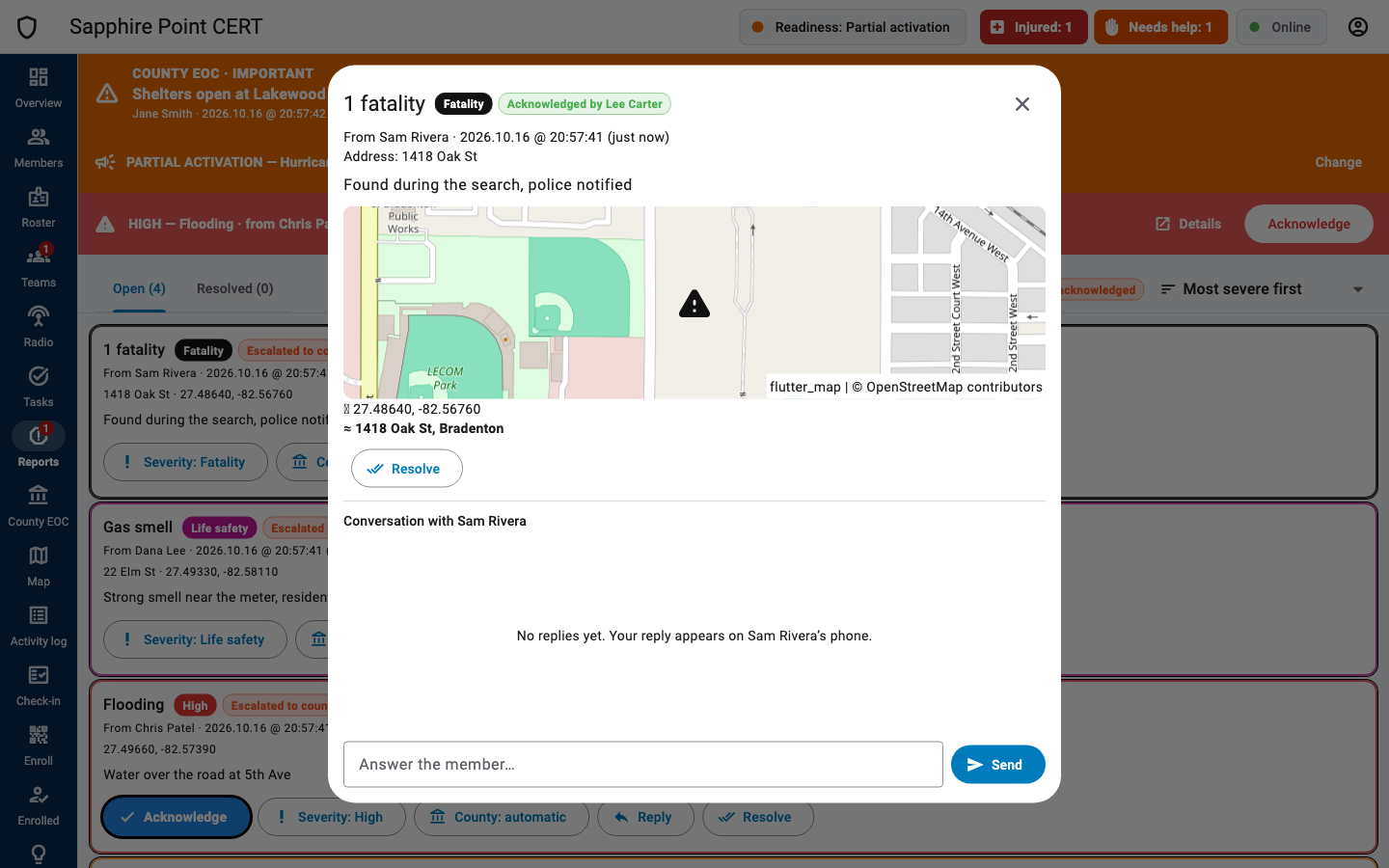
Sort with Most severe first, Newest first, Oldest first, Not acknowledged first, By kind or By member. A report the member took back within 30 seconds disappears; the activity log keeps both lines.
Two pills tell how a report came in, worked out from the team's record (a phone cannot set them): Not checked in, sent by a member who had not checked in; Received after close, made during the incident but received after you closed it. The activity log and the report's ICS 213 say so too.
County EOC
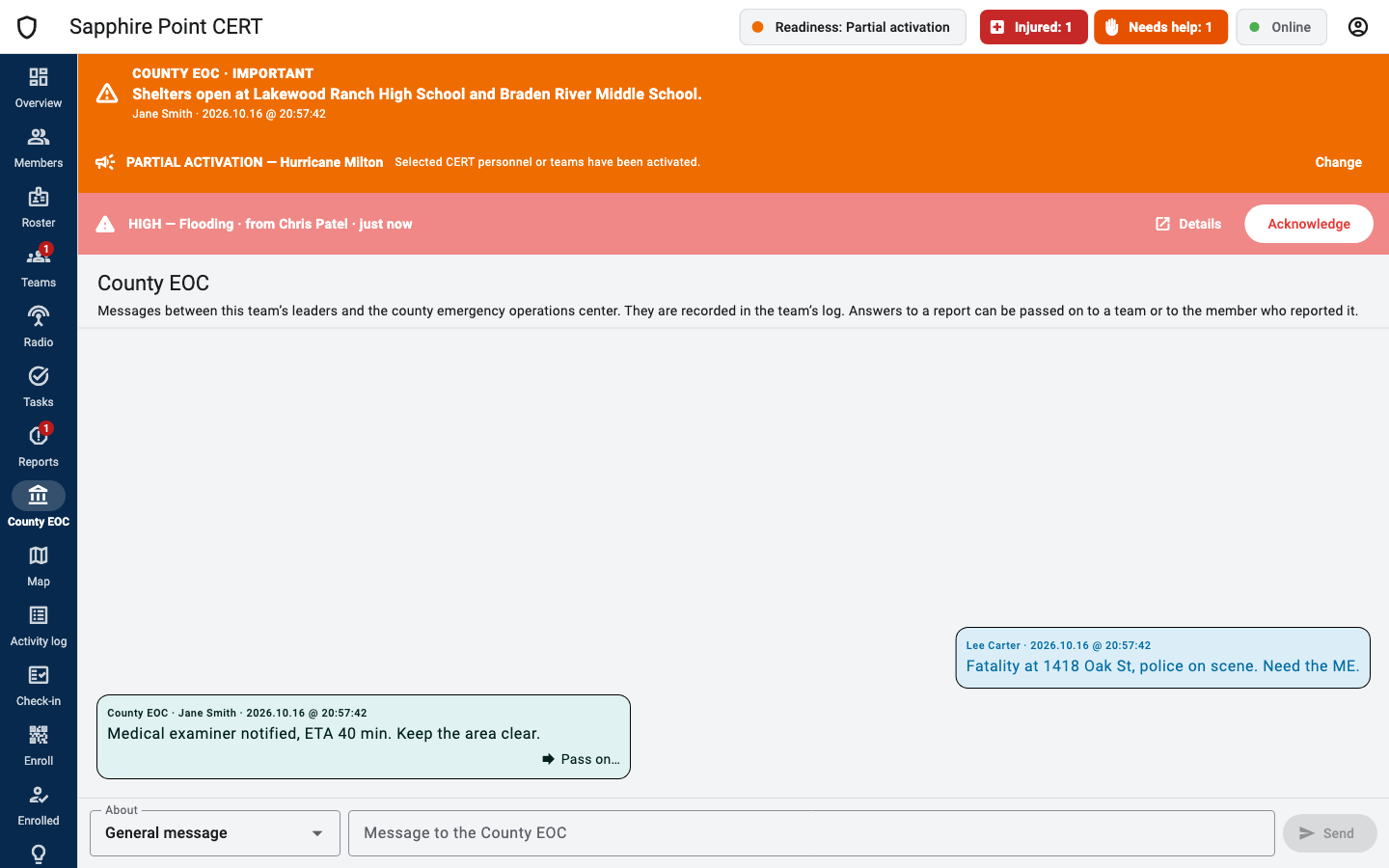
Messages between your team's leaders and the county emergency operations center. County messages are teal, on the left. Under your latest message you see Seen by County EOC once they have read it. Choose About to tie a message to a report sent to the county.
Pass on… forwards a county message to the member who reported (it appears as a reply on their report) or to a team. Opening this page marks the county's messages read, and the county sees that.
Map and trails
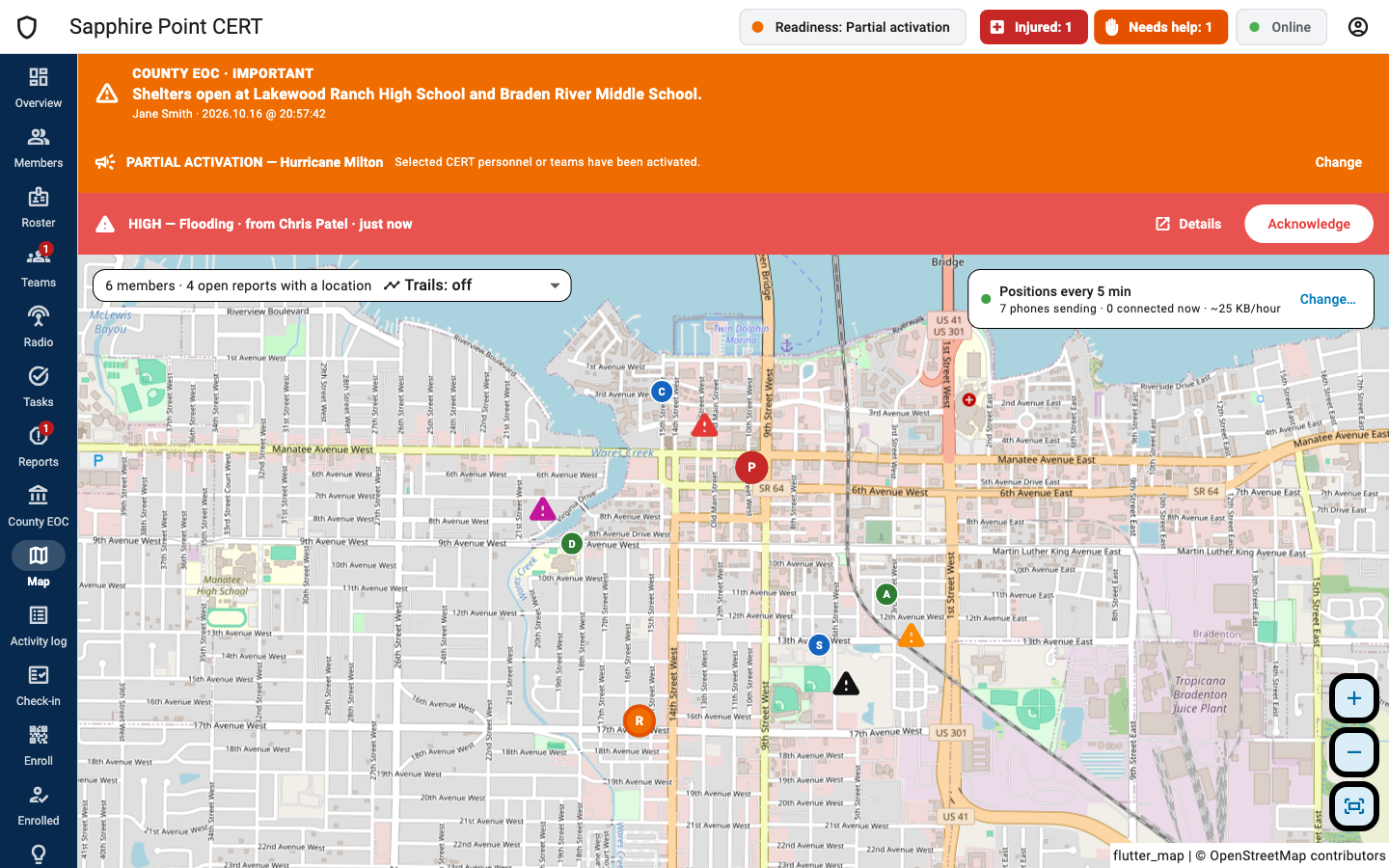
- Hover a member for their status; click for the member card. Members with an alarm are bigger, with a ring.
- Trails: off, last hour, last 6 hours or last 24 hours, for everyone in their team's color.
- Trail on a member card opens a panel with where that member went: a time slider, distance, and the events with positions (check-in, status, reports, messages). Export GPX and Export CSV save it.
- Top right: Positions every 5 min, how many phones send them, and Change… to set the interval for the whole team (30 seconds to 1 hour). The dialog estimates the data and battery cost; more often means more load when the network comes back.
Activity log and ICS forms
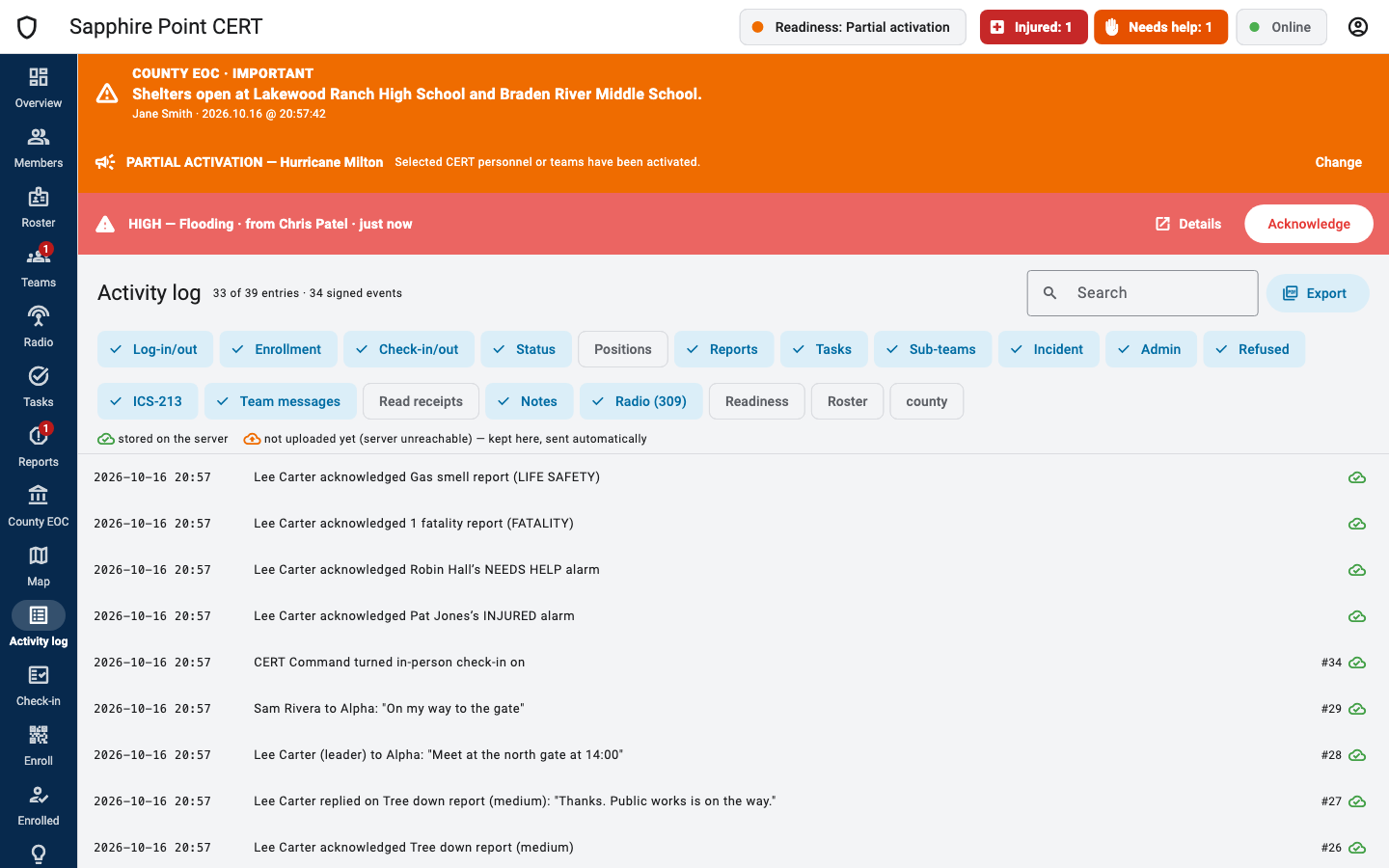
The activity log records every action in the team, signed by whoever did it: check-ins, statuses, reports, tasks, messages, county exchanges, enrollments and more. Filter by kind with the chips, and search. A cloud icon shows whether each entry is stored on the server or still waiting to be uploaded.
Log-ins and log-outs: when a device disconnects and comes back within 2 minutes (a network blip, a computer waking up, a server update), both lines are left out, and the one coming back reads reconnected. Untick Hide quick reconnects to see them; the ICS 214 export follows the same choice. When the server restarts for an update, its disconnect lines say disconnected: server restart (update).
Export makes the ICS forms from the log:
- ICS 214 Activity Log for the whole organization (unit log) or for one person, for the incident, the last 12 or 24 hours, or everything. Print it or save it as PDF. Its Resources assigned lists everyone checked in during the period, however they checked in (with their phone, by hand, or approved from the field) and until they were checked out (by themselves, by a leader, by closing the incident, or by being un-enrolled).
- ICS 213 General Messages: the county conversation, team conversations and conversations on reports, one form per exchange. Urgent reports are marked urgent.
- Copy ICS 214 as text for pasting into an email.
The county's ICS 309 communications log is made in the county console.
Enroll member phones
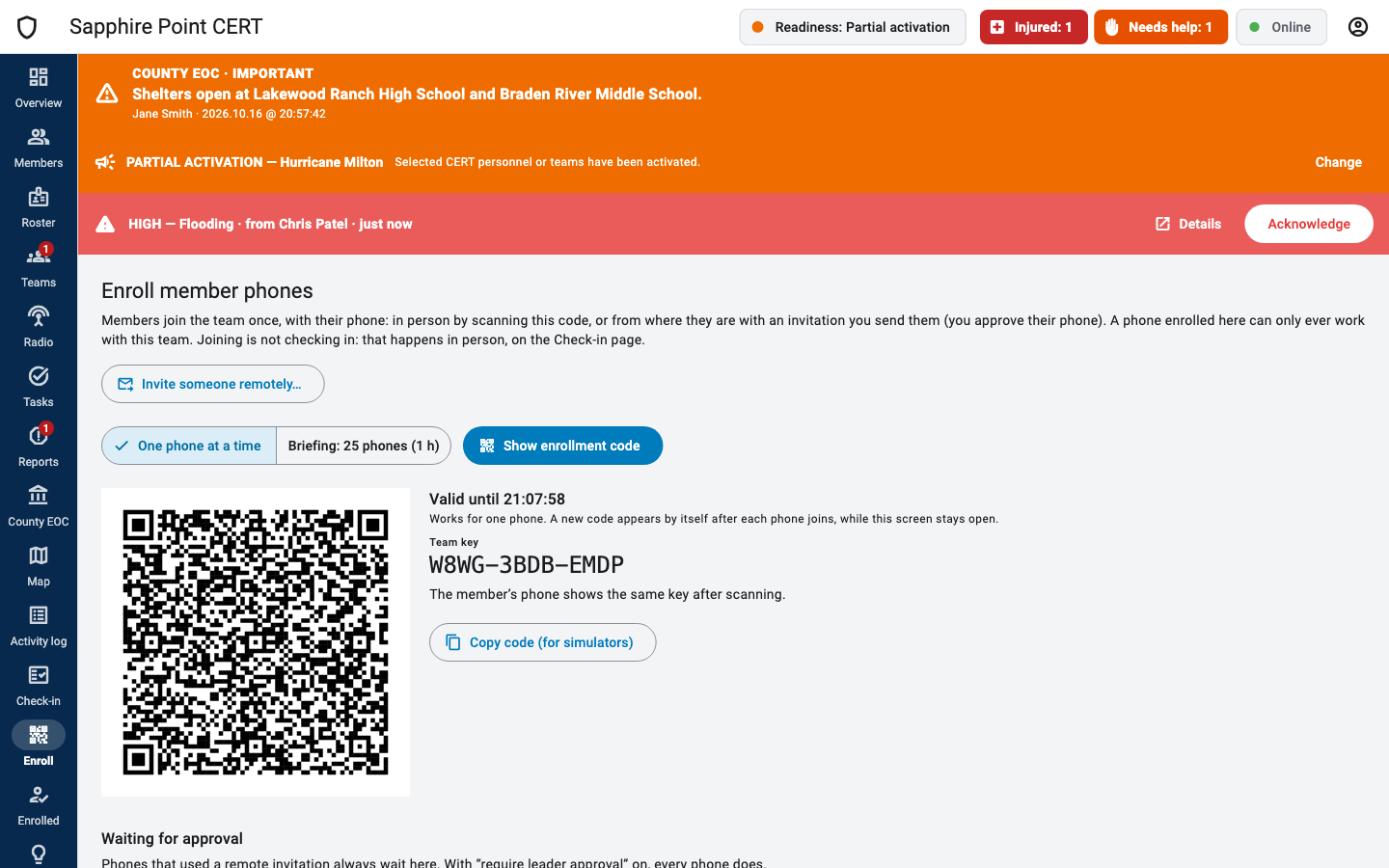
- Open Enroll and choose One phone at a time (a code valid 10 minutes, for one phone) or Briefing: 25 phones (1 h).
- Click Show enrollment code. Members scan it with the phone app and check that their phone shows the same team key.
- In one-phone mode, a new code appears by itself as soon as a phone joins, with ✓ Pat Jones joined. Stay on the screen and the next person scans the new code. An expired code is also replaced, for an hour after the last join.
Turn on Require leader approval for new member phones to approve each phone yourself under Waiting for approval (Approve / Deny). Phones that used a remote invitation always wait there, whatever this switch says; they show the name you invited, and what the phone typed if it differs. Computers that used a co-leader invitation wait there too, marked co-leader: a leader computer: approving one makes that person a leader of the team. Changing the switch needs the connection: offline it is grayed out, with Option unavailable while offline. Set up a hotspot.
Invite a member remotely
For someone who cannot come to you to scan the code (they join once; checking in still happens in person). On the Roster, click Invite on a person with no phone yet (or ⋮ › Invite to join…): their name and email fill in. Or, on Enroll, click Invite someone remotely…; or, in a person's Enroll a phone for …, Invite remotely instead….
- Type the name, or pick the person from the roster suggestions (their email fills in, and their phone keeps their roster details). Add an email address if the server should send the invitation.
- Click Make the invitation (or Make and email it). The dialog shows the message: a
certcommand.org/joinlink, the team key and what happens next. Copy message to text it from your own phone. - When their phone uses it, the dark blue banner says a phone is waiting. Open Enroll and Approve it. In doubt, call them and read the team key aloud.
The invitation is for that person only: it works once, for 24 hours, and always waits for a leader's approval, so a forwarded one lets no one in. Making one needs the connection.
Check-in: the code and requests
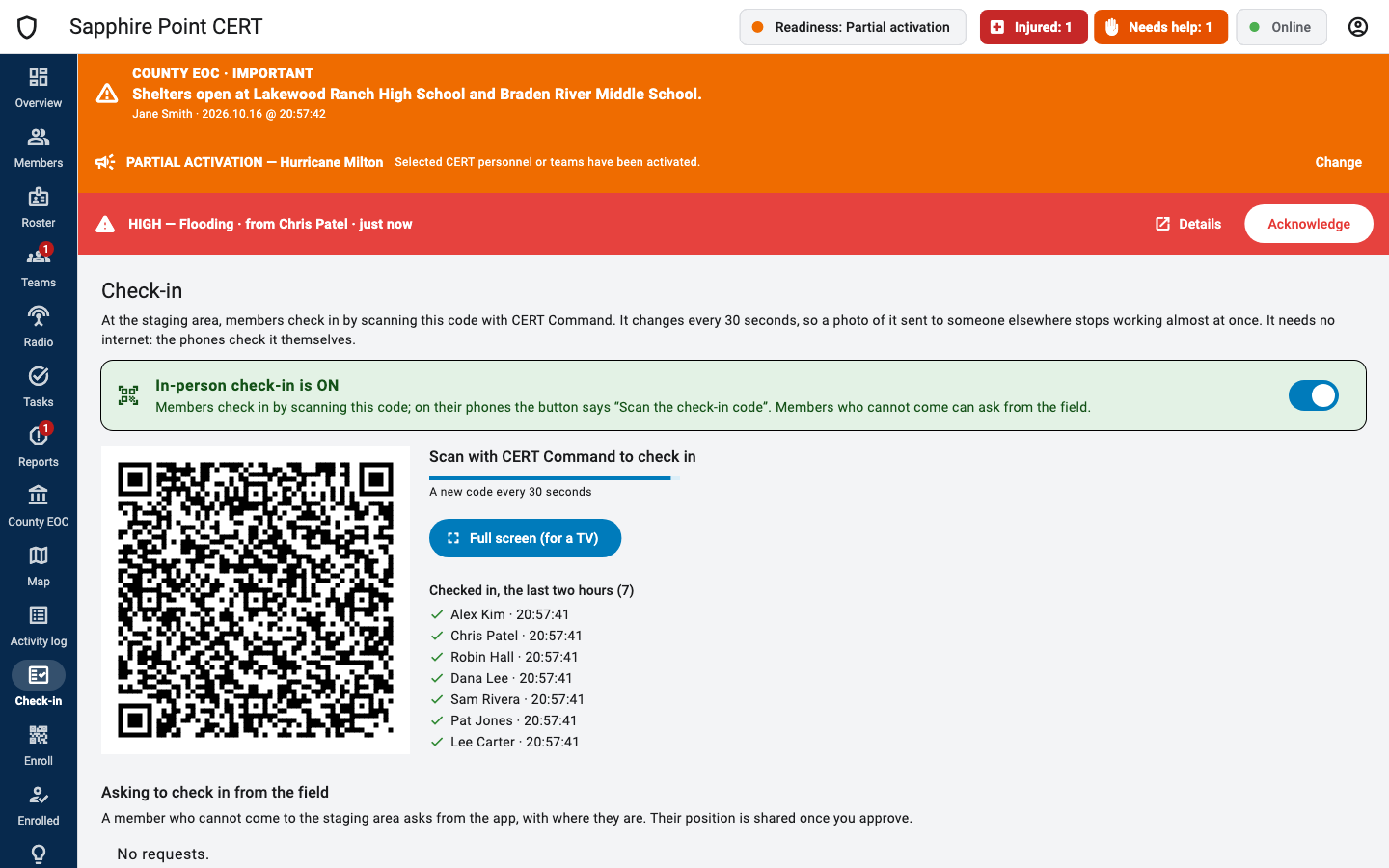
Members check in in person by scanning the code on Check-in. It is signed by this computer and changes every 30 seconds, so a photo sent to someone elsewhere stops working almost at once. It needs no internet: phones check it themselves, and the team server checks each check-in's code again when it arrives.
- Full screen (for a TV) shows the code as large as the screen allows, with who just checked in, for the staging area. Escape closes it.
- Checked in, the last two hours lists who checked in, with the time.
- Asking to check in from the field: members who could not come. Where? shows a map and the address; Approve checks them in (logged as approved by you, their position shared from then on); Deny tells them to come to the staging area. The same requests show as blue banners on every page.
- The card at the top says whether In-person check-in is ON or OFF, and its switch changes it. On: members scan the code (their button says Scan the check-in code). Off (for a drill, say): members check in from anywhere without it (their button just says Check in), and the code is dimmed. It is on for new teams; teams from before October 2026 start with it off. Changing it needs the connection, and a message confirms it.
You can always check a member in by hand, from Members.
Enrolled: leaders and phones
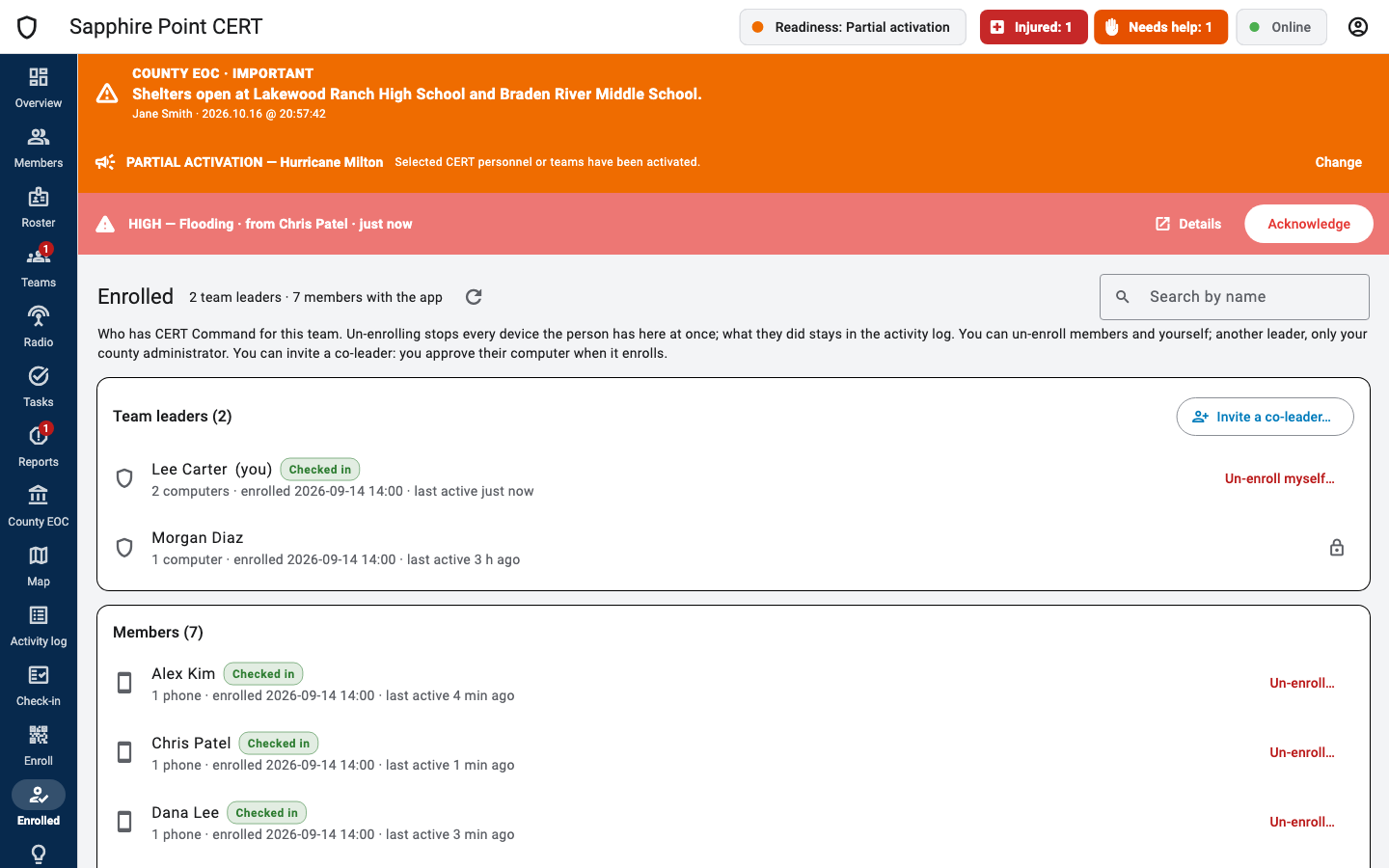
Enrolled (see three lists for how it differs from the Roster and Members) lists who has CERT Command for your team, as the server knows it: the team leaders first, with how many there are and their computers, then the members with their phones. Each row shows when they enrolled, whether they are checked in and when they were last active. Search by name at the top.
- Un-enroll… on a member stops every phone they have on the team at once. If they are checked in, it also checks them out (their phone can no longer do it), and the activity log says so. What they did stays in the activity log. To come back, they scan a new enrollment code or use a new invitation.
- Invite a co-leader… (on the Team leaders card) invites someone to lead the team with you: they get the dashboard and the same rights as you. Type their first and last name and, if the server should send it, their email, then Make the invitation. The dialog shows the message to send (where to download the dashboard, the code, the team key); Copy message to send it yourself. The invitation is for one computer, works once, for 7 days, and always waits for a leader's approval on Enroll, so a forwarded one lets no one in. It needs the connection. Your county administrator sees every leader in the console.
- Un-enroll myself… on your own row stops your computers for the team, this one included, and removes this computer's copy of the team record. To lead the team again you need a new leader code from your county administrator or another leader. If actions are still waiting to be uploaded, it asks you to wait until they are; if you are the only leader, it says so.
- Another leader shows a lock: only your county administrator can un-enroll a leader, in the console.
The list needs the connection to the server.
Feedback
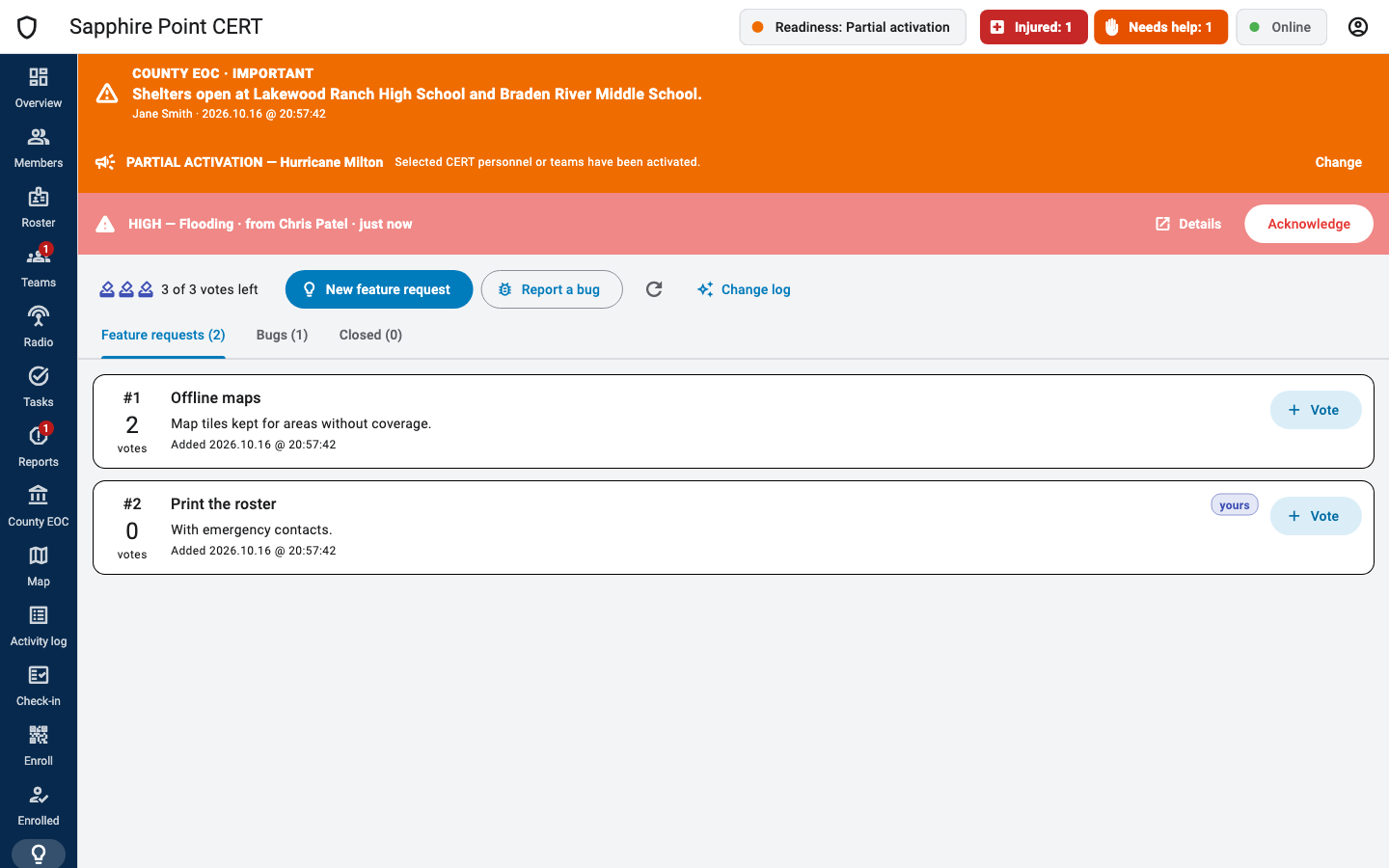
The same anonymous board as on the phones, shared by every team: three votes each, New feature request, Report a bug, and Change log. An open request can show In review or In progress, where the developer is with it; closed ones show their outcome and the developer's note. Facebook group in the header opens the CERT Command Facebook group on Facebook, to talk with other CERT members and leaders.
Appearance
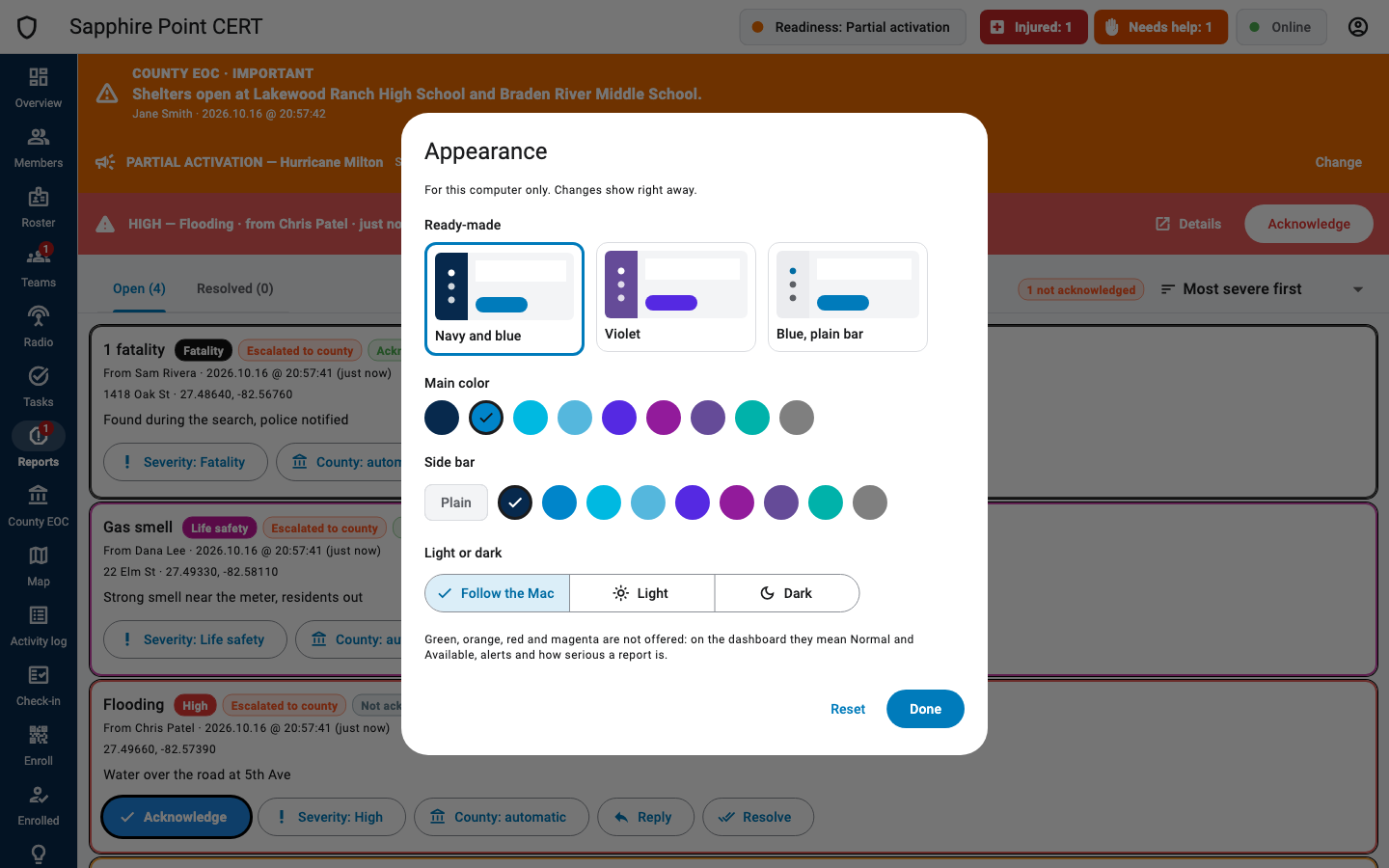
Person menu › Appearance…: a ready-made look, the main color, the side bar color, and light or dark. Green, orange, red and magenta are not offered because they carry meaning on the dashboard (statuses, alerts, severity). Reset goes back to the standard look.
About and updates
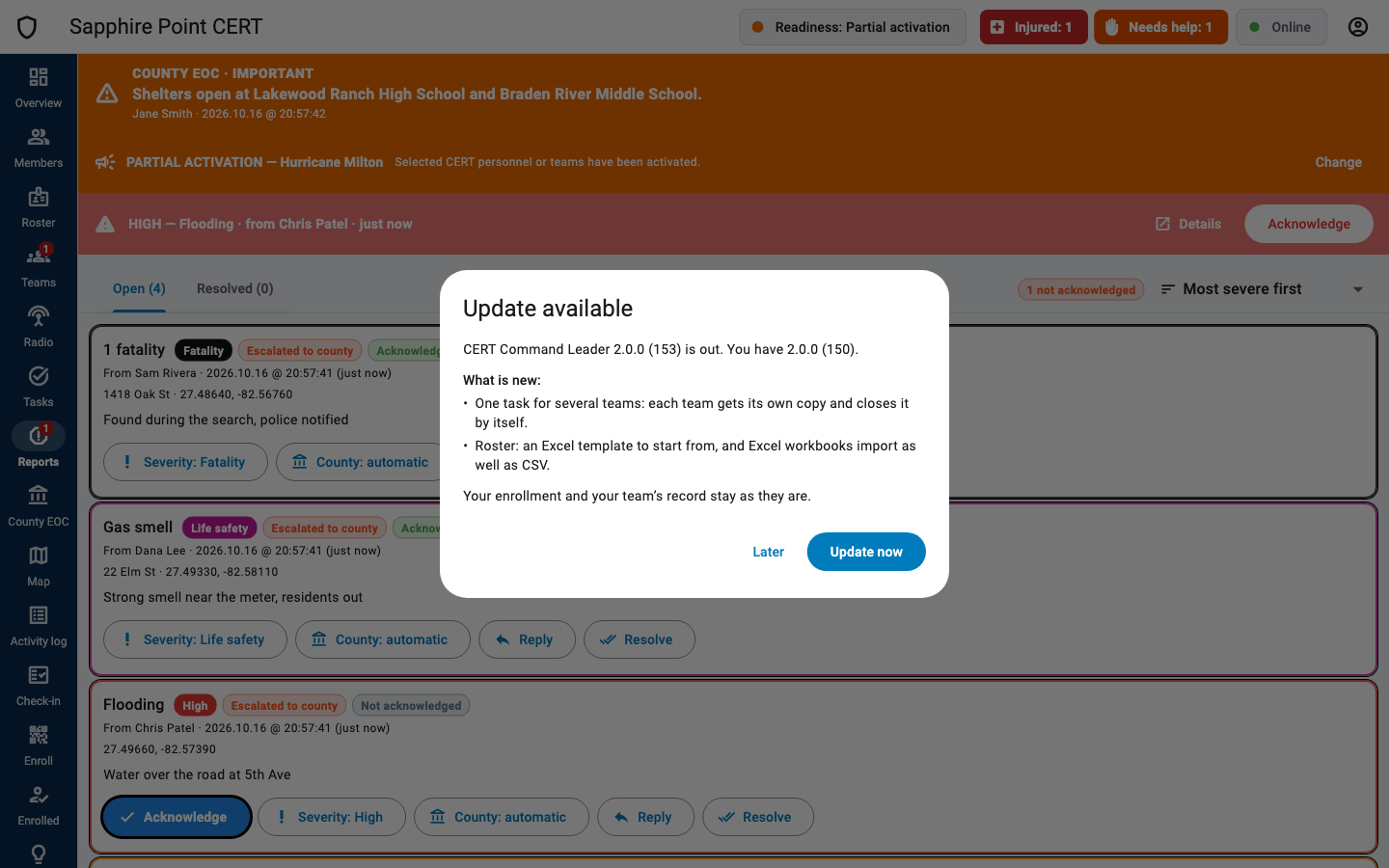
- When a newer dashboard is out, it offers it at launch with what is new: Update now or Later. Later asks again on the fifth launch; a newer release is offered at once.
- Windows: Update now downloads the installer, installs it quietly and reopens the dashboard.
- Mac: the browser downloads the new version; open it and drag it onto Applications (Replace).
- After an update, the dashboard shows once What's new in that version, with Facebook group (our group on Facebook), Full change log and OK. While an incident is open, it waits until the incident is closed.
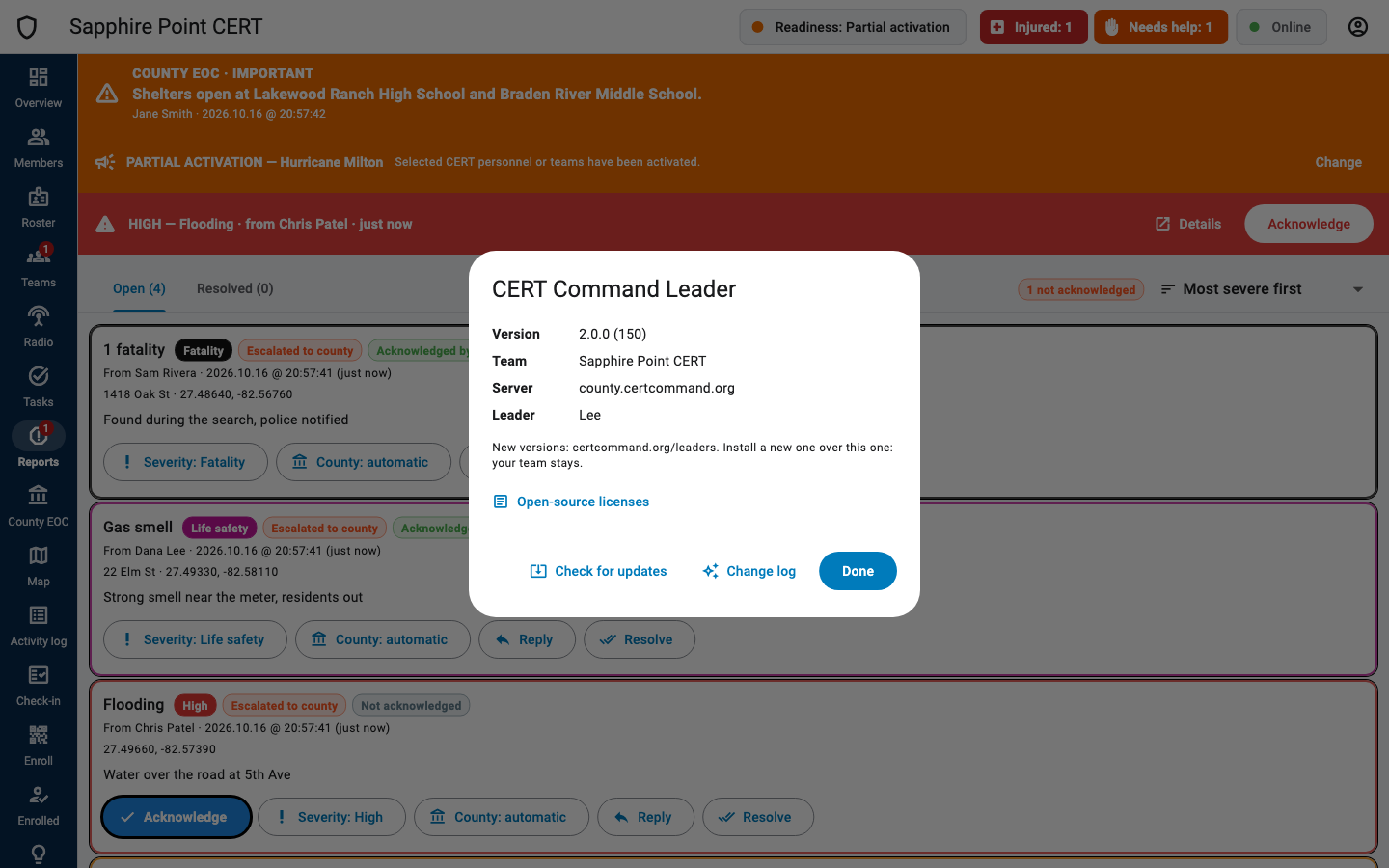
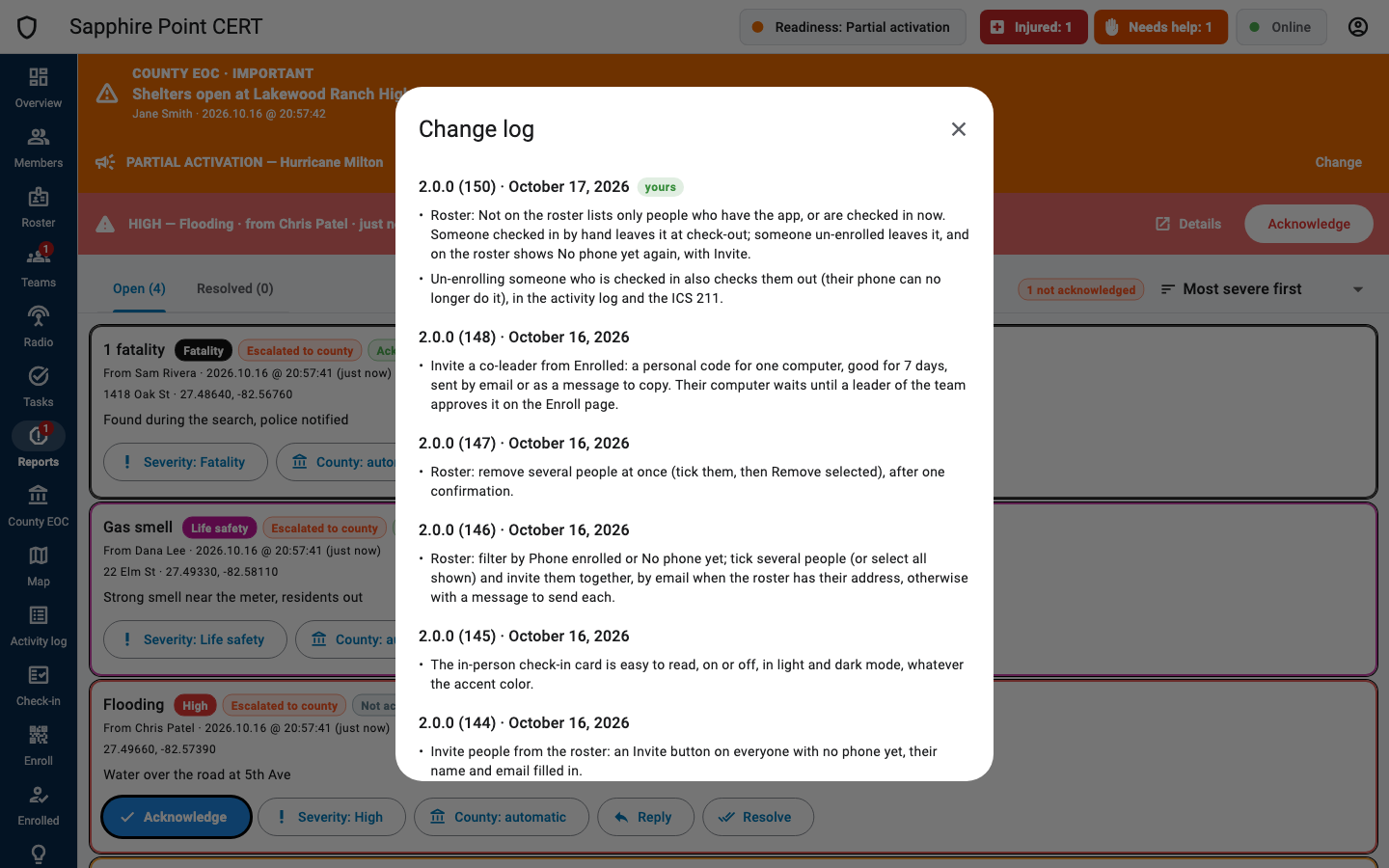
- Person menu › Check for updates… checks on demand. About CERT Command Leader… shows the version, team, server and leader, the Change log, the Open-source licenses and a link to our Facebook group on Facebook.
Working offline
- Everything you do shows at once and is saved on the computer, then sent when the server is reachable. The connection chip counts what is waiting.
- The dashboard opens on the copy of the team log saved on the computer, even before it connects.
- That copy, the actions waiting to be sent and the photos are encrypted on the computer. The enrollment itself is kept by the system: the Keychain on a Mac, the credential store on Windows.
- The check-in code works offline: it is made on this computer, and phones check it themselves.
- Some things need the connection: enrollment codes, remote invitations and approvals, answering requests to check in from the field (the member is reached through the server), the in-person check-in switch, the position interval, address lookups, the team logo and Feedback.
Person menu › Remove this computer’s enrollment… deletes the computer's copy of the team log and its enrollment (the server keeps the full record). Actions not uploaded yet are lost: reconnect first. To use the computer again you need a new leader code.
If your county or CERT Command deletes the team, the dashboard says so on every page: Sapphire Point was decommissioned on October 23, 2026. It can no longer check people in, give tasks or reach your members, and their phones leave the team. Only the Overview, the Map and the Activity log stay open, with what this computer kept: export the ICS forms you need, then click Remove this computer’s enrollment… in the banner. A dashboard that was off at the time learns it when it next connects.
County EOC and county admin: the web console
For county emergency operations center staff and county administrators. The console runs in a web browser at the county's address, for example county.certcommand.org/console/.
Sign in
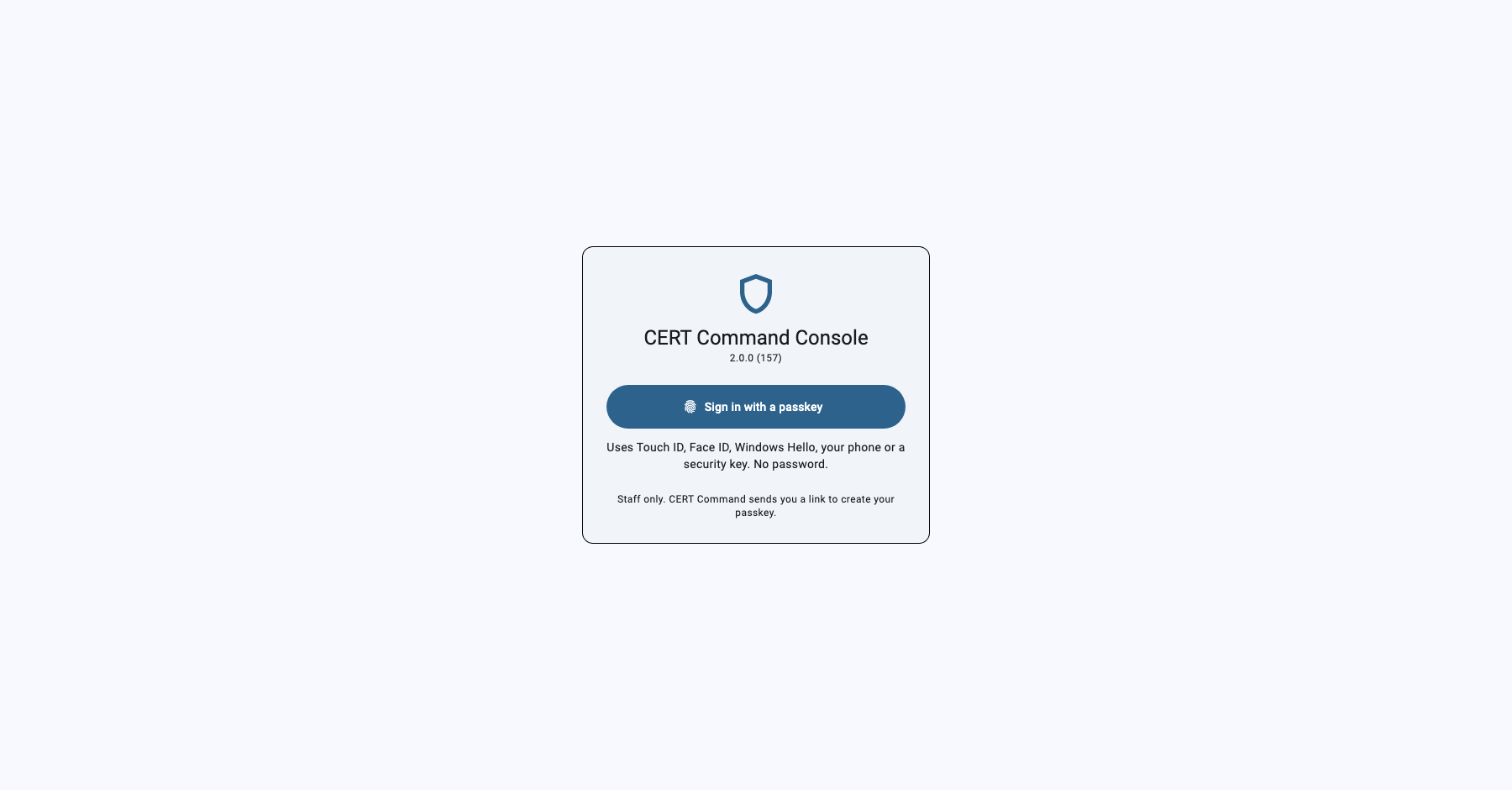
- CERT Command sends you a link. Open it, and the console shows Welcome and your name. Click Create my passkey and use Touch ID, Face ID, Windows Hello, your phone or a security key. The link works once and for 2 days.
- After that, open the console and click Sign in with a passkey. A session lasts 12 hours.
- The first time, the console shows the key points of the Terms of Use. Tick I understand and I agree under each one and the last box, then click Continue. It asks again only if the terms change; the acceptance is kept in the console's Activity.
- To sign in from another computer, ask CERT Command for a new sign-in link; your other passkeys keep working.
- Use a current Chrome, Safari, Edge or Firefox, at the console's https address.
Roles and sections
| Role | Sections | What for |
|---|---|---|
| County EOC | County EOC, Broadcasts, ICS forms | Sees activated teams and serious reports, messages leaders, sends broadcasts, makes the county's ICS forms. |
| County admin | Teams | Creates the county's teams, emails their first leader, makes leader codes, renames teams, removes a person's devices. |
A person can have both roles. Console accounts, the server itself and the feedback board are run by CERT Command. The title bar shows the console's version, your name, your roles, ⓘ (about the console and its open-source licenses) and Sign out. How CERT Command is built: certcommand.org/technology.
County EOC overview
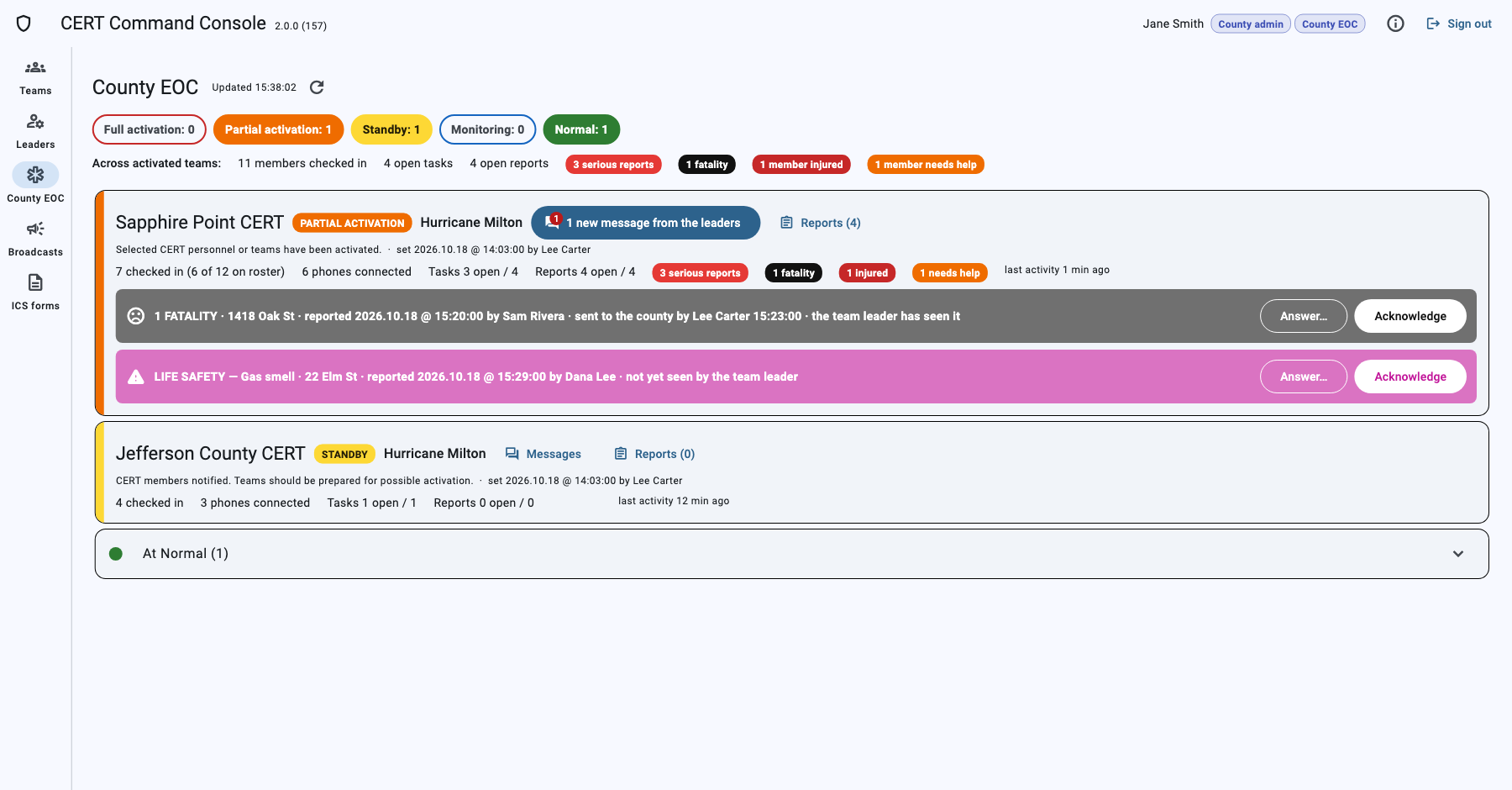
The page refreshes every 10 seconds. At the top: how many teams are at each level, new messages from team leaders, reports waiting for the county, and totals across activated teams (members checked in, open tasks and reports, serious reports, fatalities, injured, needs help).
A team gets a card when its readiness is above Normal, when a report waits for the county, or when its leaders wrote. Cards with a waiting fatality come first. Each card shows:
- The readiness and event, who set it and when.
- Members checked in (and of the roster), phones connected, tasks and reports, and counts of serious reports, fatalities, injured and needs help.
- A banner for each report waiting for the county: what (for example 1 FATALITY or LIFE SAFETY — Gas smell), where, when and by whom, who sent it to the county, and whether the team leader has seen it. Answer… and Acknowledge.
- Messages (with the number of new messages) and Reports.
Quiet teams at Normal are listed under At Normal; click one to see its reports.
A team's reports
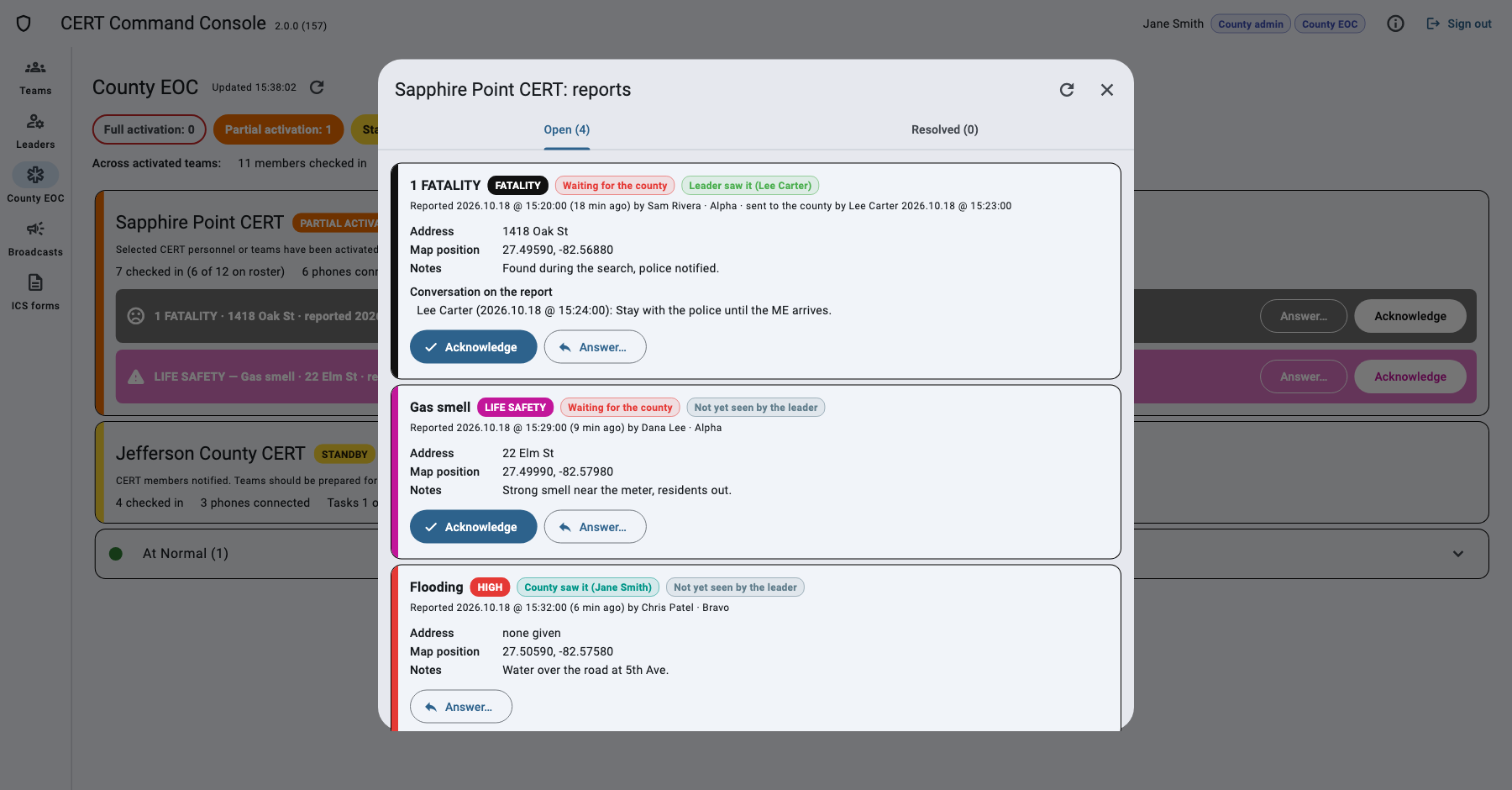
Click a team card or Reports. Each report shows its severity, whether it is Waiting for the county or County saw it, whether the leader has seen it, who reported it and when, the address, the map position (Open map shows it on OpenStreetMap), the notes, the photo (click to enlarge) and the conversation on the report. Not checked in marks a report from a member who had not checked in; Received after close, one that reached the server after the team closed its incident. The county's ICS forms say so too.
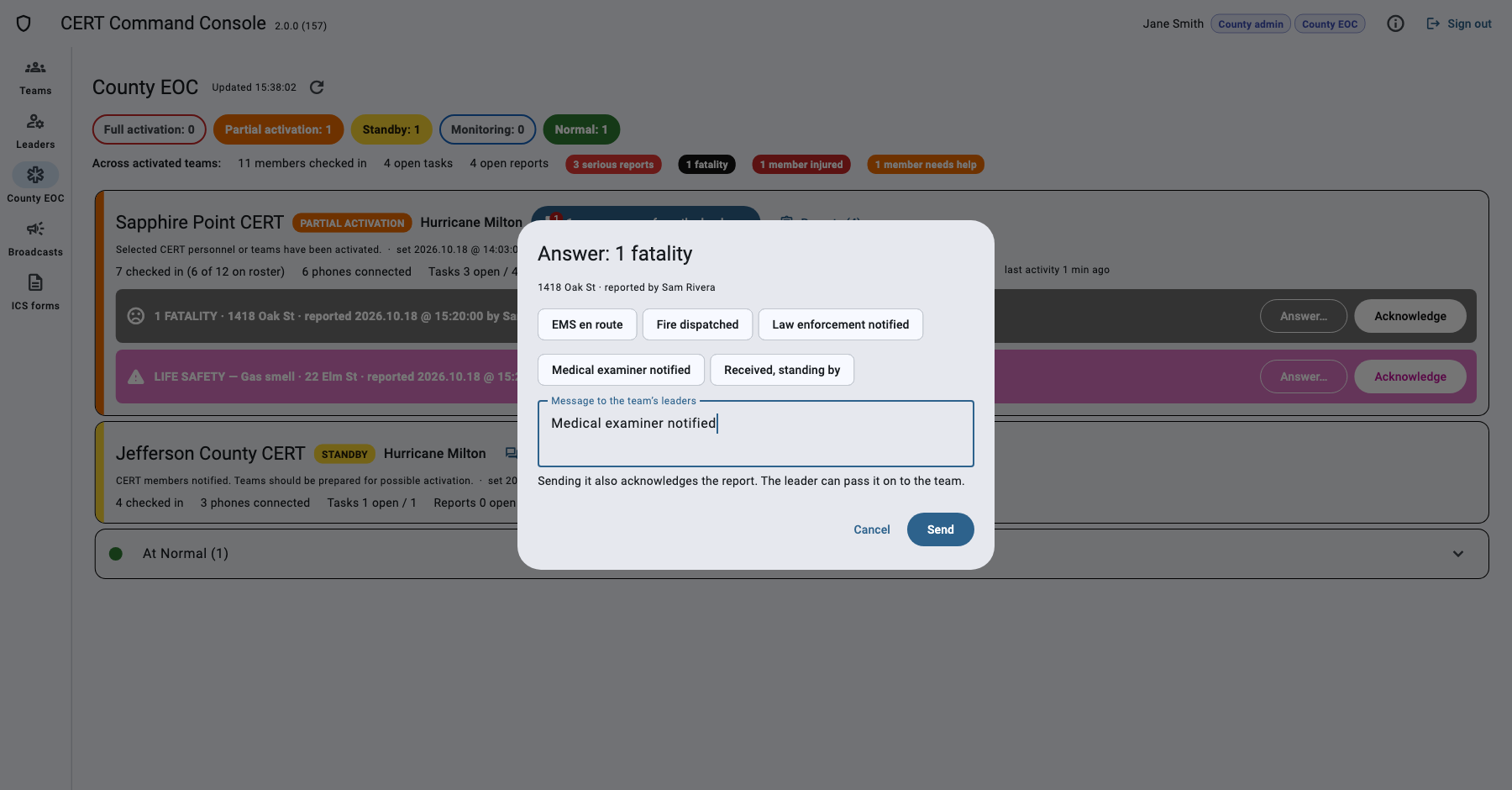
Answer… writes to the team's leaders about the report. Quick answers: EMS en route, Fire dispatched, Law enforcement notified, Medical examiner notified, Received, standing by. Sending also acknowledges the report. The leader can pass the answer on to the member or the team.
Talk with team leaders
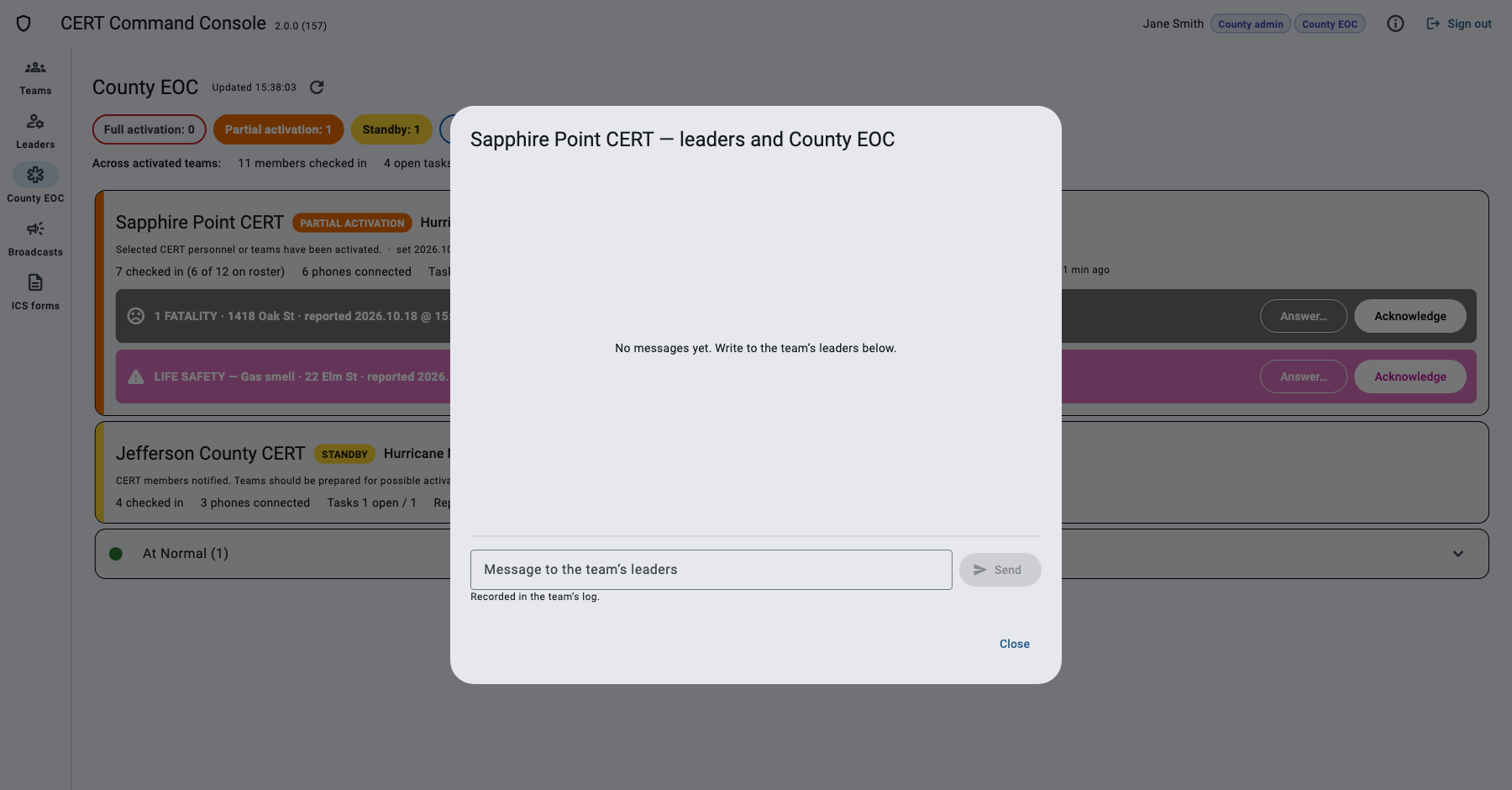
Click Messages on a team card. County messages are on the right, the leaders' on the left. You see when a leader read your messages and when they passed one on (Passed on to Sam Rivera (who reported it) by Lee Carter). Choose About to tie your message to one of the team's reports. Opening the conversation tells the leaders the county has read their messages. Everything is recorded in the team's log.
Broadcasts
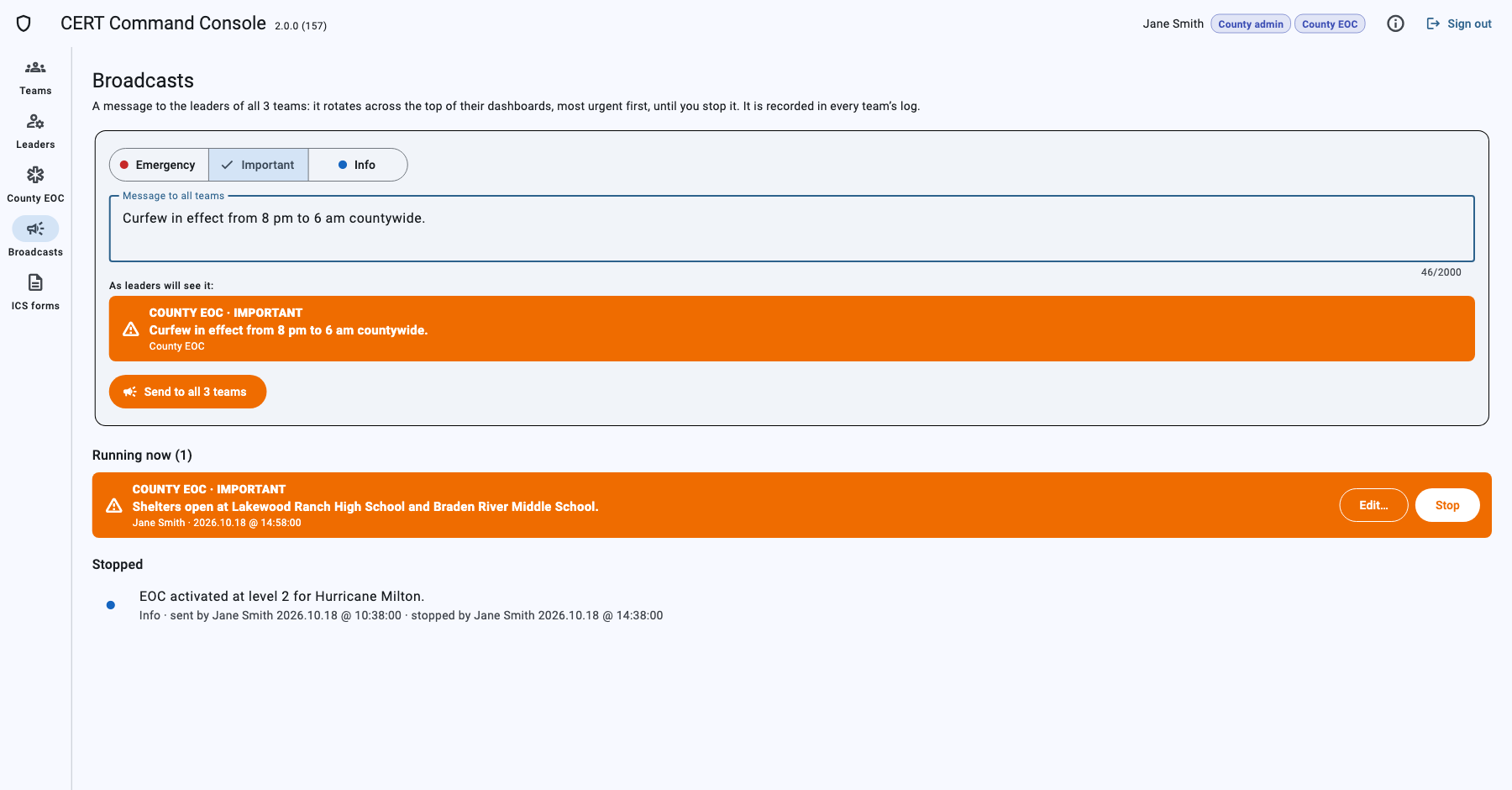
- Choose the level: Emergency, Important or Info.
- Write the Message to all teams. The preview shows it as leaders will see it.
- Click Send to all … teams and confirm.
The broadcast rotates across the top of every leader dashboard, most urgent first, and leaders cannot dismiss it. It stays until you click Stop. Teams created while it runs get it too. Stopped broadcasts are listed below with who sent and stopped them.
To change a running broadcast, click Edit… next to Stop: choose another level or change the words, then Save and send. Every dashboard shows the new text in place of the old one, marked edited with who changed it. The change is recorded in every team's log and in the county's ICS 214 and 309.
ICS forms
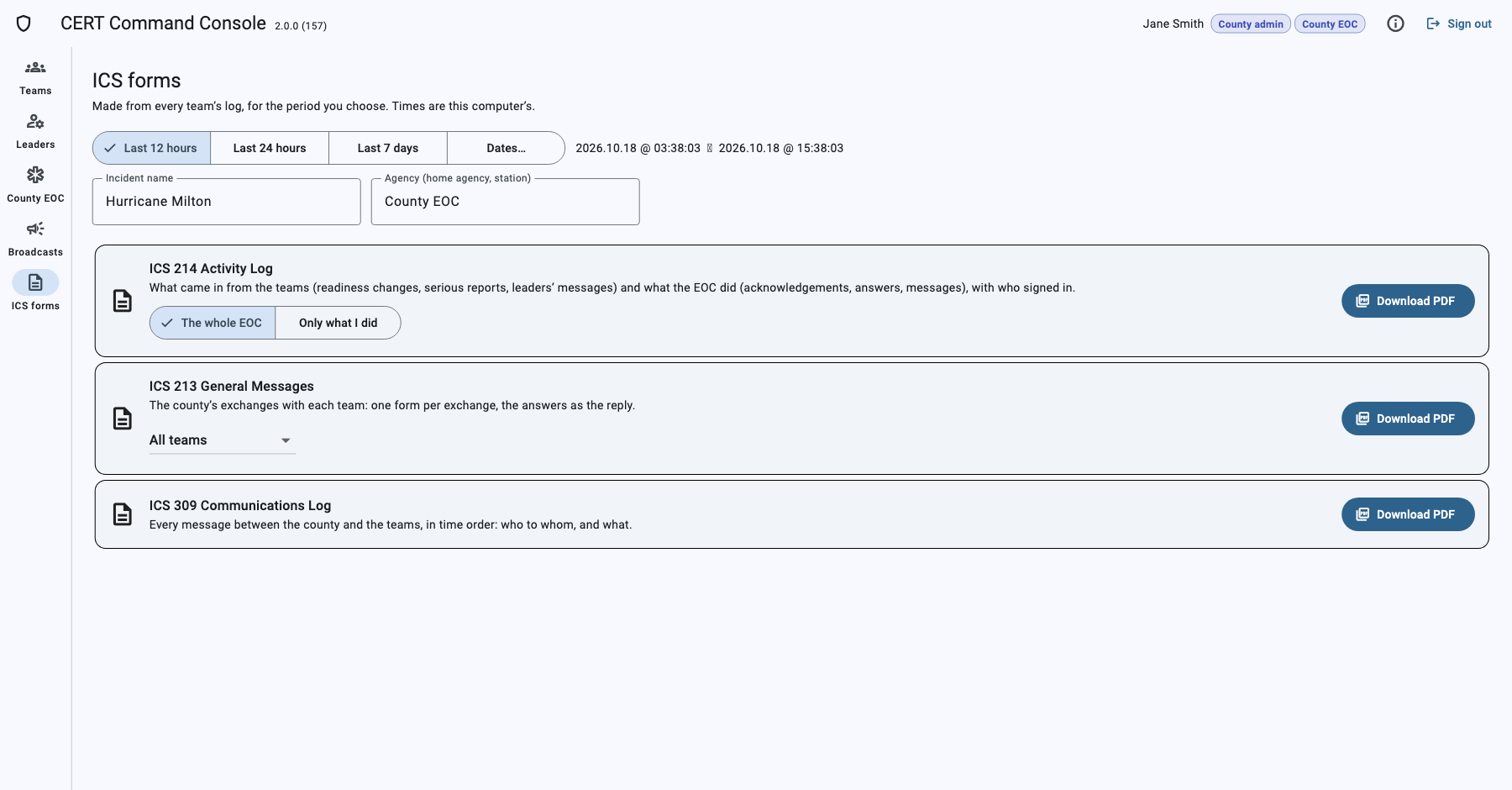
Choose the period (last 12 hours, 24 hours, 7 days, or dates), check the Incident name (filled with the event most activated teams use) and the Agency, then Download PDF:
- ICS 214 Activity Log: what came in from the teams (readiness changes, serious reports, leaders' messages) and what the EOC did, for the whole EOC or only what you did.
- ICS 213 General Messages: one form per exchange with a team, for all teams or one.
- ICS 309 Communications Log: every message between the county and the teams, in time order, including broadcasts.
Times are those of your computer. CERT Command notices are left out of the county's forms.
How reports reach the county
| Report | Goes to the county? |
|---|---|
| Fatality, Life safety, High | Yes, automatically, unless the leader chose Keep local. |
| Medium, Low | Only if the leader chose Send to county. |
| Already acknowledged by the county | The leader can Send to county again (alert the EOC): it pulses again on the EOC page. |
A report waits for the county until the county acknowledges it, answers it, or sends a message about it. The leader then sees County EOC saw it with the name, on the report and in the details.
County admin: teams
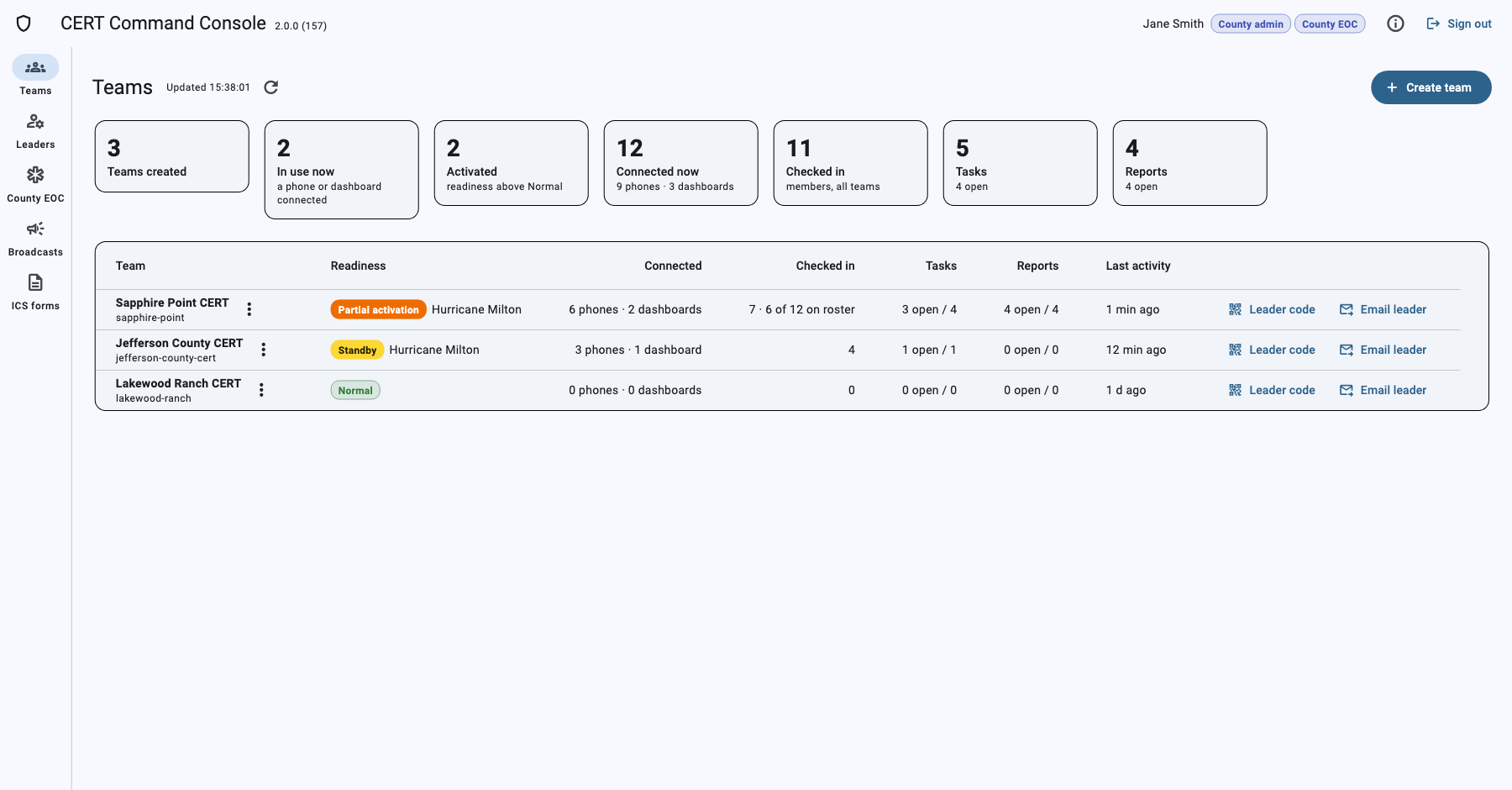
The tiles show teams created, in use now, activated, devices connected, members checked in, tasks and reports. The table lists each team with its readiness, connections, check-ins, tasks, reports and last activity.
Create a team
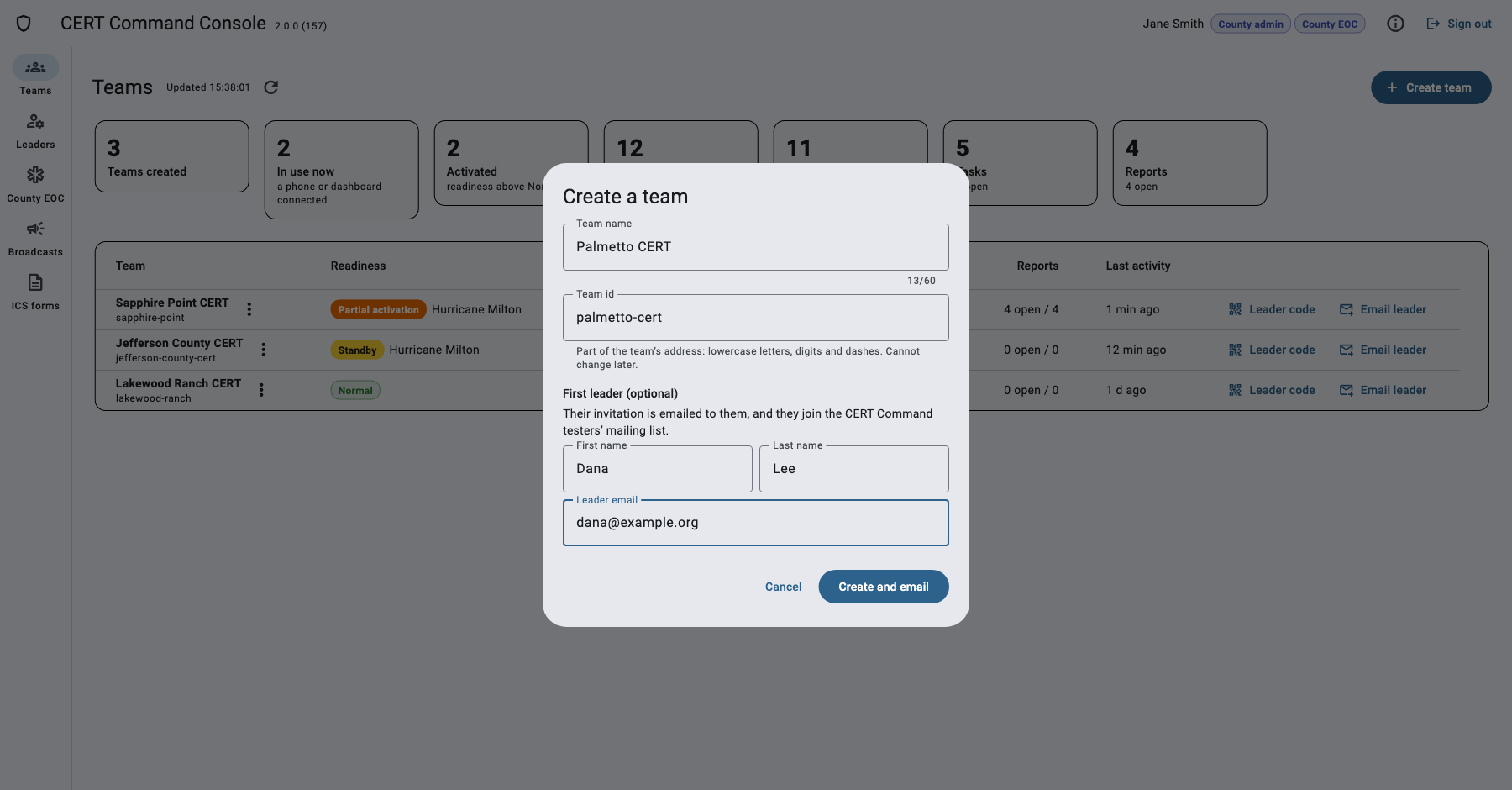
Click Create team. Type the Team name; the Team id follows it (lowercase letters, digits and dashes; it cannot change later). Under First leader (optional), give the leader's first name, last name and email: the button becomes Create and email, and the leader receives the invitation with the code and joins the mailing list.
Leader codes
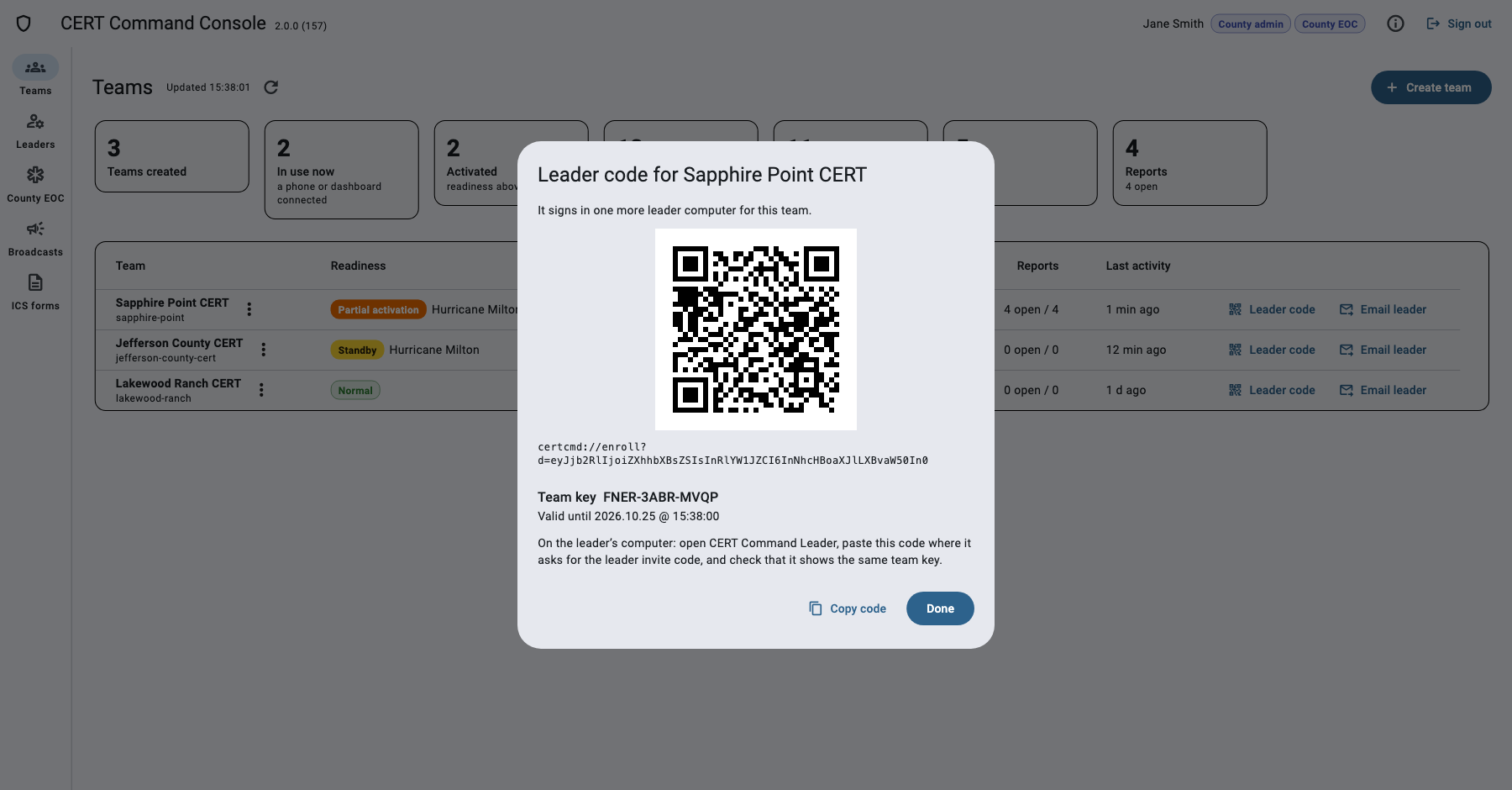
Leader code on a team's row makes a new code for one more leader computer, with the team key and how long it is valid. Copy code to send it. Email leader sends a new code by email instead, to the first name, last name and email you give. The console cannot show codes made earlier: make a new one.
The team menu
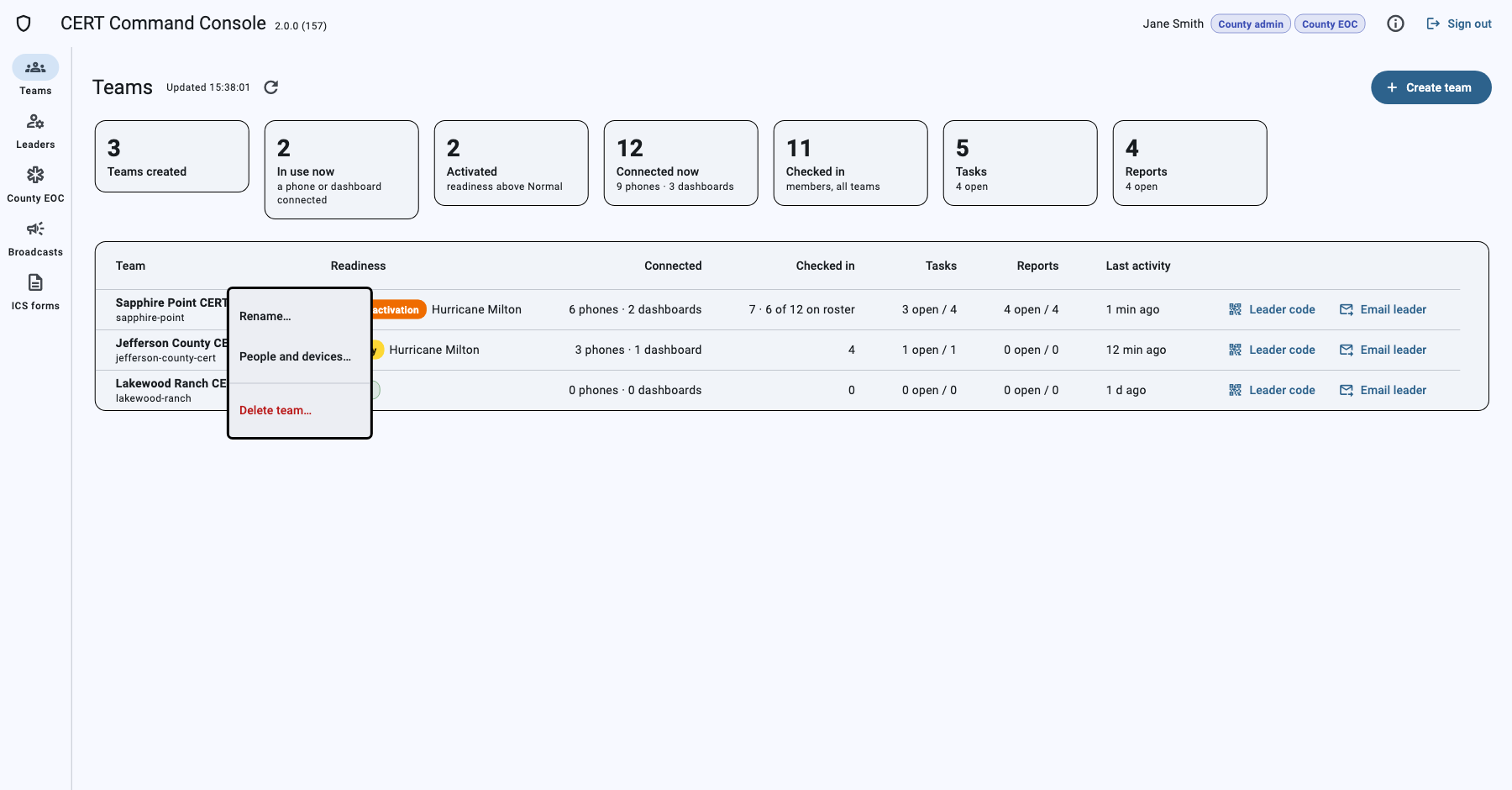
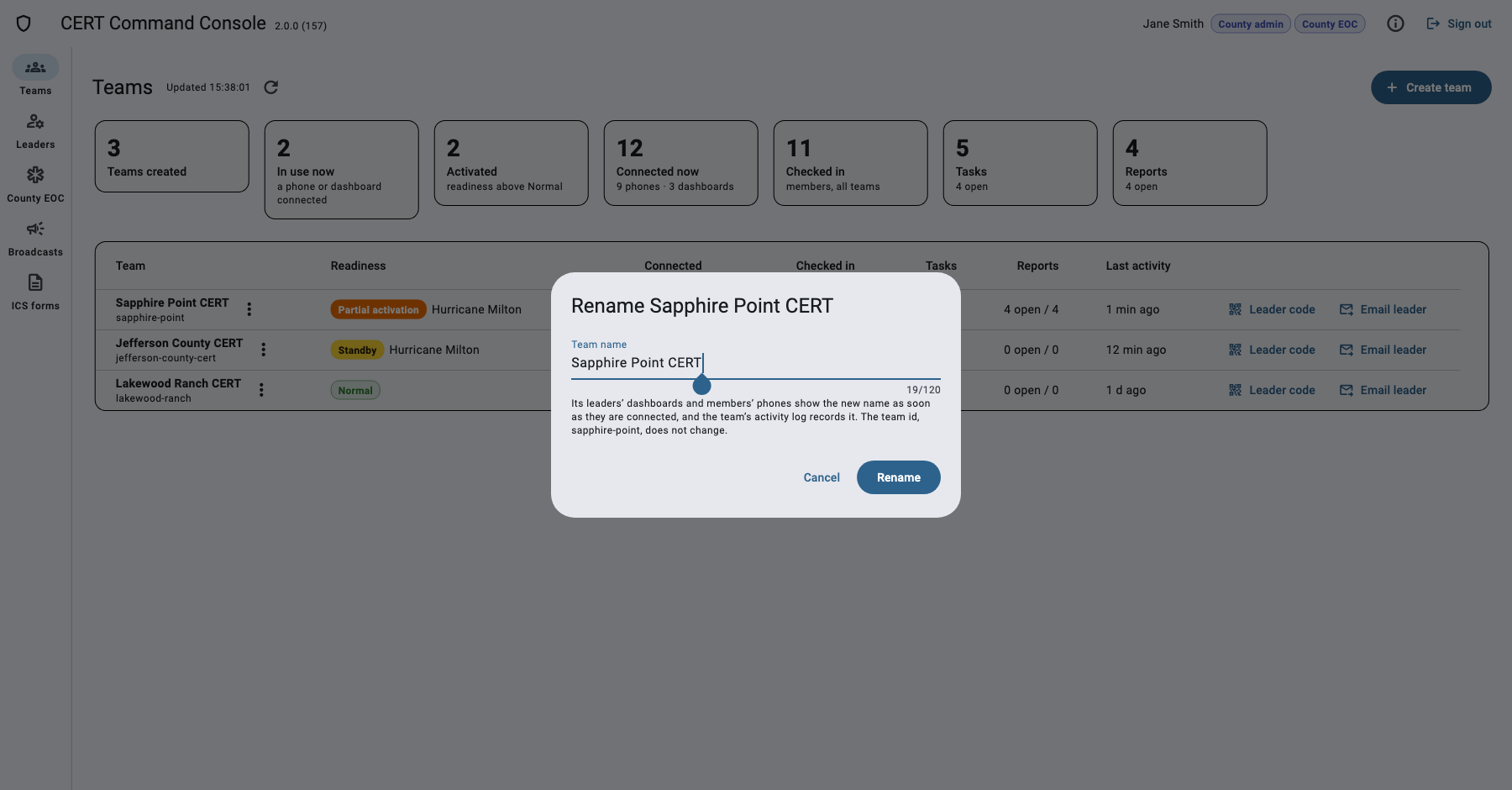
- Rename… changes the team's name; the team id stays. Dashboards and phones show the new name once connected, and the team's activity log records it.
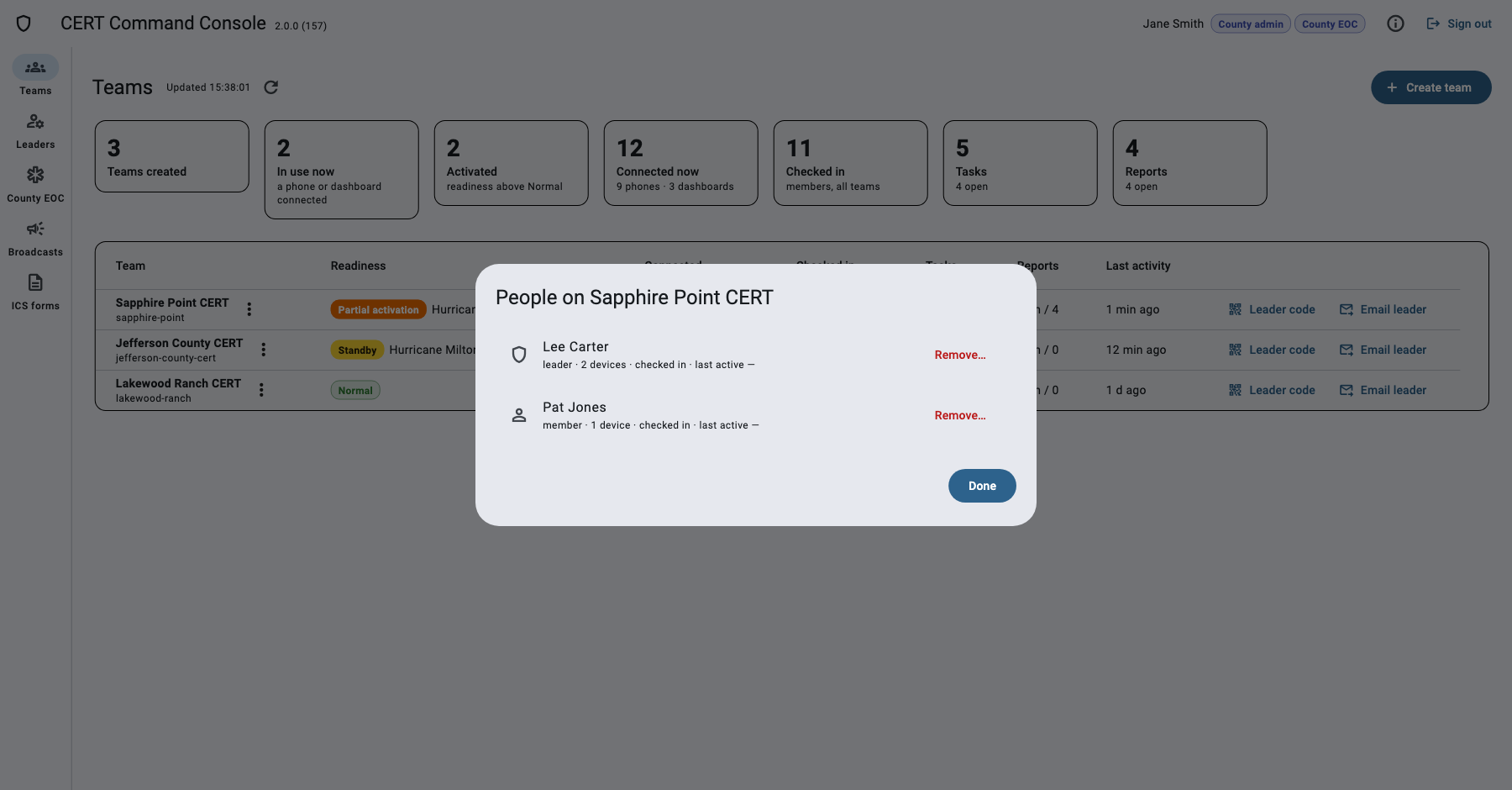
- People and devices… lists who enrolled, with their devices. Remove… un-enrolls a person: every device they have on the team stops at once, a team leader's computers included; what they did stays in the log. (Leaders can un-enroll their members and themselves in the dashboard, but not another leader.)
- Download the team’s log saves every signed event as a JSON file.
- Delete team… deletes the team and everything it holds, for good, after you type its id. Download a copy of the log first. The leaders’ dashboards then say the team was decommissioned, and members’ phones leave it.
County admin: leaders
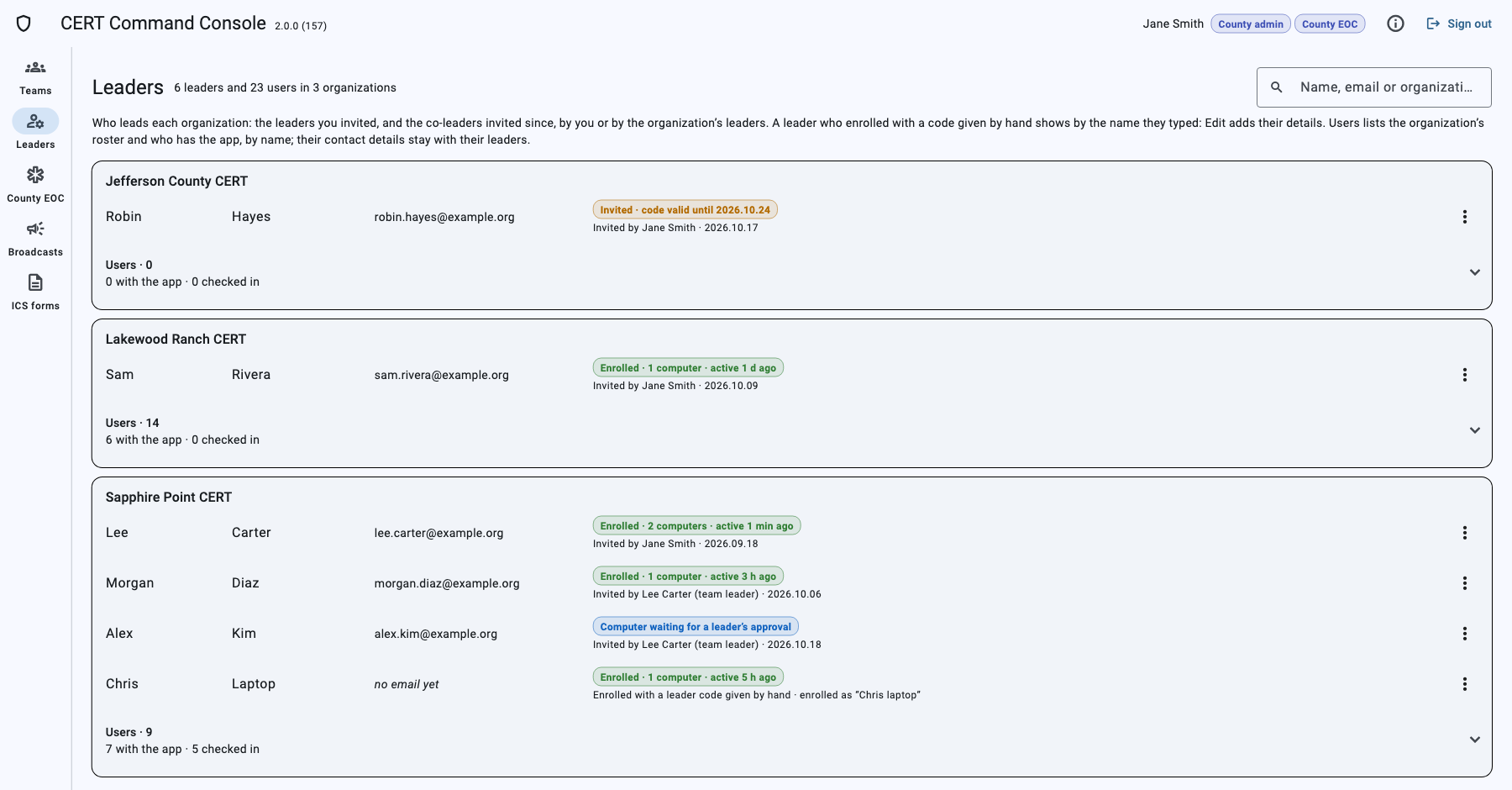
Leaders lists who leads each organization: the leaders you invited, and the co-leaders invited since, by you (Email leader) or by the organization's own leaders (Invite a co-leader in the dashboard). For each: first name, last name, email, who invited them and when, and where they are:
- Enrolled, with how many computers and when last active; Un-enrolled once their computers are removed.
- Computer waiting for a leader's approval: a co-leader's computer the team has not approved yet.
- Invited, with until when the code works, or Invitation expired.
Search by name, email or organization. Download CSV saves the whole list as a spreadsheet. A leader who enrolled with a code given by hand (Leader code) shows by the name they typed, with no email yet: ⋮ › Edit name and email… adds their details, and if they are one of the people invited, pick them so the invitation becomes theirs. Remove from the list… takes off an invitation no one used; it un-enrolls nobody.
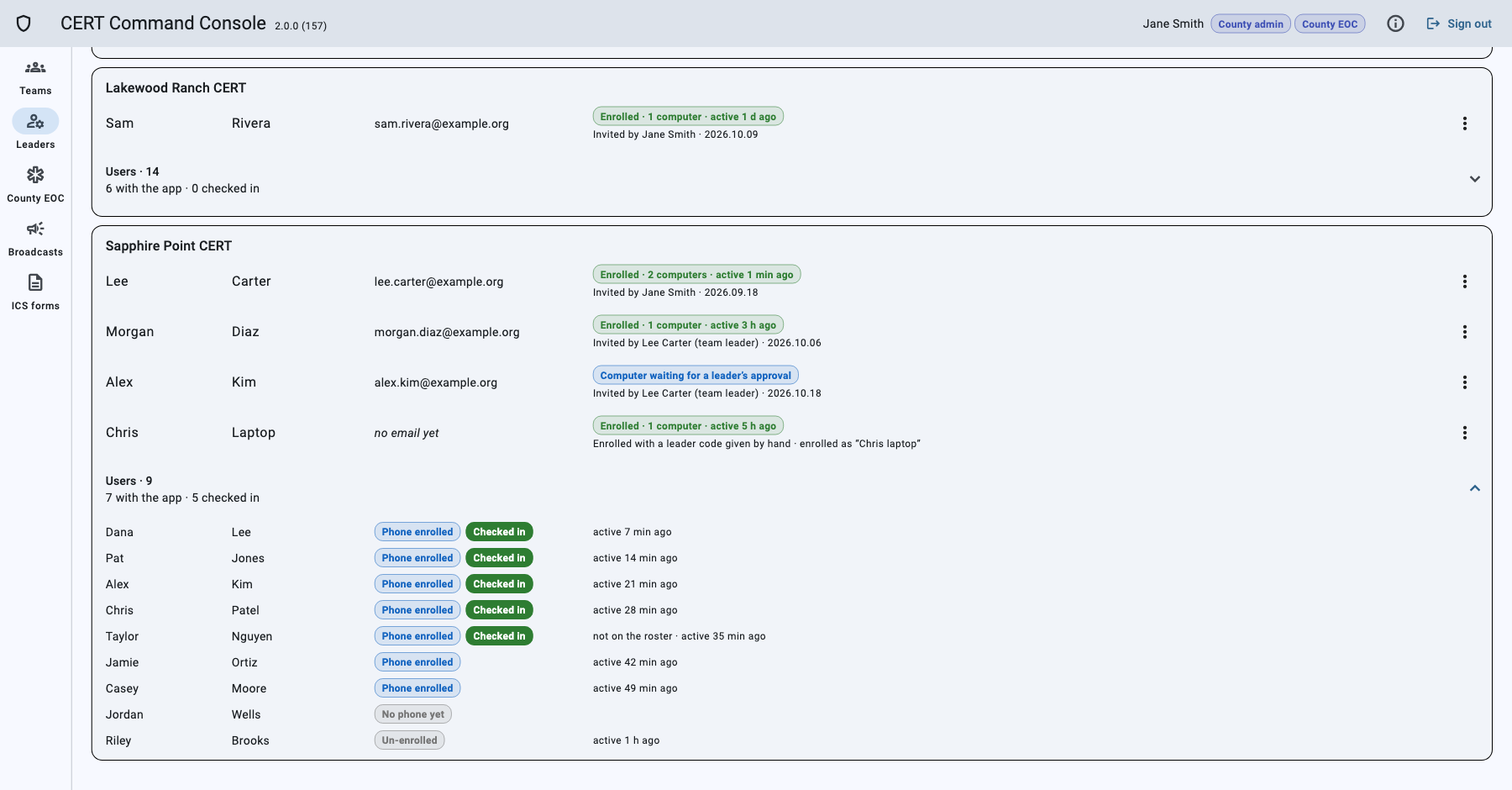
Users, under each organization's leaders, opens its users: everyone on its roster and everyone with the app, by first and last name, with Phone enrolled, No phone yet or Un-enrolled, whether they are checked in, and when they were last active. People with the app who are not on the roster are marked so. Their contact details stay with their team leaders: the console never shows them.
The leaders invited by email before this list existed (October 2026) were added from the console's log.
Reference
Readiness levels
| Level | Meaning |
|---|---|
| Normal | No activation. Normal preparedness activities and training. |
| Monitoring | A potential event is being watched. Verify contact info, monitor conditions. |
| Standby | CERT members notified. Teams should be prepared for possible activation. |
| Partial activation | Selected CERT personnel or teams have been activated. |
| Full activation | Full response organization activated for a significant incident. |
Statuses, reports, priorities
| List | Values |
|---|---|
| Member status | Available, On task, Unavailable, NEEDS HELP, INJURED |
| Report kinds | Blocked road, Fatality, Fire/smoke, Flooding, Gas smell, Medical need, Needs 911, Power line down, Structure damage, Tree down, Welfare check, Other |
| Severity | Low, Medium, High, Life safety, Fatality |
| Task priority | Low, Medium, High, Critical |
| Team roles | Search & Rescue, Communications / Telecom, Medical / Triage, Damage Assessment, Fire Suppression, Logistics / Supplies, Traffic & Crowd Control, Welfare Checks, or your own |
| Equipment | Radio, AED, Generator, Golf cart, SAR gear, First aid kit, Chainsaw, Vehicle, Fire extinguisher, and anything typed |
| Position interval | 30 s, 1, 2, 5 (default), 10, 15, 30 min, 1 h |
Glossary
- Team
- A CERT organization on the county server (for example Sapphire Point CERT), with its leaders and members.
- Team (sub-team)
- A group of members the leader forms during an activation, with a role and its own radio channel.
- Team key
- Twelve characters like 89W4-CA73-MMG5 that identify a team. Check it matches when joining.
- Leader code
- A code that enrolls one leader computer, valid 7 days.
- Co-leader invitation
- A leader code made by a leader of the team (Enrolled › Invite a co-leader…). For one computer, once, for 7 days; a leader approves the computer before it joins.
- Enrollment code
- The QR code members scan to join, valid 10 minutes (or 1 hour for a briefing).
- Remote invitation
- A personal link and code a leader sends by text or email so a member can join from where they are. For one person, once, for 24 hours, always approved by a leader.
- Check-in code
- The QR code on a leader's Check-in page that members scan to check in in person. It changes every 30 seconds and works without internet.
- Check in from the field
- A member's request to check in where they are, with their position; a leader approves or denies it.
- Received after close
- Made during the incident, but reached the server after the leader closed it (the phone had no signal).
- Readiness
- How activated the team is, from Normal to Full activation. Every phone shows it.
- Acknowledge
- Saying you saw an alarm or a report. It is logged and the other side is told.
- Escalated
- A report that goes to the county EOC.
- Broadcast
- A county message across the top of every leader dashboard.
- Notice
- A message from CERT Command itself across the top of every leader dashboard.
- ICS 213, 214, 309
- The incident command system forms for general messages, activity logs and communications logs.
- Passkey
- How console staff sign in: Touch ID, Face ID, Windows Hello, a phone or a security key, with no password.
Questions and fixes
A second phone says the code is no longer valid.
One-phone codes work once. The leader's Enroll screen shows a new code by itself after each phone joins; scan the new one. For a meeting, use Briefing: 25 phones (1 h).
My leader does not see my position.
Check you are checked in, an incident is open (with none, positions are not shared), location is allowed (iPhone: Settings › CERT Command › Location › Always; Android: While using the app) and the phone has signal. Positions waiting for signal go out by themselves, with their time.
I do not get notifications.
Allow notifications for CERT Command in Settings. The home screen shows a notice when they are off.
The dashboard says Offline.
Keep working: everything is saved and sent when the connection returns. The connection chip shows how many actions are waiting.
Windows says Windows protected your PC.
That is the direct download, which is not signed. Click More info, then Run anyway, or install the Microsoft Store version instead: it does not ask.
I need help with CERT Command.
Questions about privacy or deleting your information: privacy@certcommand.org. News and new versions: certcommand.org/news. Tips, questions and talking with other CERT members and leaders: the CERT Command Facebook group on Facebook.
CERT Command is an independent tool for CERT volunteers. It is not affiliated with or endorsed by FEMA.